> ## Documentation Index
> Fetch the complete documentation index at: https://docs.flowx.ai/llms.txt
> Use this file to discover all available pages before exploring further.
# Token
> Token represents the current position in the process flow. When you start a process, you have a graph of nodes that connect based on the defined sequence and configuration.
The token is a [BPMN](../platform-overview/frameworks-and-standards/business-process-industry-standards/intro-to-bpmn) concept that represents a state within a process instance. It keeps track of the current position in the process flow and is used to store data related to the current process instance state.
A token is created each time a new process instance starts. As actions on the process instance execute, the token advances from one node to the next. Because a node can have several [actions](./actions/actions) that need execution, the token also tracks the actions executed in each node.
For [parallel gateways](./node/parallel-gateway), child tokens are created for each flow branch. The parent token moves to the gateway sync node and advances only after all child tokens reach that node.
The following diagram shows how a token advances through a process flow:
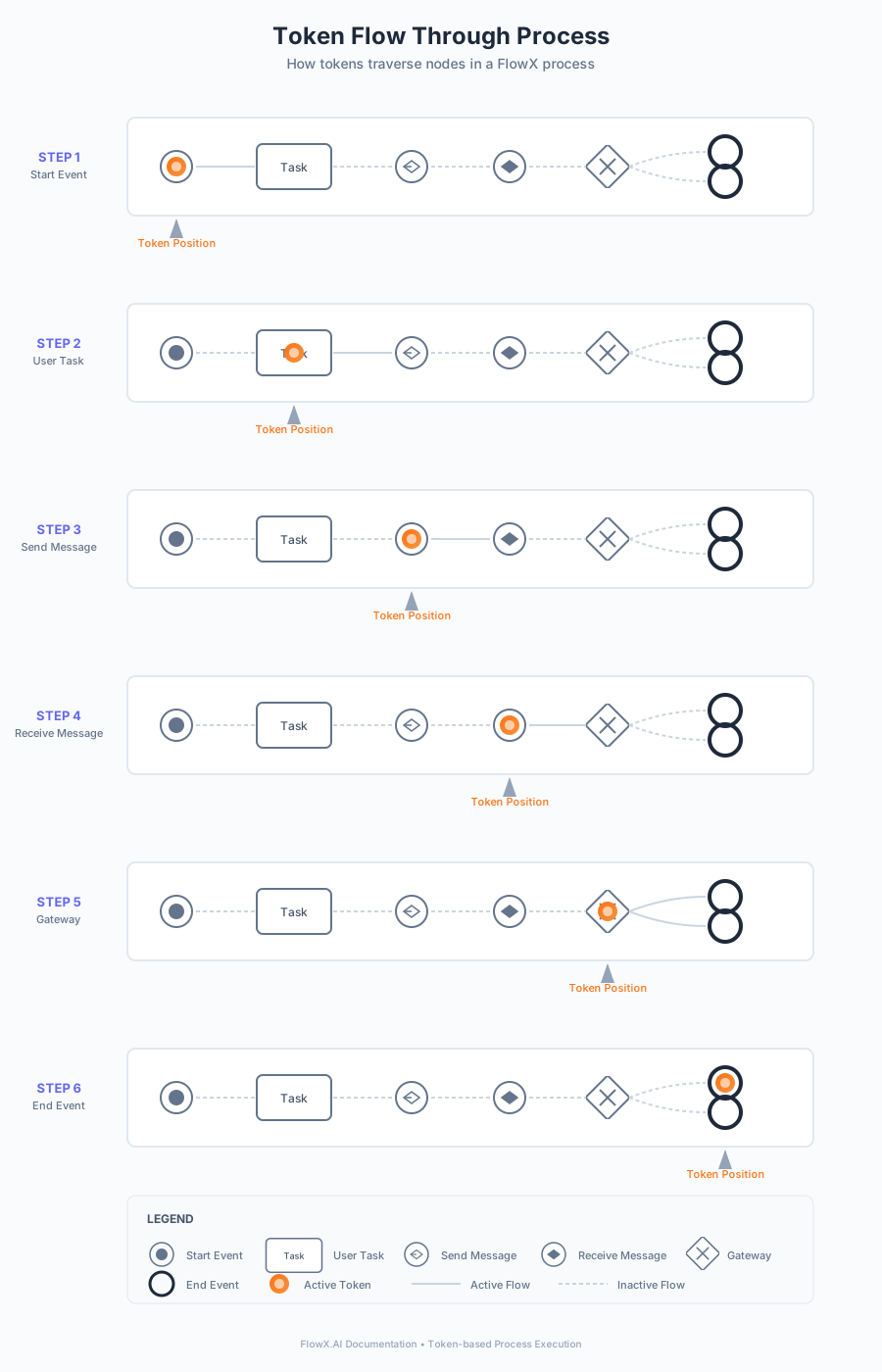
The token moves to the next node only after all mandatory actions from the current node are executed. The token also waits on a node if the node is configured to receive an event from an external system through Kafka.
Sometimes the token stops at a node until user input is received. If user input is required to advance the process, the token advances only after all data is received. Use a mandatory manual action linked to the user action to ensure the process flow advances only after the user input is received.
## Viewing tokens
Retrieve the current process instance status using the FlowX Designer. The Designer displays information about tokens related to that process instance and the current nodes they are in.
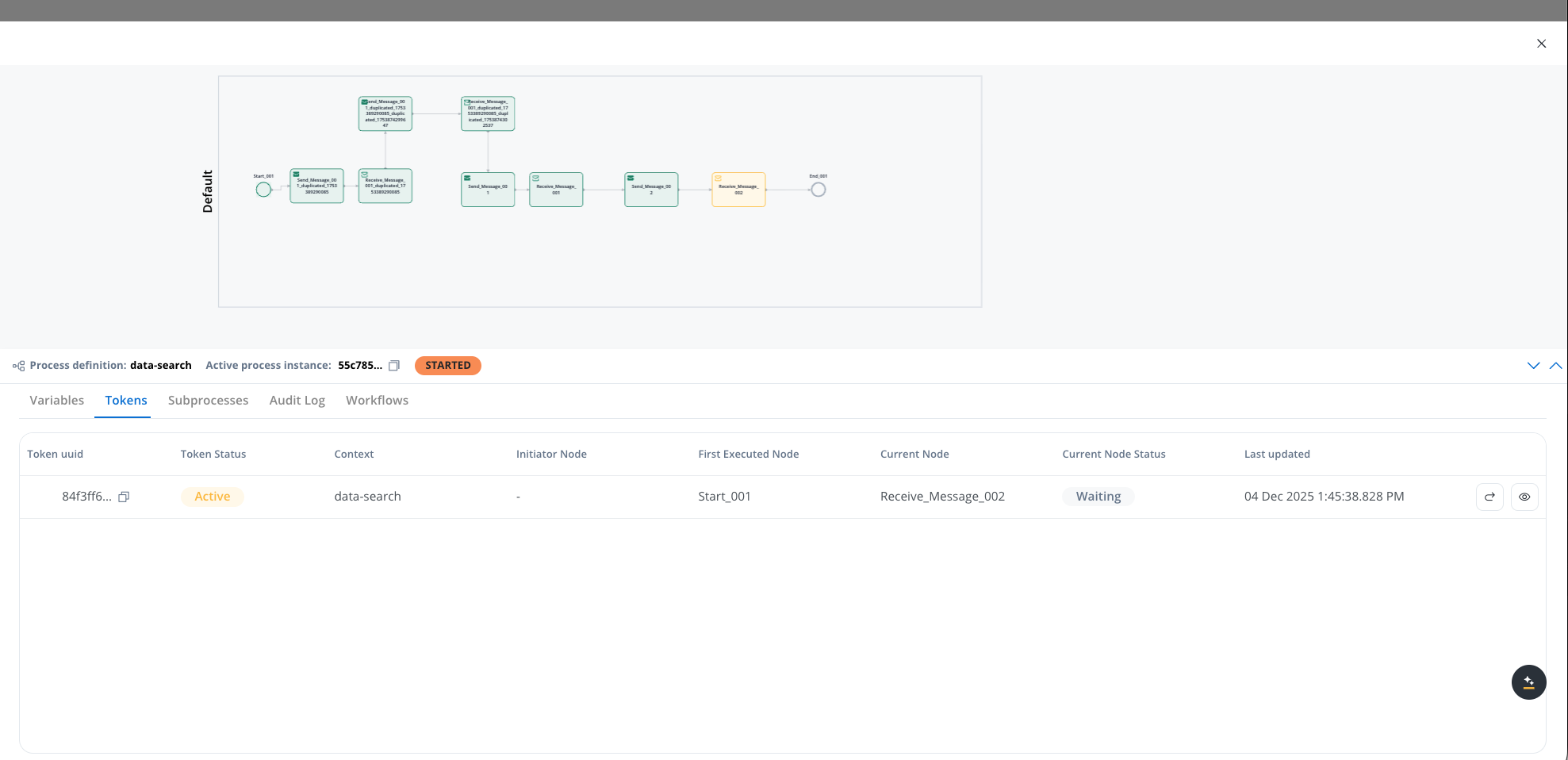
### Token view table
The token view lists all tokens of the process instance in a table. Parent and child tokens appear as separate rows; the relationship between them is visible through the `parentTokenId` field in the token details view.
If parallel gateways are configured in a process, multiple tokens are created, one for each parallel path.
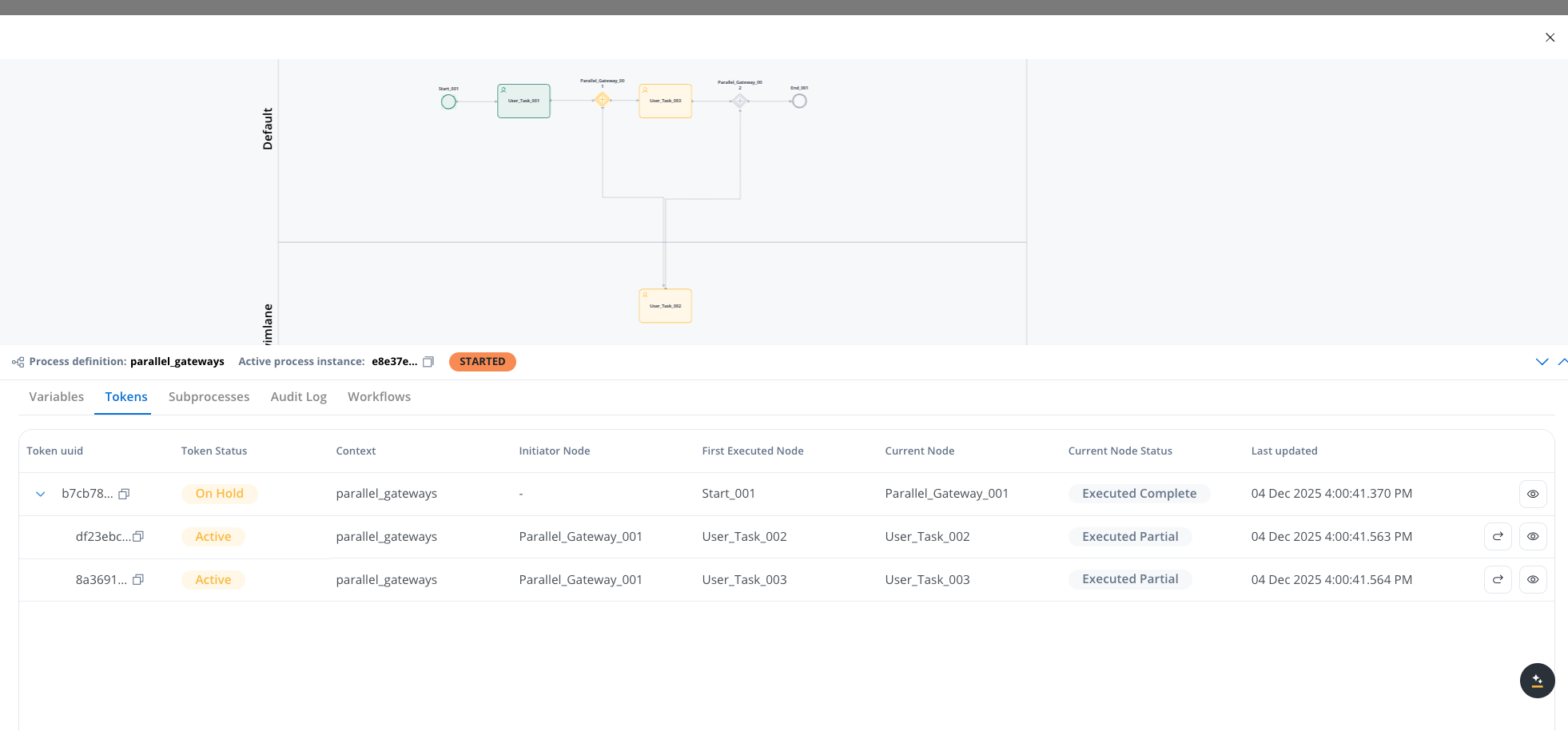
The token view table includes the following columns:
| Column | Description |
| ----------------------- | ------------------------------------------------------------------------------------------------------------------------------------------------- |
| **Token uuid** | Unique identifier for the token |
| **Token Status** | Current state of the token in the process (ACTIVE, INACTIVE, ABORTED, ON\_HOLD, DISMISSED, EXPIRED, or TERMINATED). Displayed as color-coded tags |
| **Status Current Node** | The token's status within the current node (see [Current node status values](#current-node-status-values)) |
| **Date updated** | The date and time when the token was last updated |
| **Actions** | Retry (only visible for ACTIVE tokens, requires the process instances edit permission) and View details (eye icon) |

## Understanding token status
### Token status values
The token status indicates the lifecycle state of a token in the process:
Token state is active when tokens are created. A parent token reactivates when all child tokens reach the parallel gateway closing node.
Child tokens become inactive when they arrive at a parallel gateway closing node. The current token becomes inactive when it reaches a final node.
The current token becomes aborted when it moves backward to redo a series of previous actions in the process. The token resets, and a new token activates.
When a parallel split gateway node is reached, the parent token is set to On hold until all child tokens reach the parallel gateway closing node. The parent token does not have a "Retry" action icon until all child tokens finish.
The process or subprocess reaches a certain node and is canceled or exited.
A defined "expiryTime" in the process definition passes, and the token changes to this status.
The process is terminated by a termination request.
### Current node status values
The current node status indicates the execution status of the token within its current node:
The token reaches a new node
The token execution starts
Node actions execute, and all mandatory actions from the node complete
Node actions execute, but mandatory uncompleted actions remain
The token reaches an intermediate message catch event node
The token reaches an intermediate timer event node
The token waits for a message from another system
The message is received
The message is not received within the set timeframe
An error message is received in response to the sent message
### Viewing token details
To view more details about a token:
Click the **Process status** view button in the FlowX Designer.
Select a token from the token list.
Click the **view button** (eye icon) to open the detailed token status view.
Access the detailed token status view by navigating to Process instance → Tokens → View (eye icon). The detailed token status modal displays comprehensive information about the token's current state, execution history, and configuration in a structured key-value format.
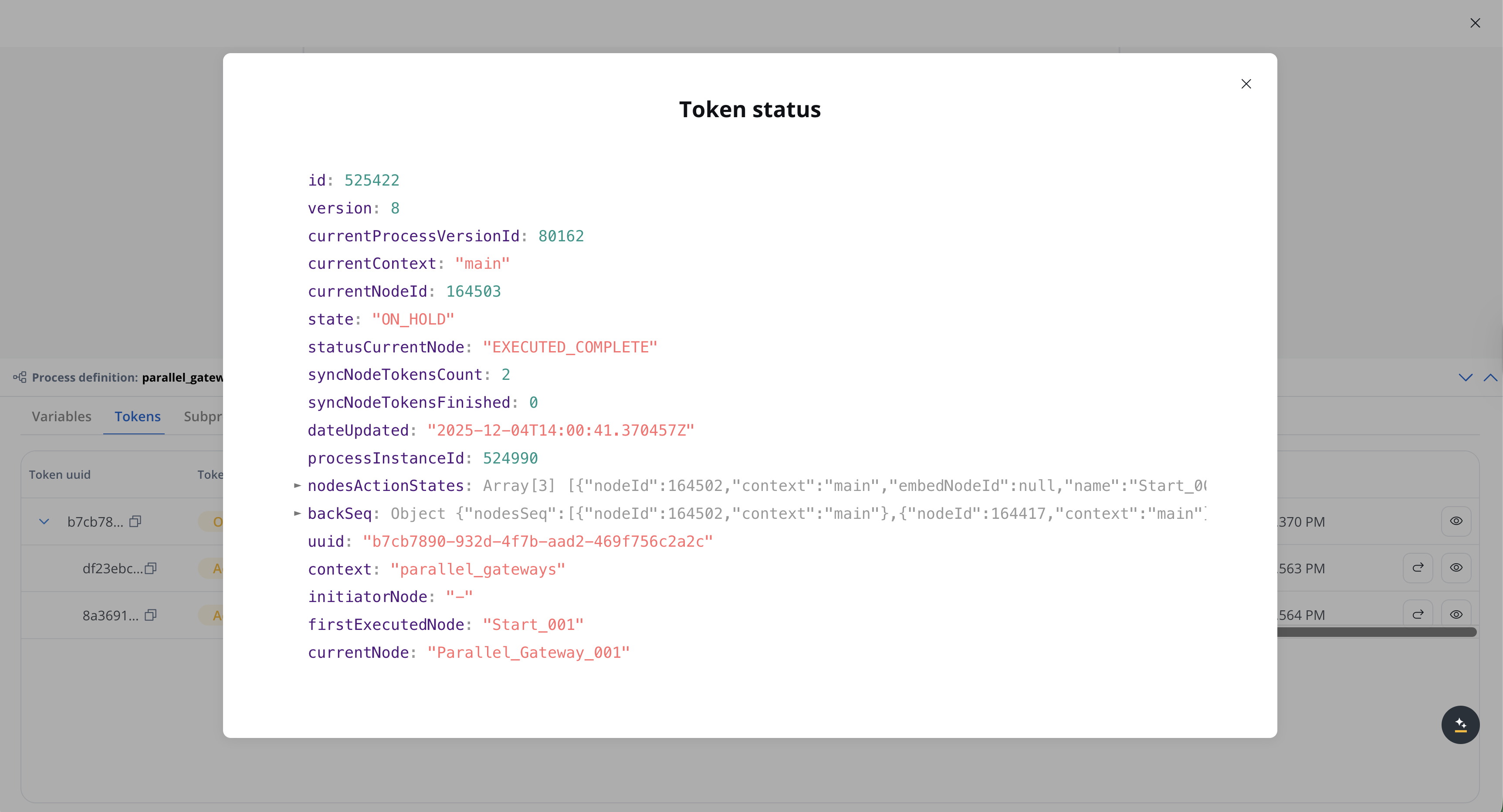
The detailed token status view presents token information in an expandable JSON-like structure. Key identifiers and status values are highlighted for quick identification. The modal includes the following fields organized by category:
* **id**: The unique identifier of the token
* **version**: The version number of the token schema
* **parentTokenId**: The identifier of the parent token (present for child tokens created by parallel gateways or subprocesses)
* **processInstanceId**: The identifier of the process instance this token belongs to
* **state**: The current lifecycle state of the token (see [Token status values](#token-status-values) for details)
* **statusCurrentNode**: The execution status of the token within its current node (see [Current node status values](#current-node-status-values) for details)
* **dateUpdated**: The ISO 8601 timestamp indicating when the token was last updated
* **startNodeId**: The identifier of the node where the token execution began
* **currentNodeId**: The identifier of the node where the token is currently positioned
* **currentNodeName**: The human-readable name of the current node
* **currentNode**: Detailed information about the current node object
* **embedNodeId**: The identifier of the embedded node, if the token is executing within an embedded subprocess
* **mainSwimlaneId**: The identifier of the main swimlane associated with the token
* **currentProcessVersionId**: The identifier of the process version currently being executed
* **currentContext**: The current execution context (typically "main" for the main process, or the subprocess name for embedded subprocesses)
* **initiatorType**: The type of initiator that created this token. Set to `BOUNDARY_EVENT` for tokens started by a boundary event; `null` otherwise.
* **initiatorId**: The identifier of the initiator node or event
* **syncNodeTokensCount**: The total number of synchronized node tokens (used for parallel gateway synchronization)
* **syncNodeTokensFinished**: The count of synchronized node tokens that have finished execution
* **nodesActionStates**: An expandable array containing detailed information about the action states for each node the token has visited. Each entry includes:
* **nodeId**: The identifier of the node
* **context**: The execution context (main or subprocess name)
* **embedNodeId**: The embedded node identifier, if applicable
* **name**: The name of the node
* **backSeq**: An expandable object containing backward sequence information for tokens that have moved backward in the process flow:
* **nodes**: An array of the node identifiers involved in the backward sequence
* **nodesSeq**: An array of node sequence entries, each carrying the **nodeId** and the **context** where it was executed
* **paramValues**: Parameter values and process variables associated with the token
The **nodesActionStates** and **backSeq** sections are expandable in the detailed token status view. Expand these sections to view comprehensive information about node execution history and backward sequence tracking.
## Related topics
- [Moving a token backwards in a process](/5.1/docs/flowx-designer/managing-a-project-flow/moving-a-token-backwards-in-a-process.md)
- [FlowX.AI 5.3.0 Release Notes](/release-notes/v5.x/v5.3.0-december-2025/v5.3.0-december-2025.md)
- [Finding identifiers and parameters](/5.1/docs/platform-deep-dive/integrations/finding-identifiers-and-parameters.md)
- [Adding parallel flow branches](/5.1/docs/flowx-designer/managing-a-project-flow/adding-more-flow-branches.md)
- [Configuring an IAM solution (EntraID)](/5.1/setup-guides/access-management/configuring-an-iam-solution-entra.md)