> ## Documentation Index
> Fetch the complete documentation index at: https://docs.flowx.ai/llms.txt
> Use this file to discover all available pages before exploring further.
# Resources
> Overview of Global and project resources, including their usage, dependencies, promotion, and configuration within the platform.
## Overview
Resources are categorized into **Global Resources** and **Project Resources**. Each type has unique characteristics that define its usage, dependencies, and promotion between environments. Understanding these distinctions ensures efficient project development, management, and deployment.
***
## Global resources
Global Resources are designed for **reuse across multiple projects** or business contexts.
These resources are often organized within **libraries**, enabling consistency and efficiency by providing a central repository of shared components.
### Key characteristics
* **Reusable**: Common design elements, themes, fonts, and other assets can be used in multiple projects.
* **Independent**: Global Resources exist outside individual projects, making them adaptable across different business cases.
* **No Dependencies**: These resources are not project-specific, making them versatile for broad use cases. Projects can reference libraries without requiring modifications to the core resources.
### Examples
#### Design assets
* **Themes**: Standardized themes for consistent styling.
* **Global Media Library**: Shared images, icons, and other assets.
* **Fonts**: Reusable font families to maintain branding.
#### Plugins
* **Languages**: Language packs or configurations that support multilingual capabilities across projects.
* **Templates**: Notification and document templates managed at a global level.
* **Out-of-Office Settings**: Platform-wide absence management settings.
#### General settings
* **Users**: User accounts and profiles that can be accessed across multiple projects.
* **Roles**: Defined roles that determine user permissions and access levels.
* **Groups**: User groupings that facilitate collective management and permissions.
* **Audit Log**: Logs that track changes and activities within the platform for security and compliance purposes.
#### Libraries
Organized resource containers including **enumerations**, **substitution tags**, and **CMS components** for multi-project use.
### Promotion workflow
* **Library Promotion**: Global Resources within libraries are promoted separately from projects. They are typically **imported into the Designer UI** in target environments as part of their own libraries.
* **Configuration Management**: When libraries are promoted, existing configurations, such as **generic parameters**, are replaced by project-level configurations in the target environment.
***
## Project resources
Project Resources are specific to a **business use case**. Unlike Global Resources, they belong to a single project, allowing for custom configurations and dependencies on libraries.
### Key characteristics
* **Project-Specific**: Tailored to a single project’s needs.
* **Library Dependencies**: Can reference and extend Global Resources.
* **Configurable**: Parameters can be updated in upper environments through environment variables or overrides.
### Examples
1. **Processes**: BPMN workflows customized for the project’s business logic.
2. **CMS Components**: Project-specific enumerations, substitution tags, and media items.
3. **Task Management**:
* **Views**: Configurable interfaces to display task-related data based on process definitions.
* **Stages**: Stages that allow task progression through different statuses.
* **Allocation rules**: Define how tasks are assigned to users or teams.
4. **Integration Designer**:
* **Systems**: A system is a collection of resources—endpoints, authentication, and variables—used to define and run integration workflows.
* **Workflows**: A workflow defines a series of tasks and processes to automate system integrations. Within the Integration Designer, workflows can be configured using different components to ensure efficient data exchange and process orchestration.
5. **Configuration Parameters**: Project-specific rendering settings like `applicationUuid`, `locale`, `language`, and `process parameters`.
6. **Project Builds**: Builds represent finalized versions of the project, including all associated metadata and linked library versions.
7. **Project Settings**: Configure various aspects of a project like platform type, default theme, formatting, etc.
### Promotion workflow
* **Build-Based Promotion**: Only **builds** (not commits) are promoted.
* **Design Asset Handling**: Referenced assets are created if missing but are not updated during import.
* **Configuration Parameters Overrides**: Environment variables replace default values in upper environments.
***
## Resources usage tracking
Track where resources are used to prevent unintended changes and ensure stability.
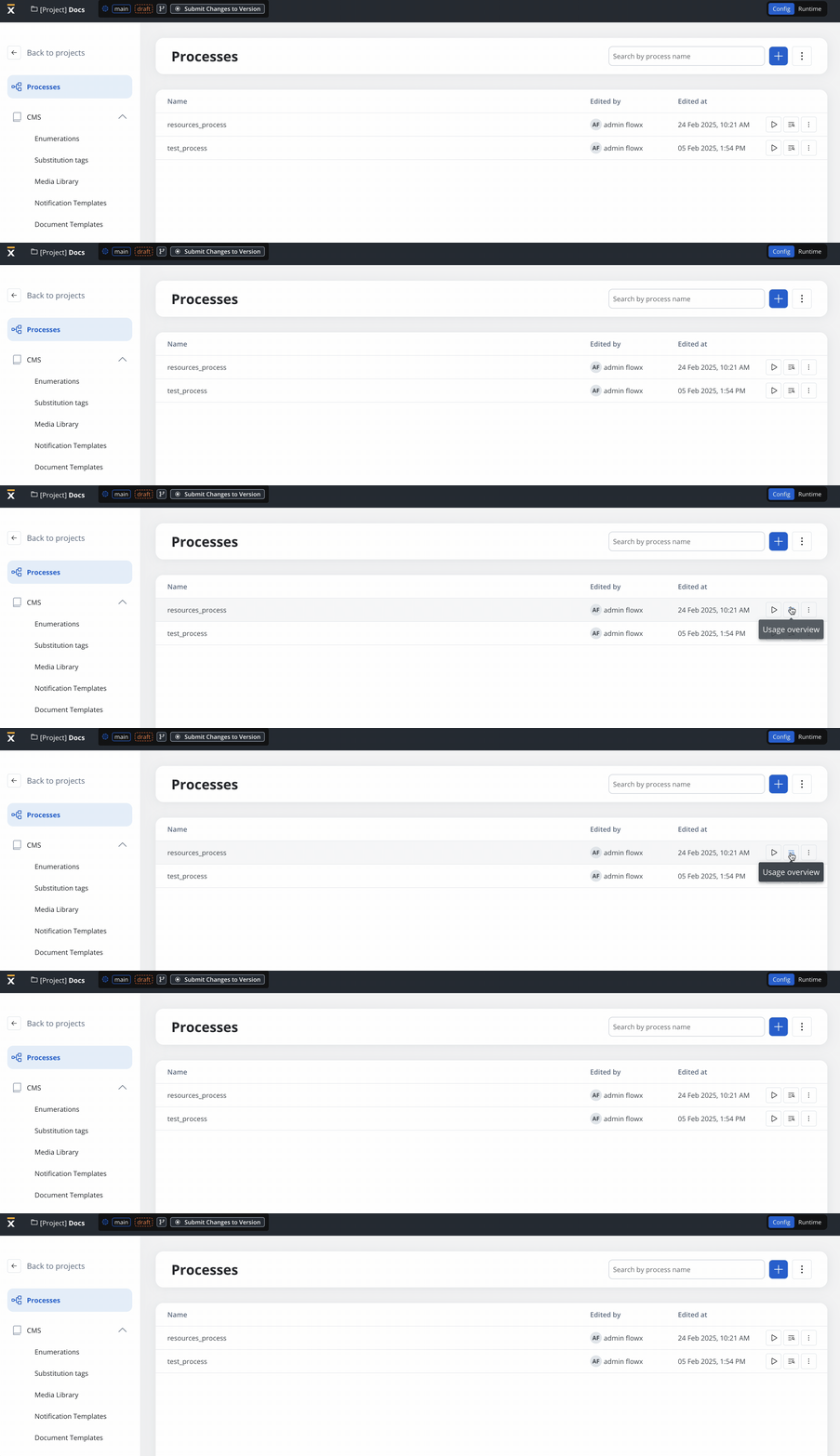
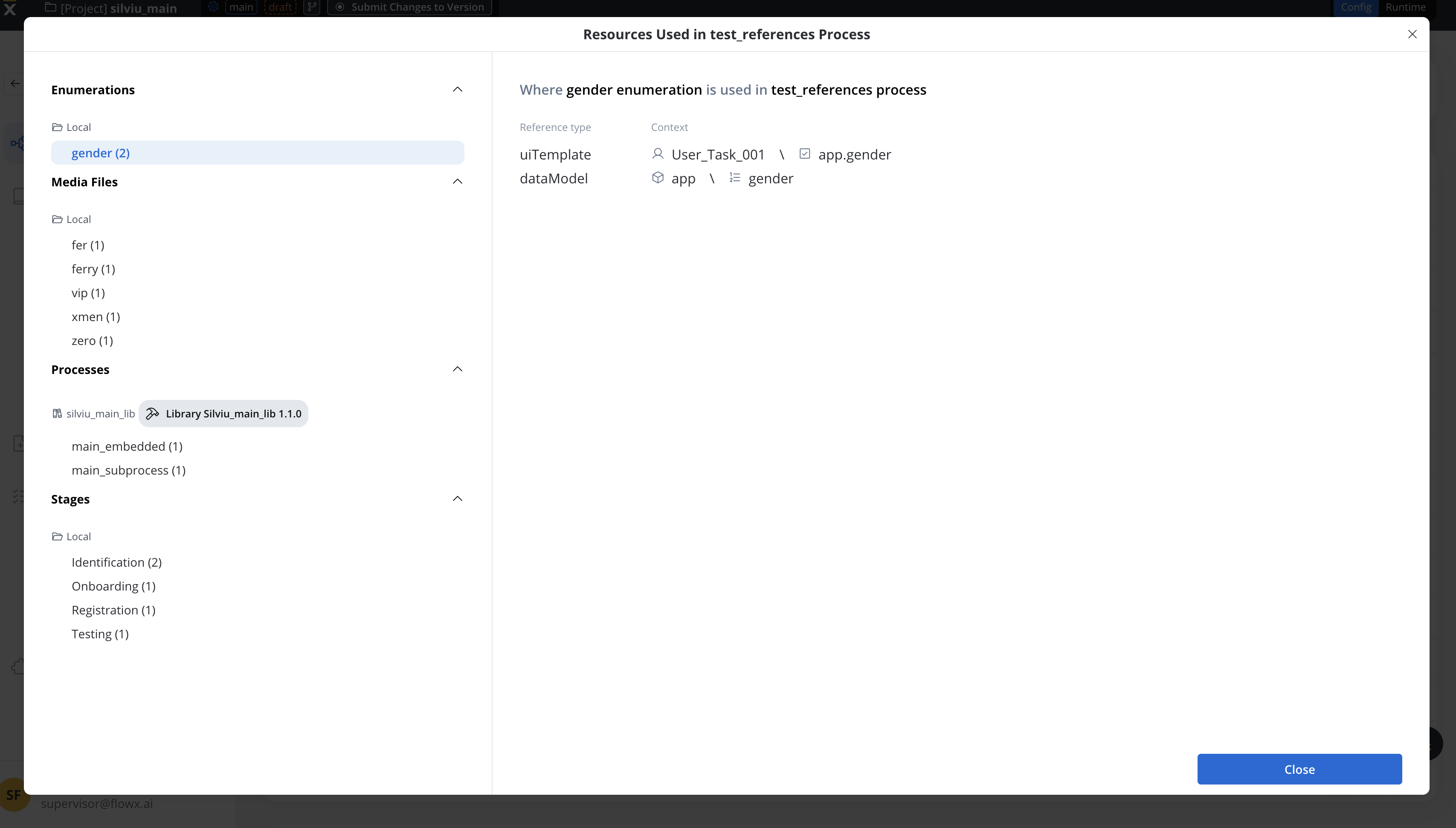
The **Resource Usage Tracking** feature provides real-time visibility into where and how resources are being used, preventing unintended changes and ensuring system stability.
**Key features**
* **View Dependencies** before making updates or deletions.
* **Understand Resource Interactions** across projects.
* **Prevent Issues** when modifying critical elements.
Each resource type includes a **Usage Overview modal**, which updates dynamically as references change.
### Process usage
1. **Access Usage Overview**
* Click the **Usage Overview icon** in the **Process List**.
2. **Usage Modal Details**
* Displays references by resource type (e.g., Process, UI Template, Workflow).
* Provides detailed context, including node configurations.
#### Deleting a process with references
* A **confirmation modal** warns users before deletion.
* The modal lists all affected references.
### Enumeration usage
1. **Access Usage Overview**
* Click the **Usage Overview icon** in the **Enumeration List**.
2. **Usage Modal Details**
* Shows where the enumeration is referenced (e.g., UI Designer, Data Model, Workflow)
### Media library usage
1. **Access Usage Overview**
* Click the **Usage Overview icon** in the **Media Library List**.
2. **Usage Modal Details**
* Displays where media files are used (e.g., UI Template, Process).
***
### Managing dependencies & tracking changes
* **Dynamic Updates**: Reference lists update automatically as resources change.
* **Dependency Checks**: Users see affected resources before deletion.
* **Bidirectional Tracking**: The **Usage Overview modal** also shows resources referenced **inside** a process.
## Copying resources
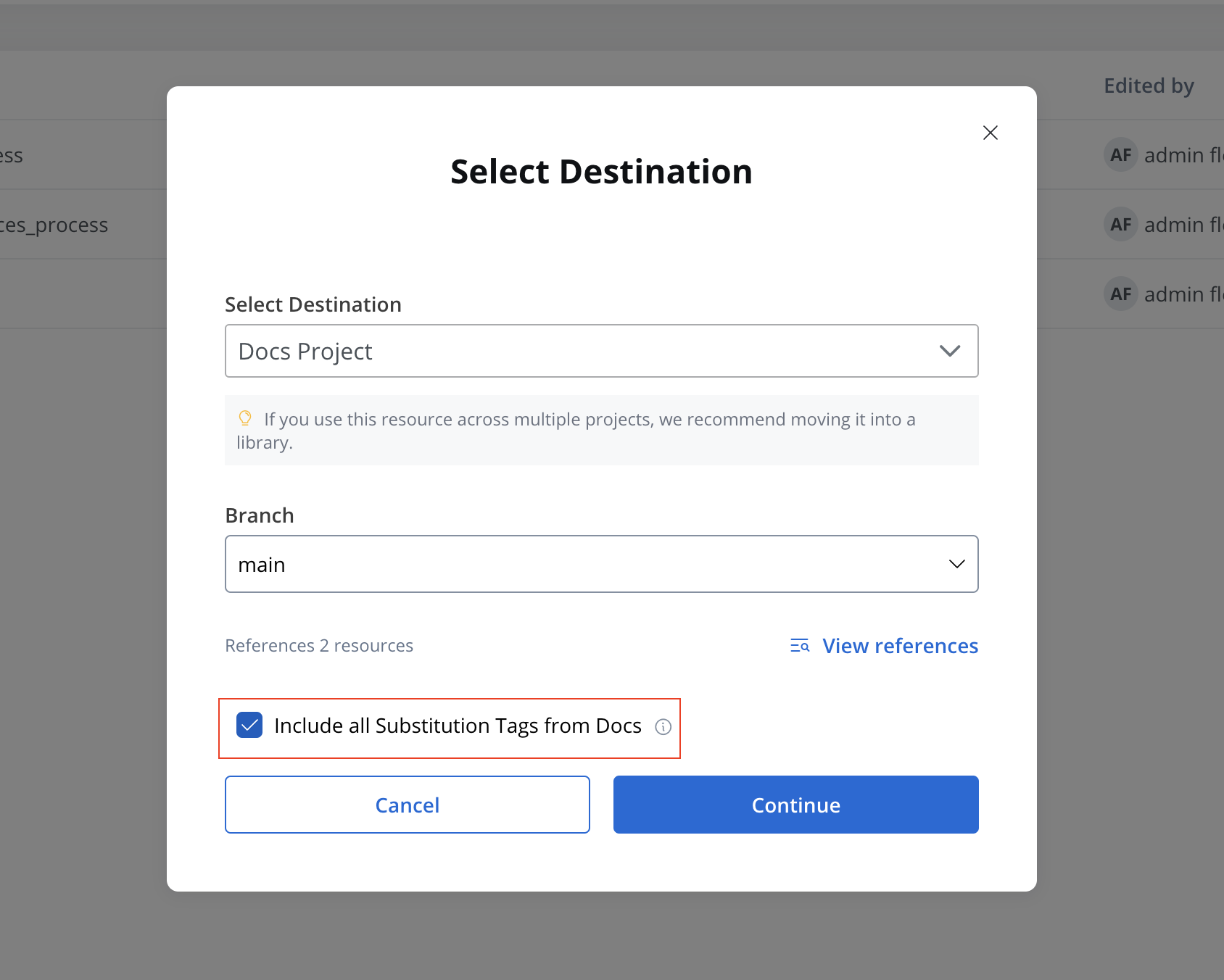
Use the **Copy to Another Project** feature to transfer resources while maintaining dependencies.
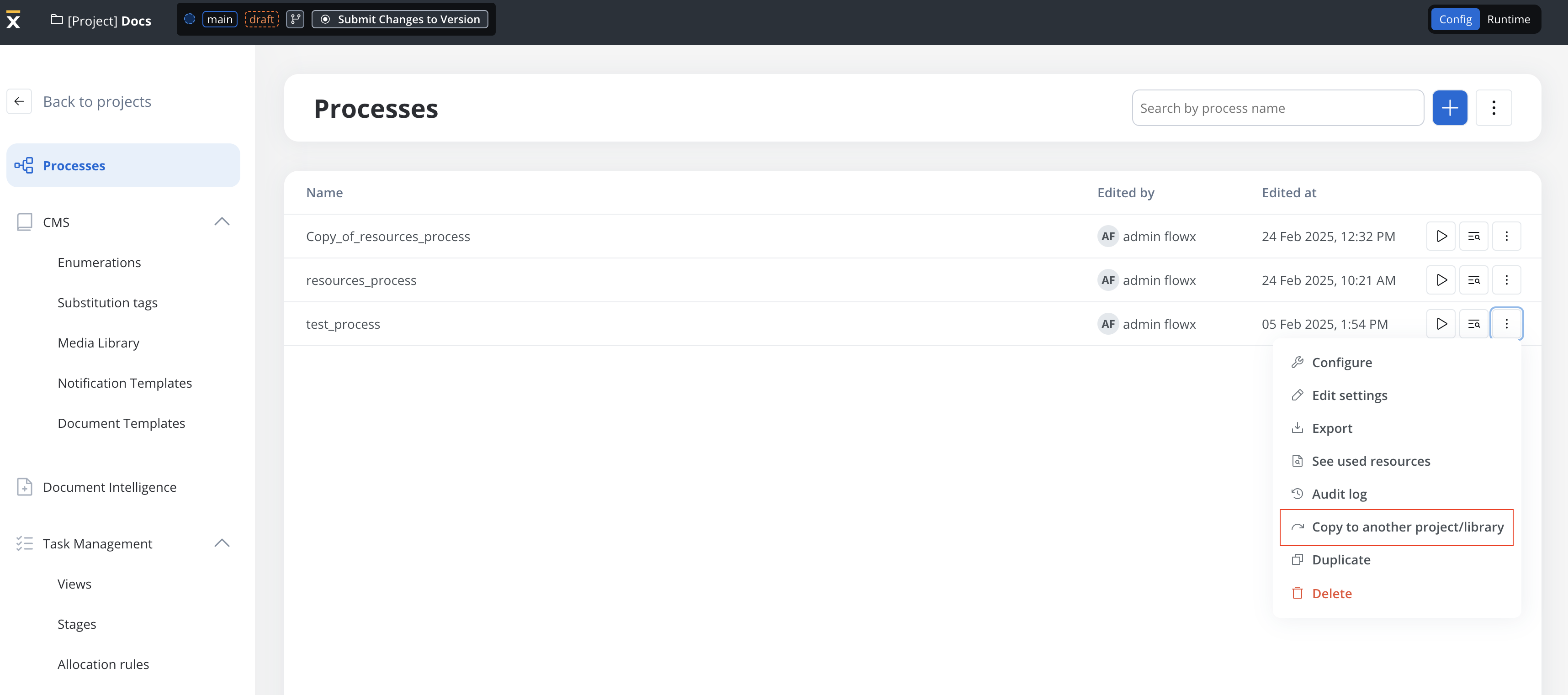
Choose the target project or library.
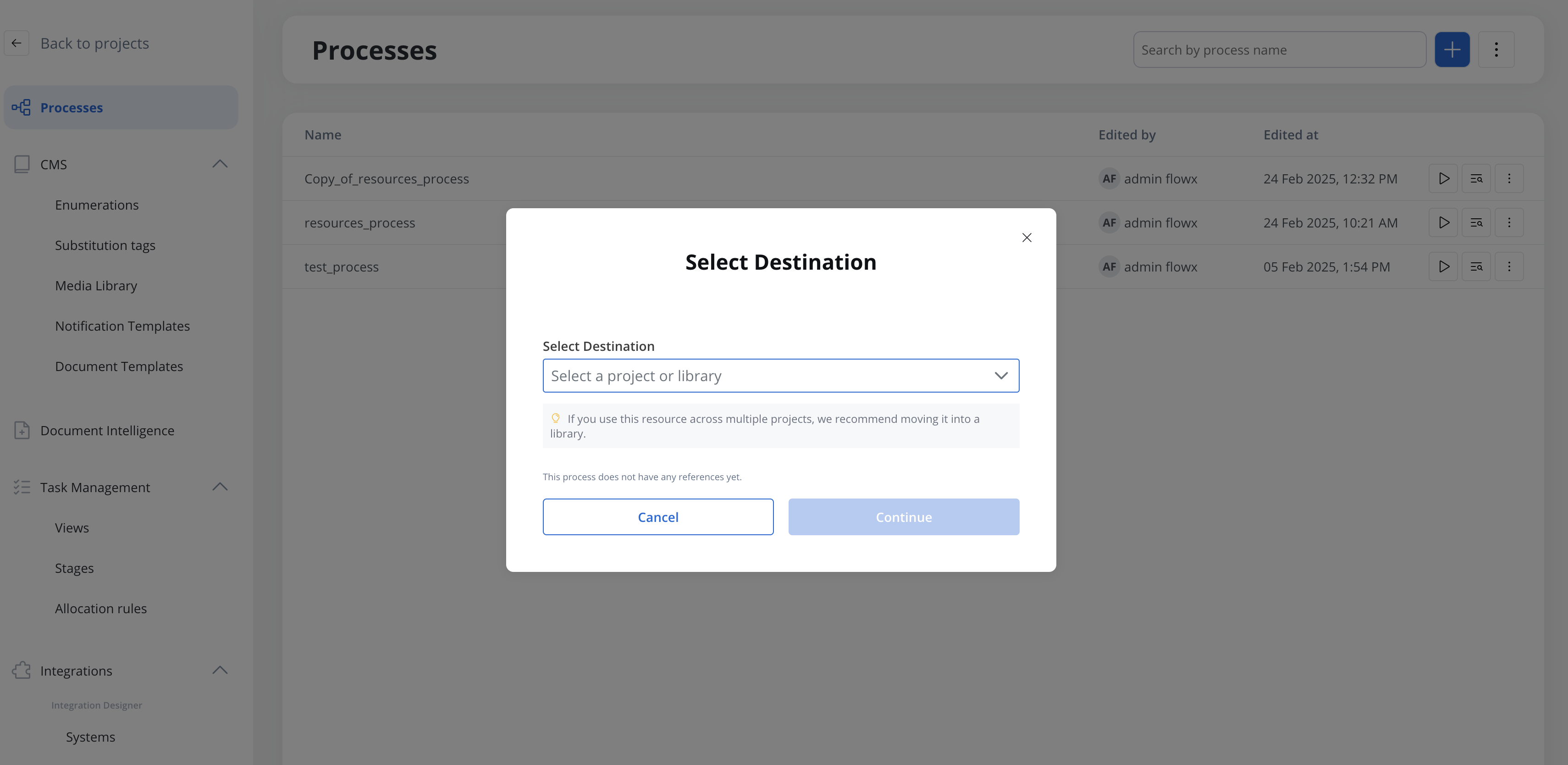
Select the target branch.
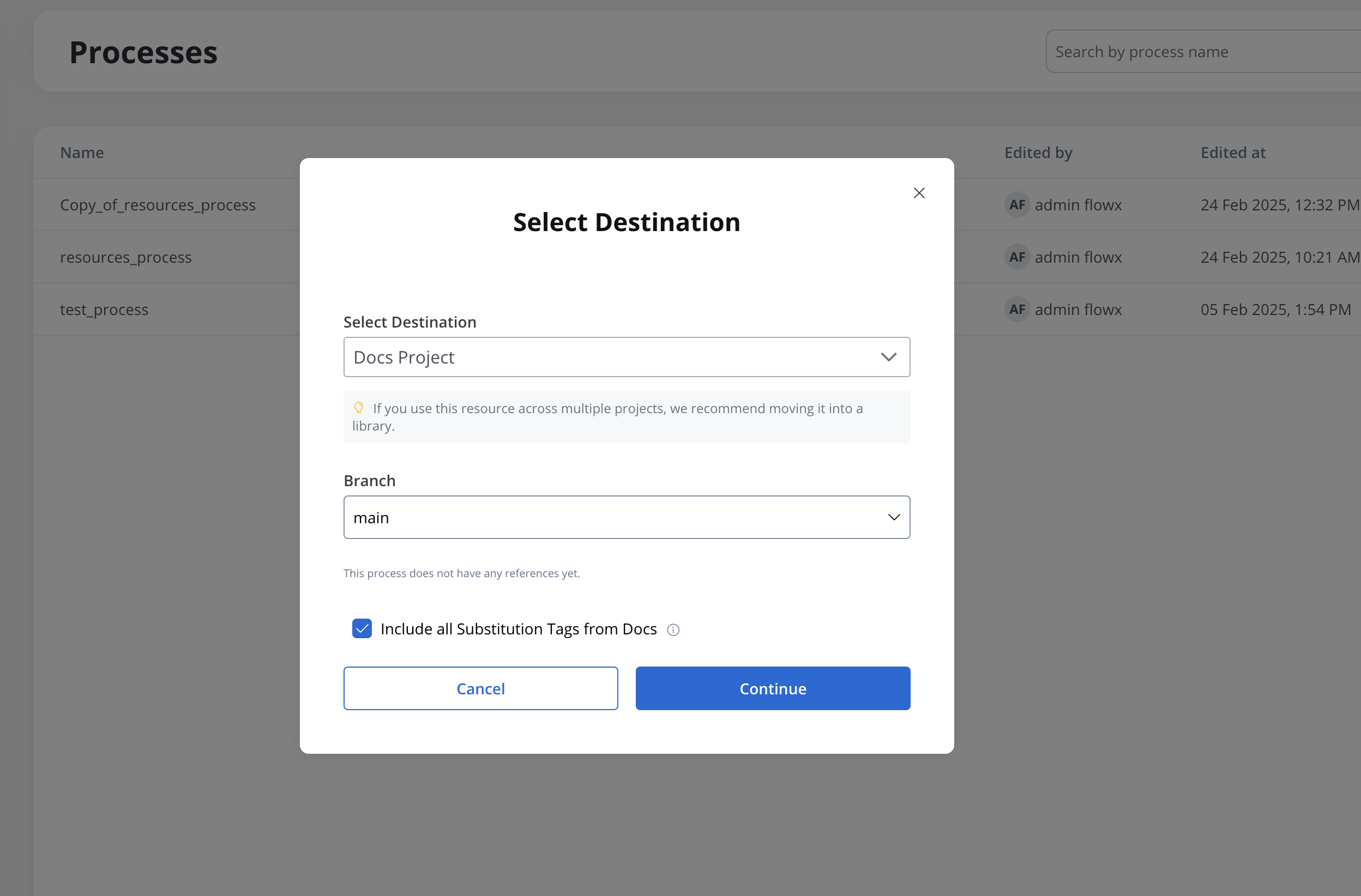
The system displays referenced resources and validates dependencies.
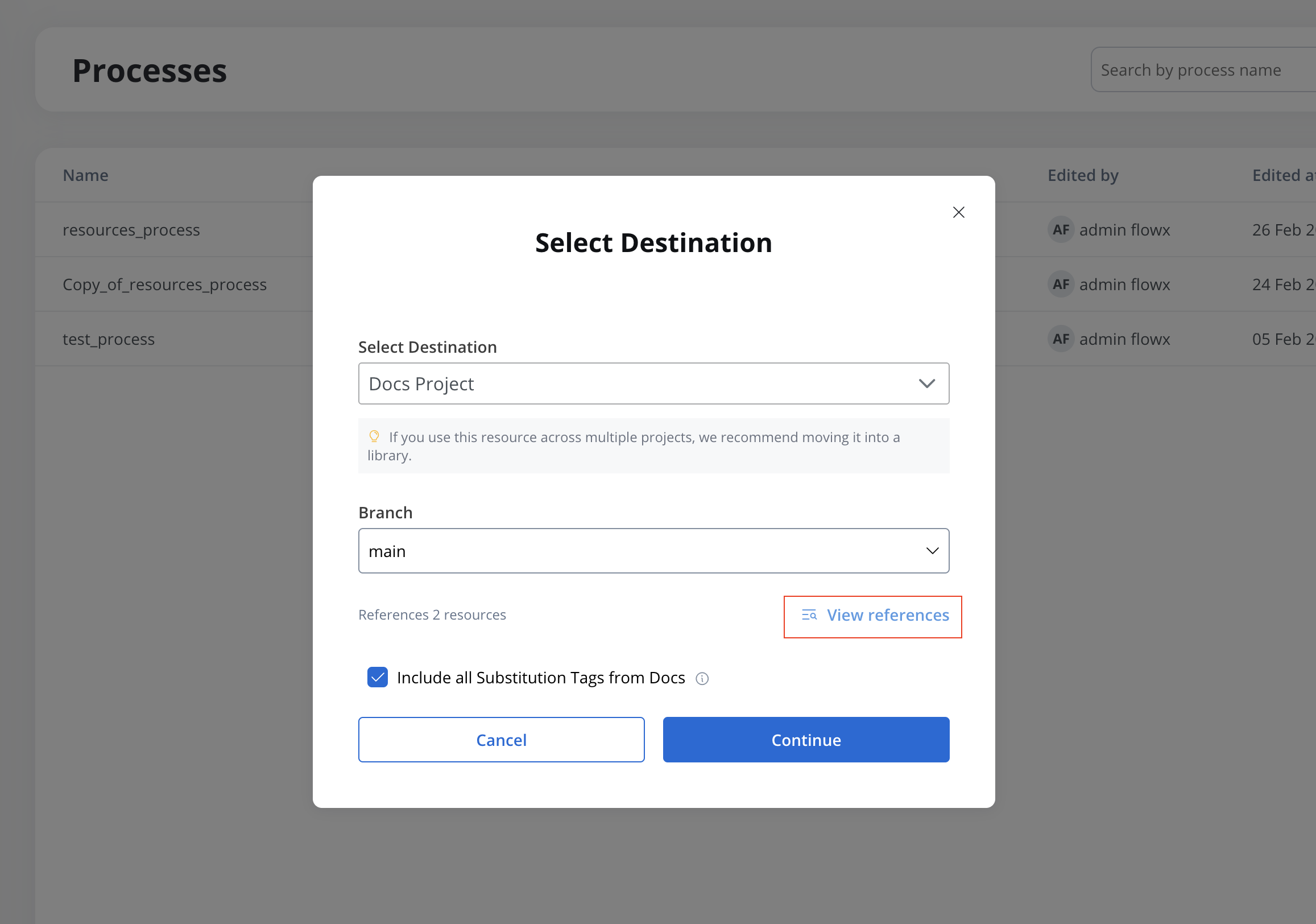
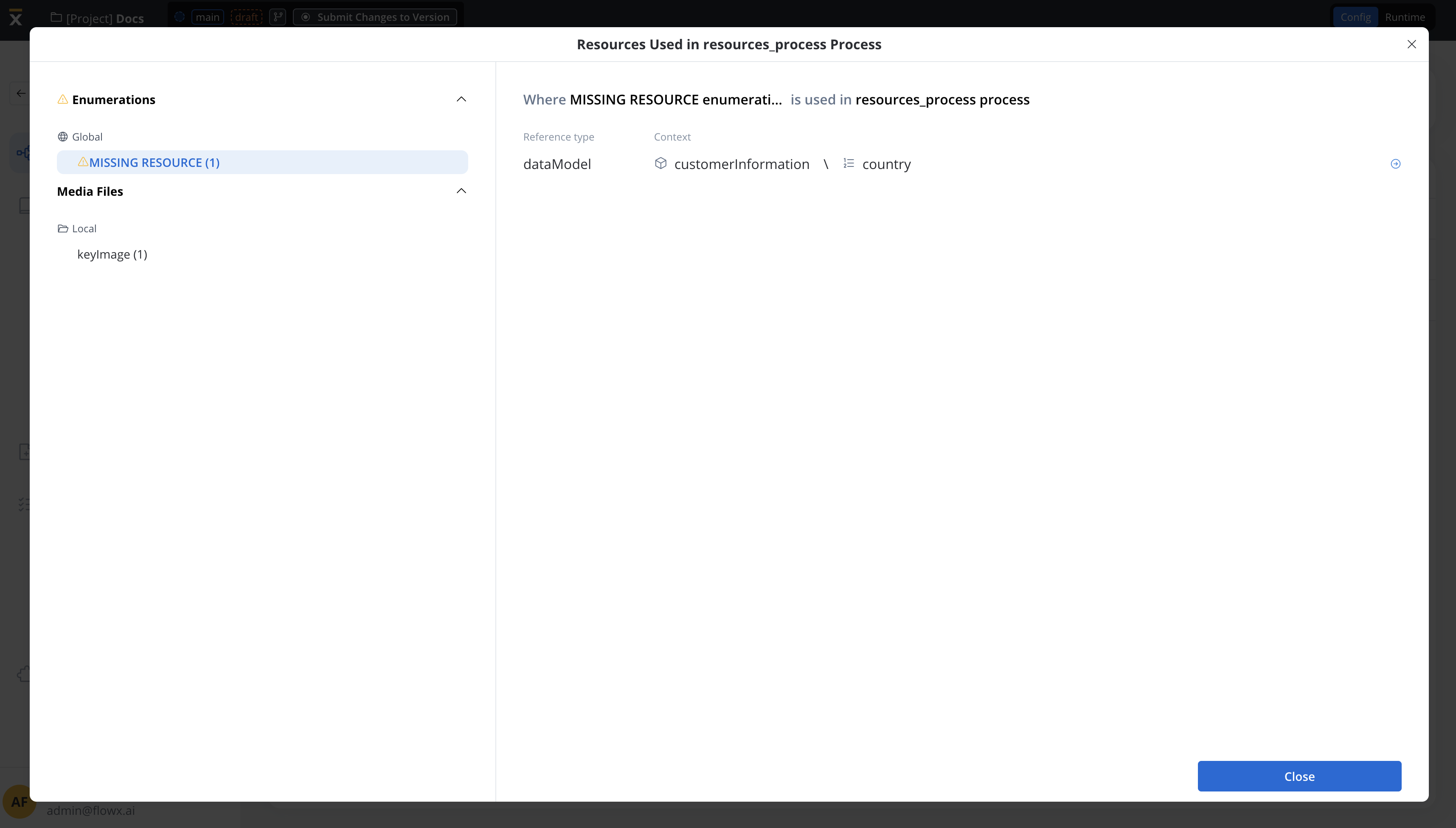
If necessary, copy all substitution tags from a project to the target project. Existing substitution tags in the target project with the same key will not be overwritten.
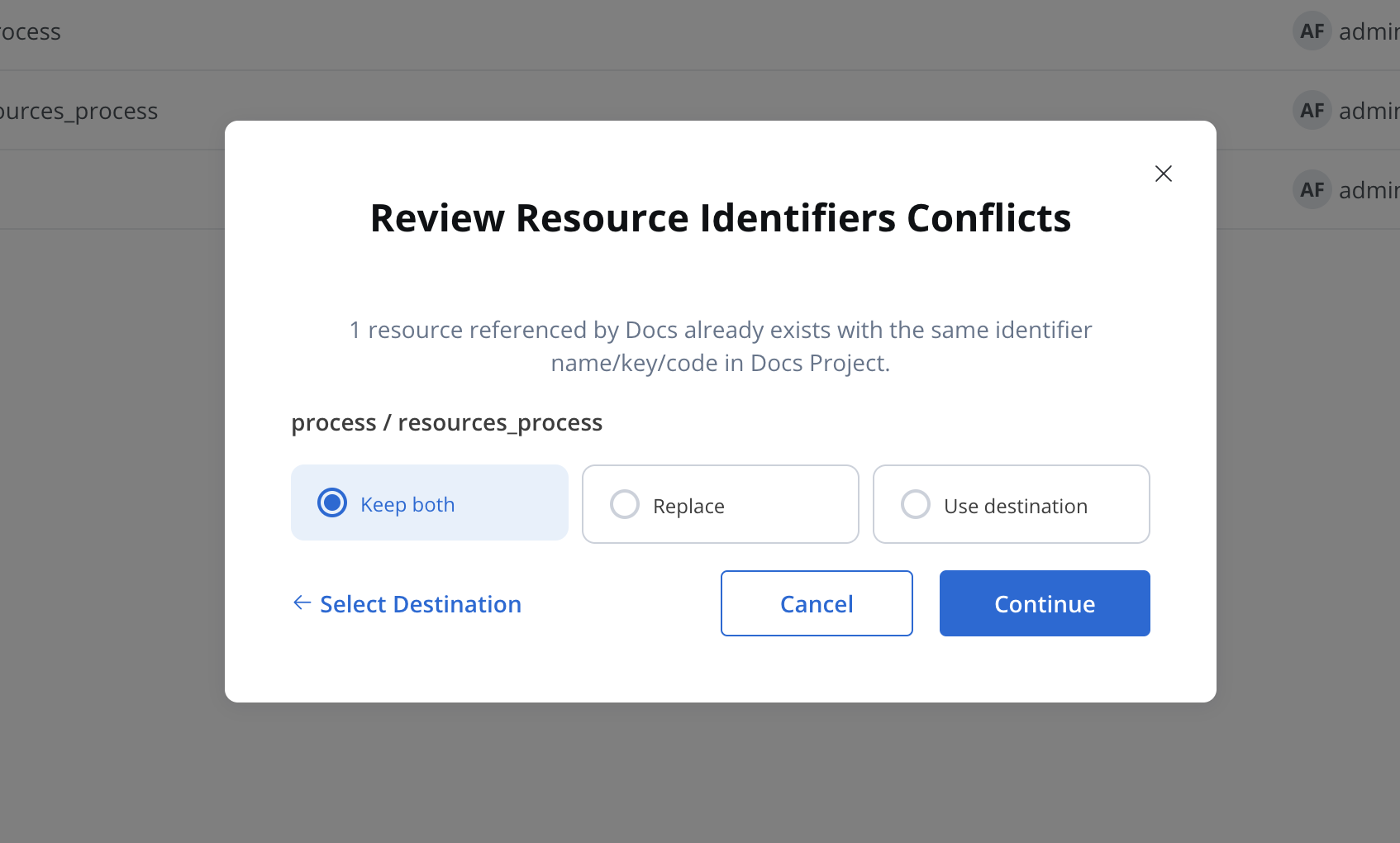
If an identifier already exists in the destination, you'll be prompted to either:
* **Keep Both**: Create a duplicate.
* **Replace**: Overwrite existing resource.
* **Use Destination**: Keep existing resource without copying.
**Handling conflicts:** The system automatically detects duplicate identifiers and provides a clear choice to avoid unintended overwrites.
### Supported resource types
The copy feature is available for the following resources:
* **Process definitions** (including referenced resources)
* **Systems**
* **Workflows**
* **Enumerations** (including child enumerations)
* **Media Library items**
* **Notification** and **Document** templates
## Duplicating resources
The **Duplicate Resource** feature allows users to quickly copy resources within the same project or library.
### Supported resource types
* **Processes**
* **Enumerations**
* **Media files (including Global media library files)**
* **Notification templates**
* **Document templates**
* **Views**
### Steps
Duplicate options are available from each resource’s three-dot menu (table row & secondary navigation).
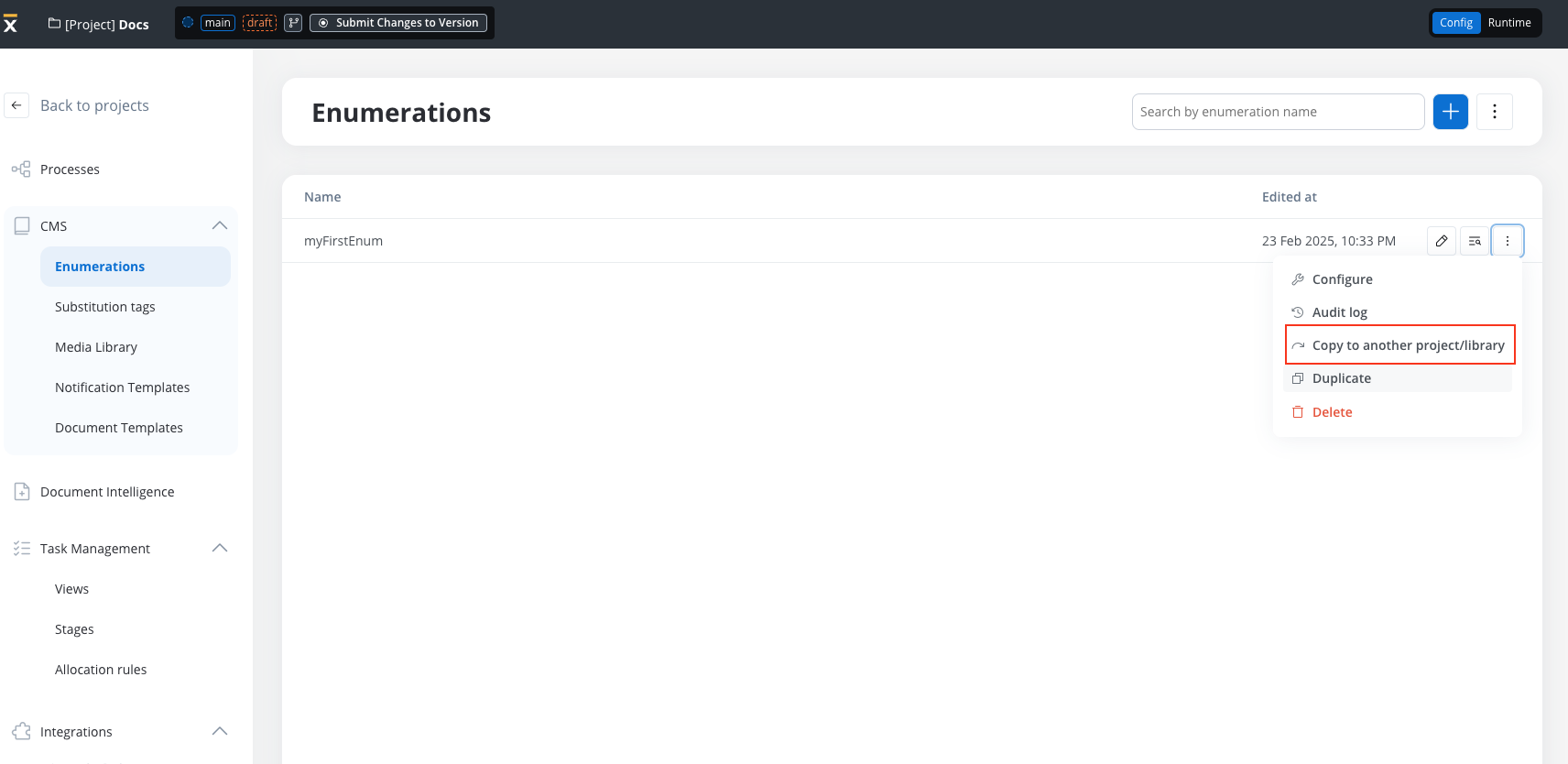
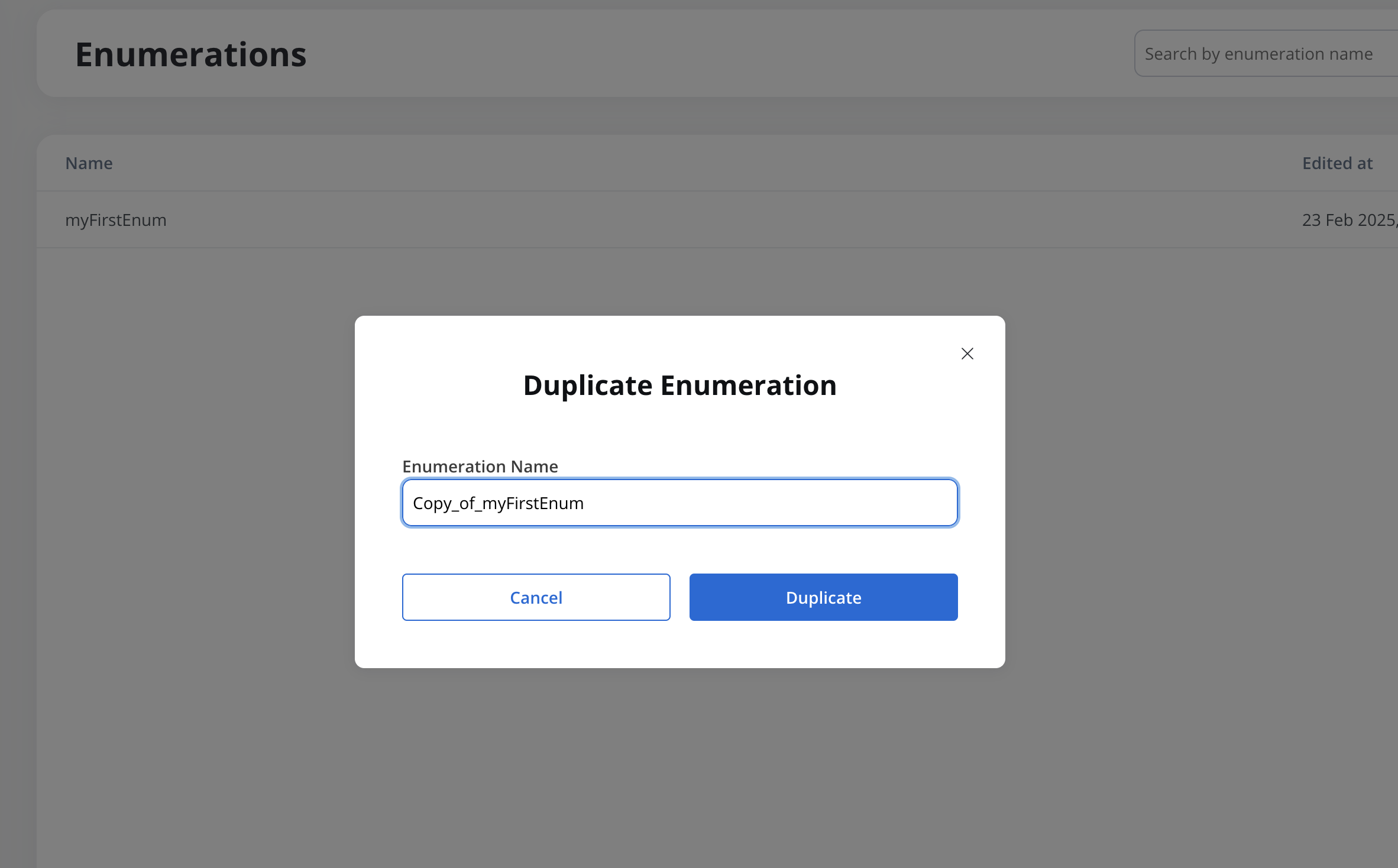
When selected, a **"Duplicate" modal** opens with a prefilled name: *Copy of \[Resource Name]* (which can be edited).