> ## Documentation Index
> Fetch the complete documentation index at: https://docs.flowx.ai/llms.txt
> Use this file to discover all available pages before exploring further.
# Managing notification templates
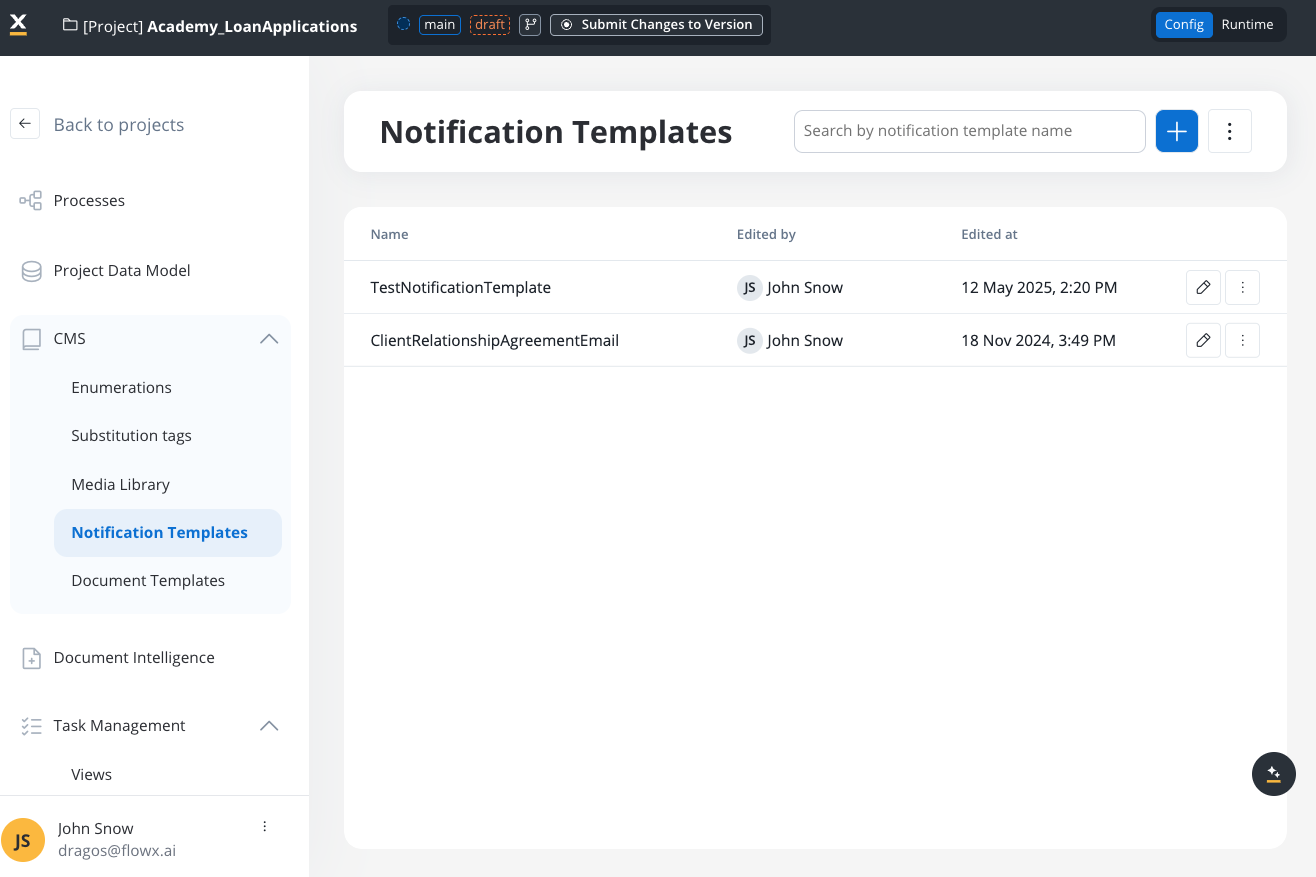
> You can create and manage notification templates using FlowX.AI Designer by accessing the dedicated section.
### Configuring a template
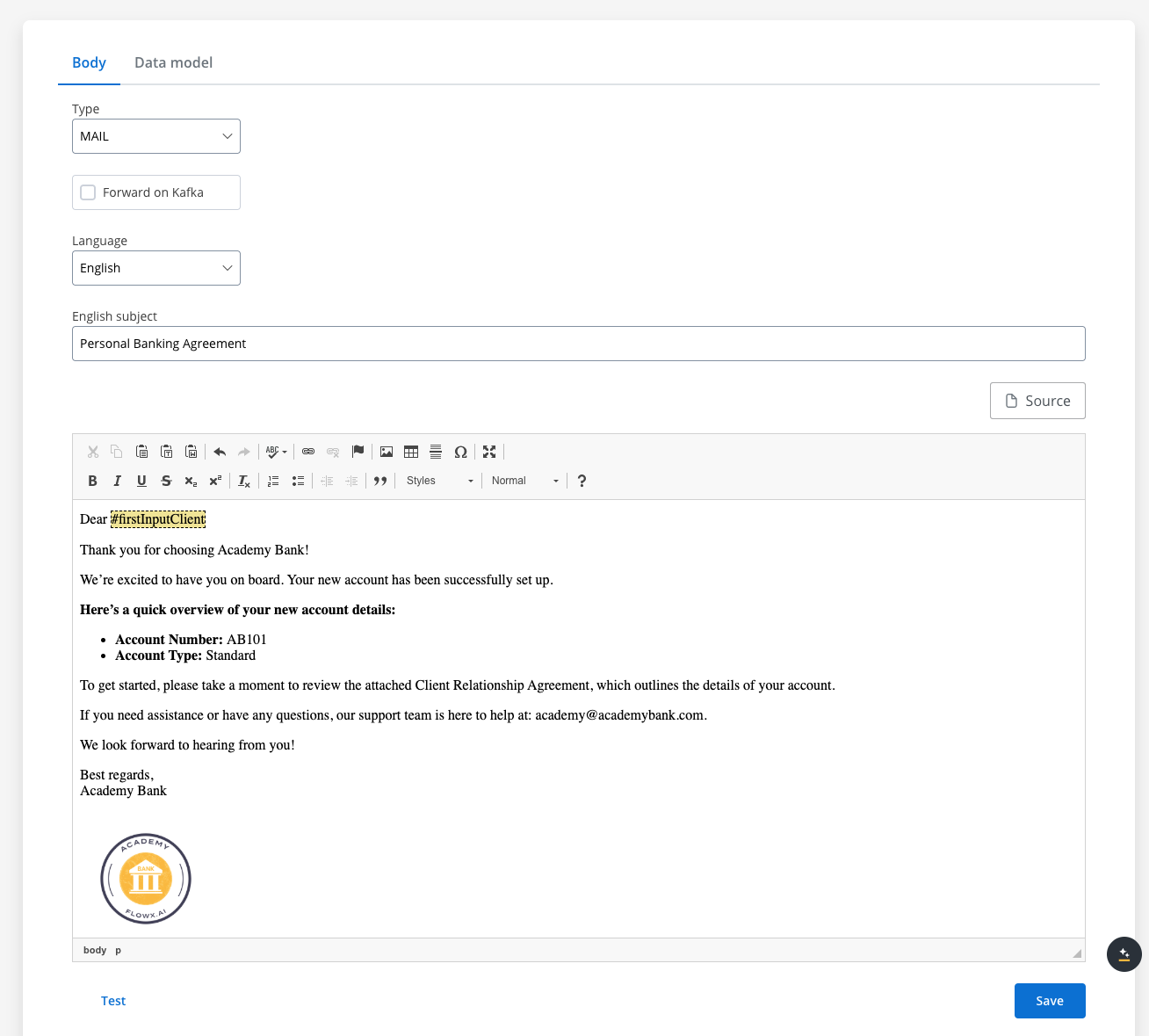
To configure a document template, first, you need to select some information stored in the **Body**:
1. **Type** - could be either MAIL or SMS notifications
2. [**Forward on Kafka**](./forwarding-notifications-to-an-external-system) - if this checkbox is ticked, the notification is not being sent directly by the plugin to the destination, but forwarded to another adapter (this is mandatory for SMS notifications templates, as they require an external adapter)
3. **Language** - choose the language for your notification template
4. **Subject** - enter a subject
You can edit the content for each language you have defined in the project.
#### Editing the content
You can edit the content of a notification template by using the [WYSIWYG](../../wysiwyg) editor embedded in the body of the notification templates body.
### Configuring the data model
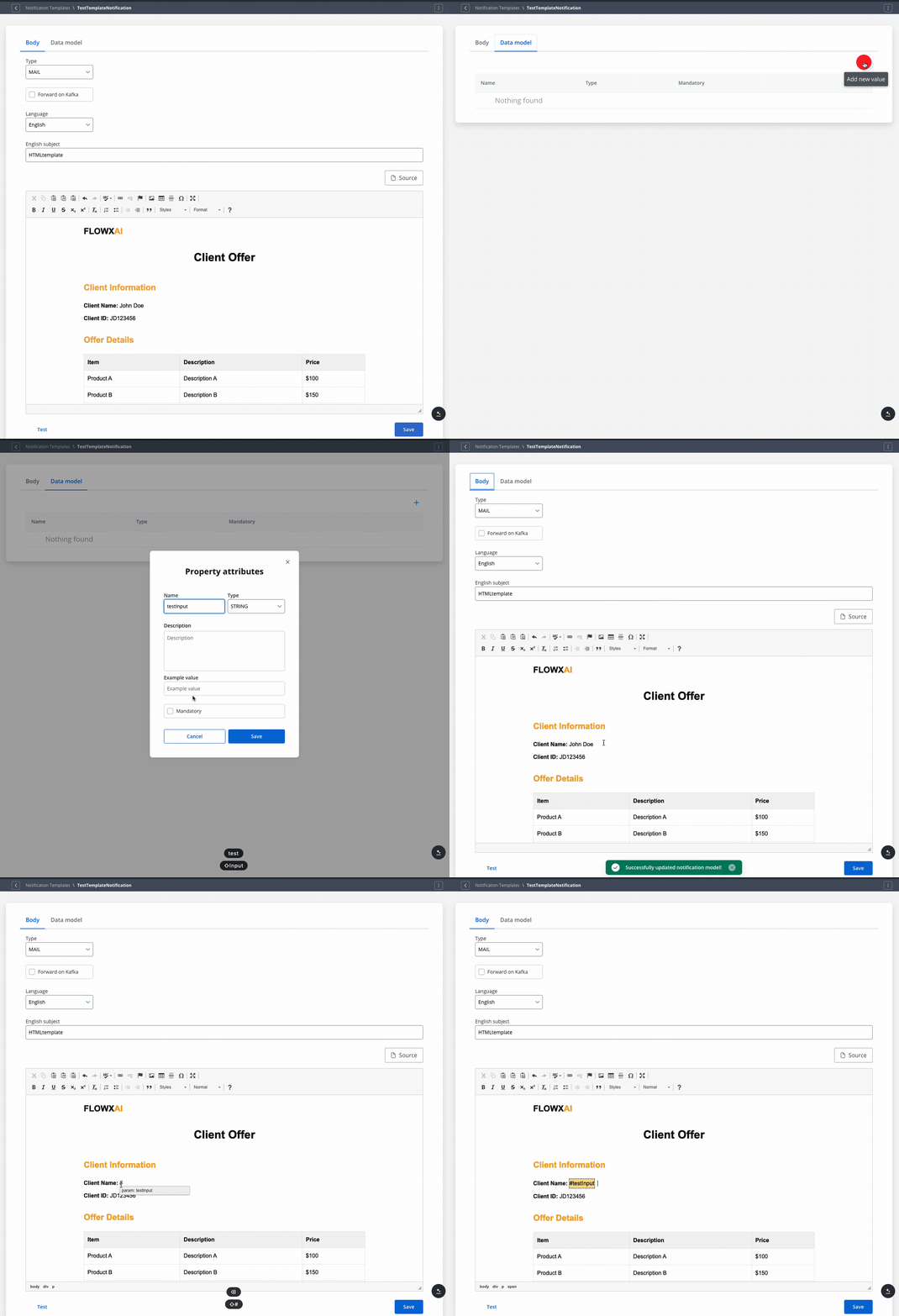
Using the **Data model** tab, you can define key pair values (parameters) that will be displayed and reused in the editor. Multiple parameters can be added:
* STRING
* NUMBER
* BOOLEAN
* OBJECT
* OBJECT\_REF
* ARRAY
* ARRAY\_REF
* ENUM
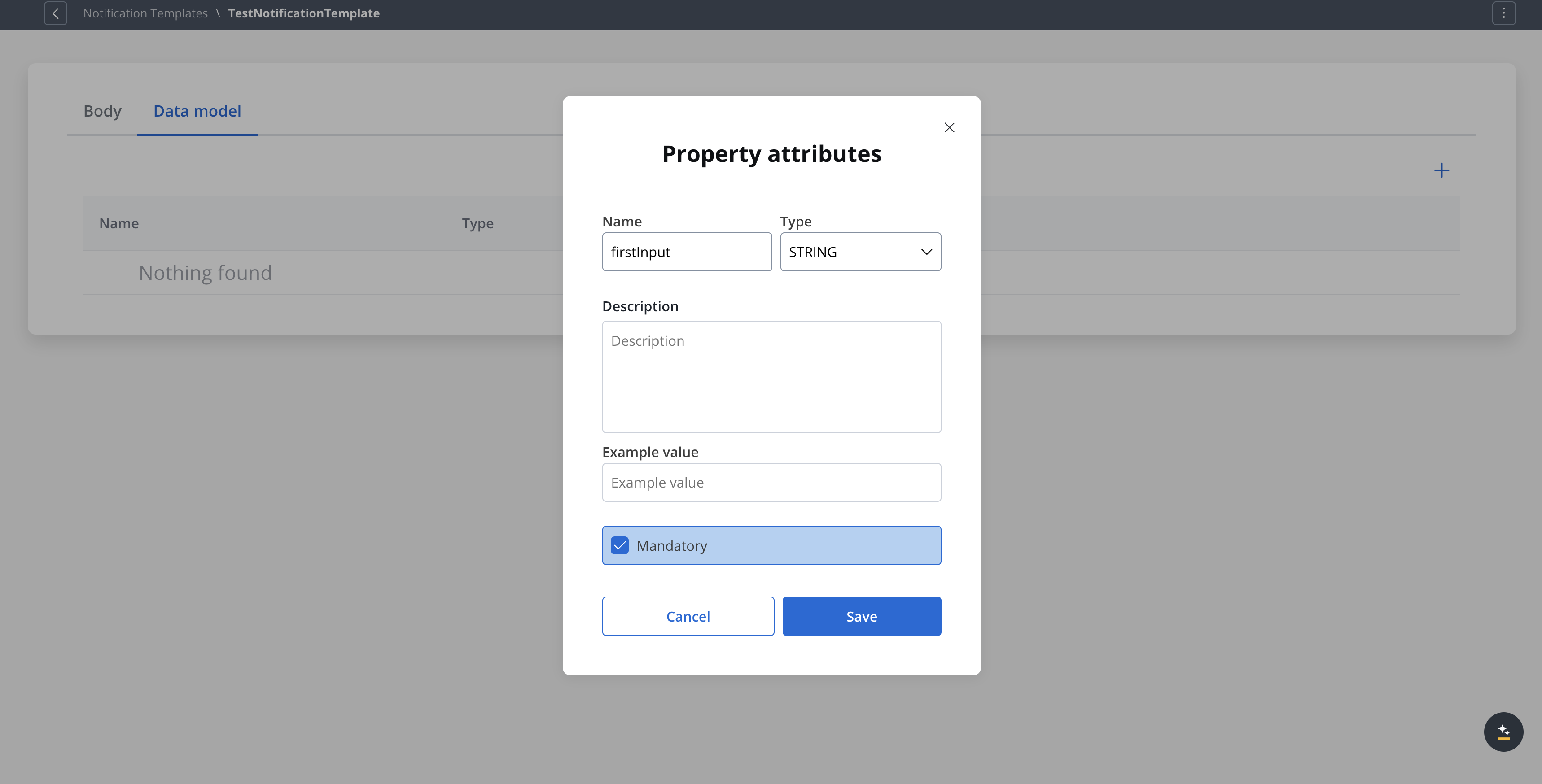
After you defined some parameters in the **Data Model** tab, you can type "**#**" in the editor to trigger a dropdown where you can choose which one you want to use/reuse.
### Testing the template
You can use the test function to ensure that your template configuration is working as it should before publishing it.
If some keys (marked as mandatory) are not used in the template, the test will not go through.
### Other actions
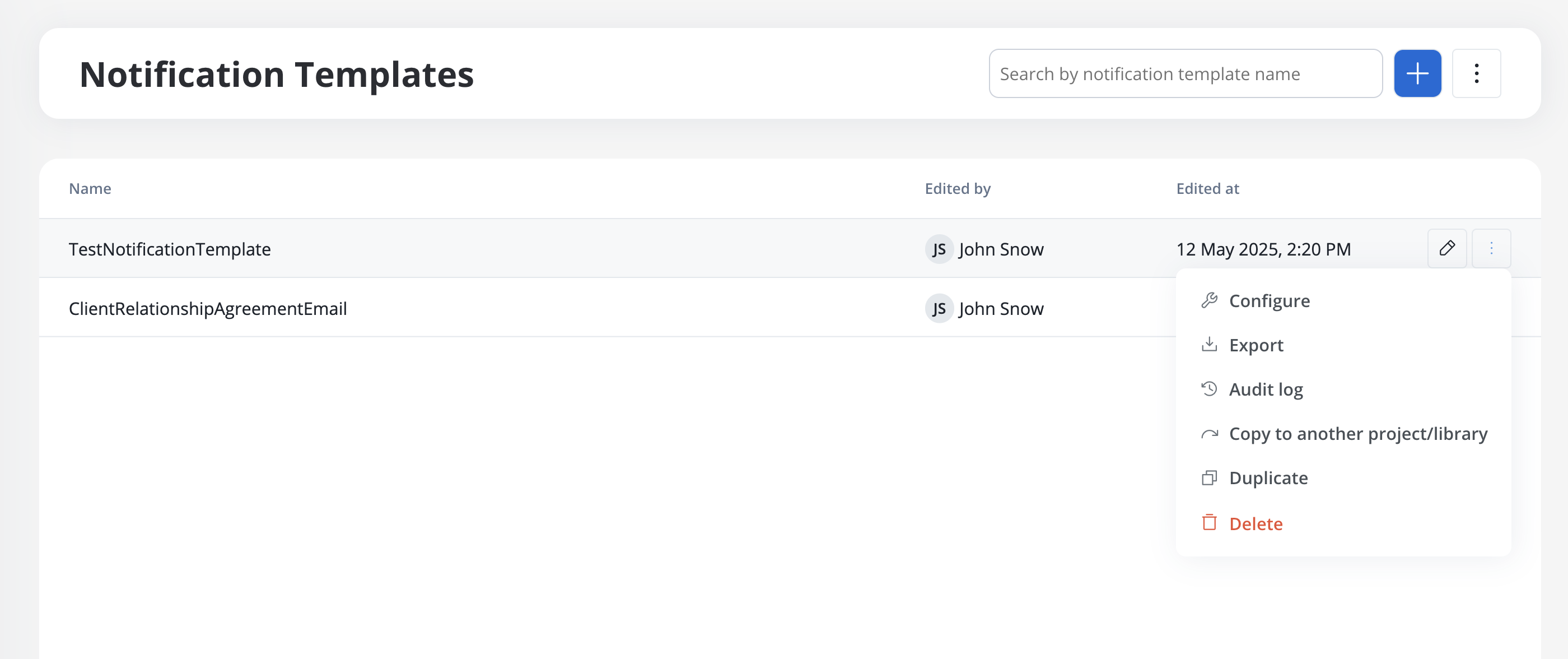
When opening the contextual menu (accessible by clicking on the breadcrumbs button), you have multiple actions to work with the notifications templates:
* **Configure** - edit the template
* **Export template** - export a template (JSON format)
* **Audit log** - view the audit log
* **Copy to another project/library** - copy a template to another project/library
* **Duplicate** - duplicate a template
* **Delete** - delete a template