> ## Documentation Index
> Fetch the complete documentation index at: https://docs.flowx.ai/llms.txt
> Use this file to discover all available pages before exploring further.
# FlowX.AI CMS
> The FlowX.AI Headless Content Management System (CMS) is a core component of the FlowX.AI platform, designed to enhance the platform's capabilities with specialized functionalities for managing taxonomies and diverse content types.
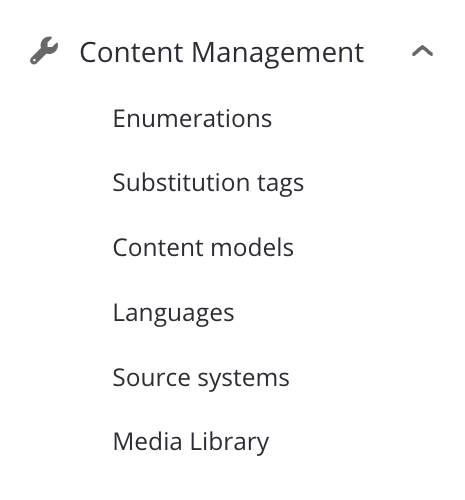
## Key features
The FlowX.AI CMS offers the following features:
Manage and configure enumerations for various content types
Utilize tags to dynamically insert content values
Support multiple languages for content localization.
Integrate with various external source systems
Organize and manage media assets
## Deployment and integration
The CMS can be rapidly deployed on your chosen infrastructure, preloaded with necessary taxonomies or content via a REST interface, and integrated with the FlowX Engine using Kafka events.
For deployment and configuration, refer to the:
## Using the CMS service
Once the CMS is deployed in your infrastructure, you can define and manage custom content types, such as lists with different values based on external systems, blog posts, and more.
### Kafka integration
You can use Kafka to translate/extract content values based on your defined lanaguages and source systems.
#### Request content
Manage content retrieval messages between the CMS and the FlowX Engine using the following Kafka topics:
| Environment Variable | Default FLOWX.AI value (Customizable) |
| ----------------------------------- | ------------------------------------------------------------------ |
| KAFKA\_TOPIC\_REQUEST\_CONTENT\_IN | ai.flowx.dev.plugin.cms.trigger.retrieve.content.v1 |
| KAFKA\_TOPIC\_REQUEST\_CONTENT\_OUT | ai.flowx.dev.engine.receive.plugin.cms.retrieve.content.results.v1 |
* `KAFKA_TOPIC_REQUEST_CONTENT_IN`: This variable defines the topic used by the CMS to listen for incoming content retrieval requests.
* `KAFKA_TOPIC_REQUEST_CONTENT_OUT`: This variable defines the topic where the CMS sends the results of content retrieval requests back to the FlowX Engine.
You can find the defined topics in two ways:
1. In the FlowX.AI Designer: Go to **Platform Status** -> **cms-core-mngt** -> **kafkaTopicsHealthCheckIndicator** -> **Details** -> **Configuration** -> **Topic** -> **Request** -> **Content** (use the `in` topic).
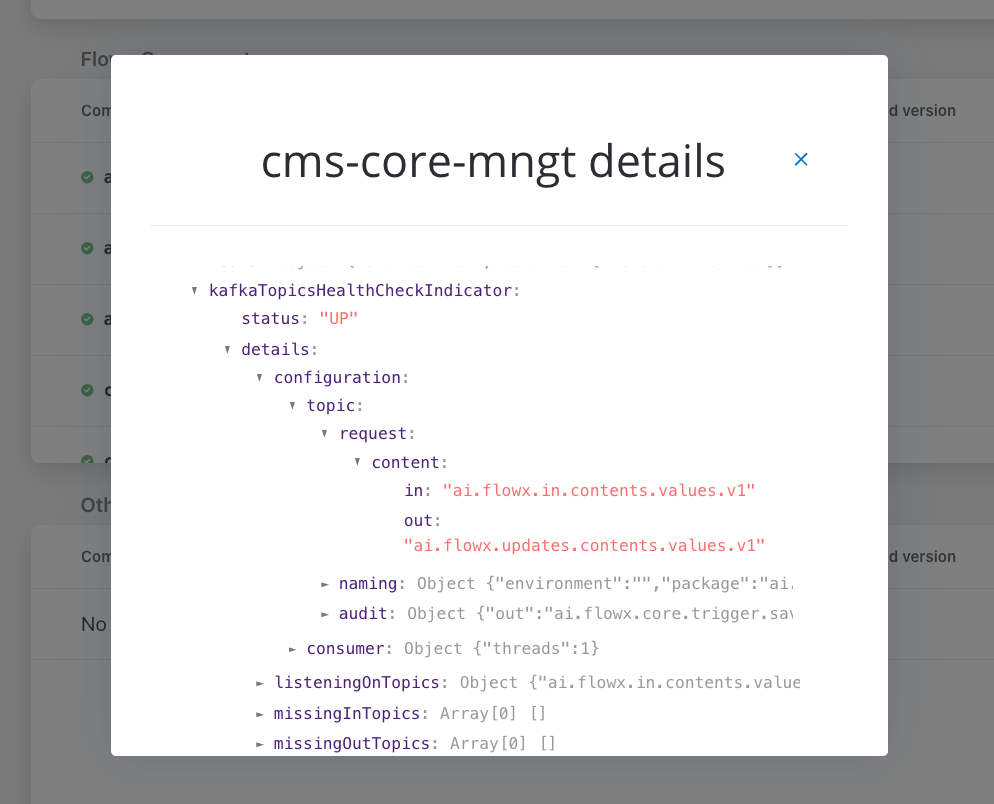
2. Alternatively, check the CMS microservice deployment for the `KAFKA_TOPIC_REQUEST_CONTENT_IN` environment variable.
#### Example: Request a label by language or source system code
To translate custom codes into labels using the specified [language](../../plugins/languages) or [source system](./source-systems), use the following request format. For instance, when extracting values from a specific enumeration for a UI component:
For example when you want to use a UI component where you want to extract values from an specific enumeration.
Various external systems and integrations might use different labels for the same information. In the processes, it is easier to use the corresponding code and translate this into the needed label when necessary: for example when sending data to other integrations, when generating documents, etc.
#### Request content request
Add a [**Send Message Task** (kafka send event)](../../../building-blocks/node/message-send-received-task-node) and configure it to send content requests to the FlowX.AI Engine.
The following values are expected in the request body of your Send Message Taks node:
* At least one of `language` and `sourceSystem` should be defined (if you only need the `sourceSystem` to be translated, you can leave `language` empty and vice versa, but they cannot both be empty)
* A list of `entries` and their `codes` to be translated
**Expected Request Body:**
```json theme={"system"}
{
"language": "en",
"sourceSystem": "FlowX",
"entries": [
{
"codes": [
"ROMANIA",
"BAHAMAS"
],
"contentDescription": {
"name": "country", //the name of the enumeration we used in this example
"version": 1, //optional, only if you want to extract from a specific version of your enumeration
"draft": true //optional
}
}
]
}
```
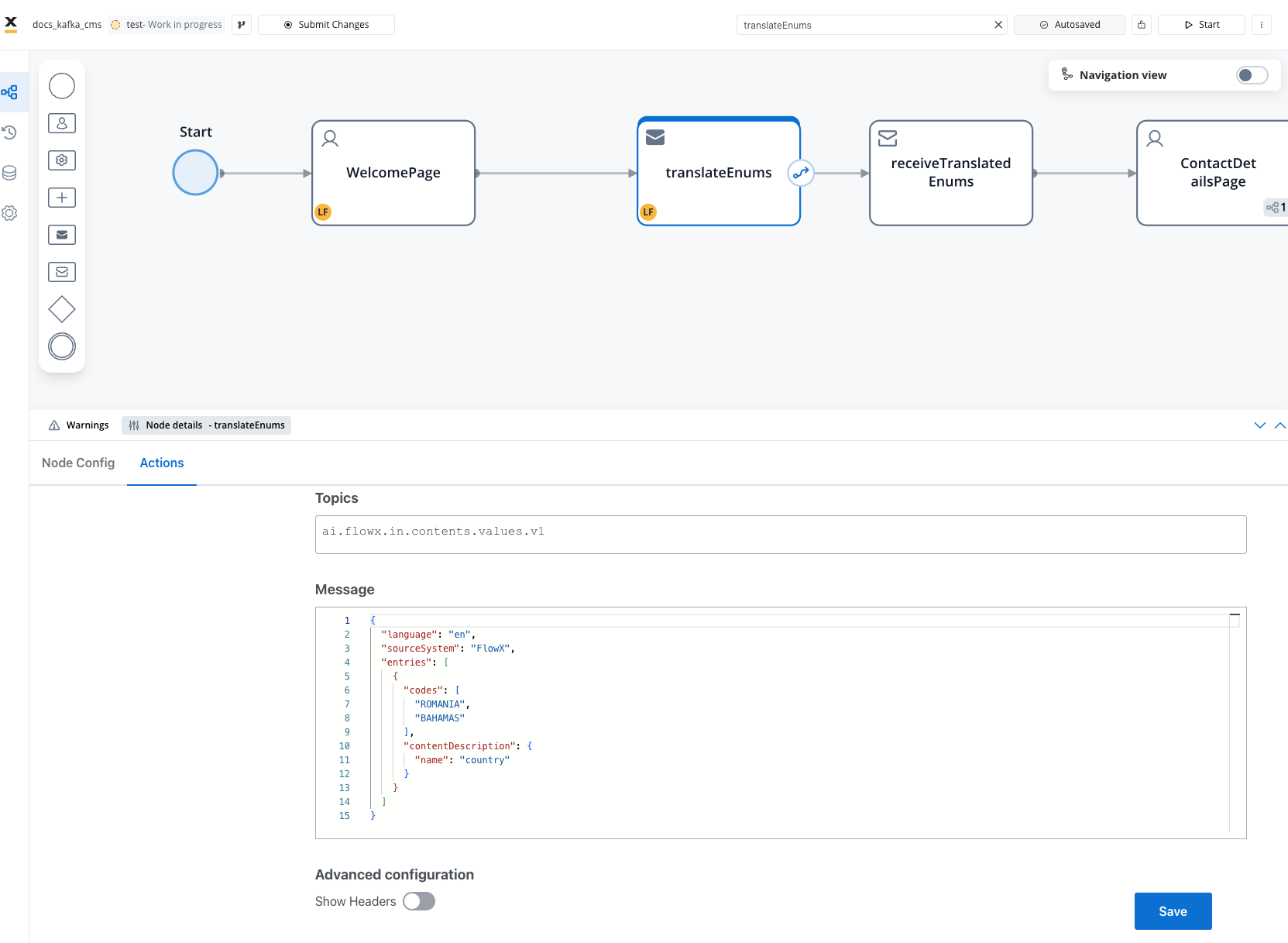
The `version` and `draft` fields are optional. If not specified, the latest published content will be used.
#### Request content response
Add a **Receive Message Task** to handle the response from the CMS service. Configure it to listen to the topic where the Engine sends the response, e.g., we have the `ai.flowx.updates.contents.values.v1` topic.
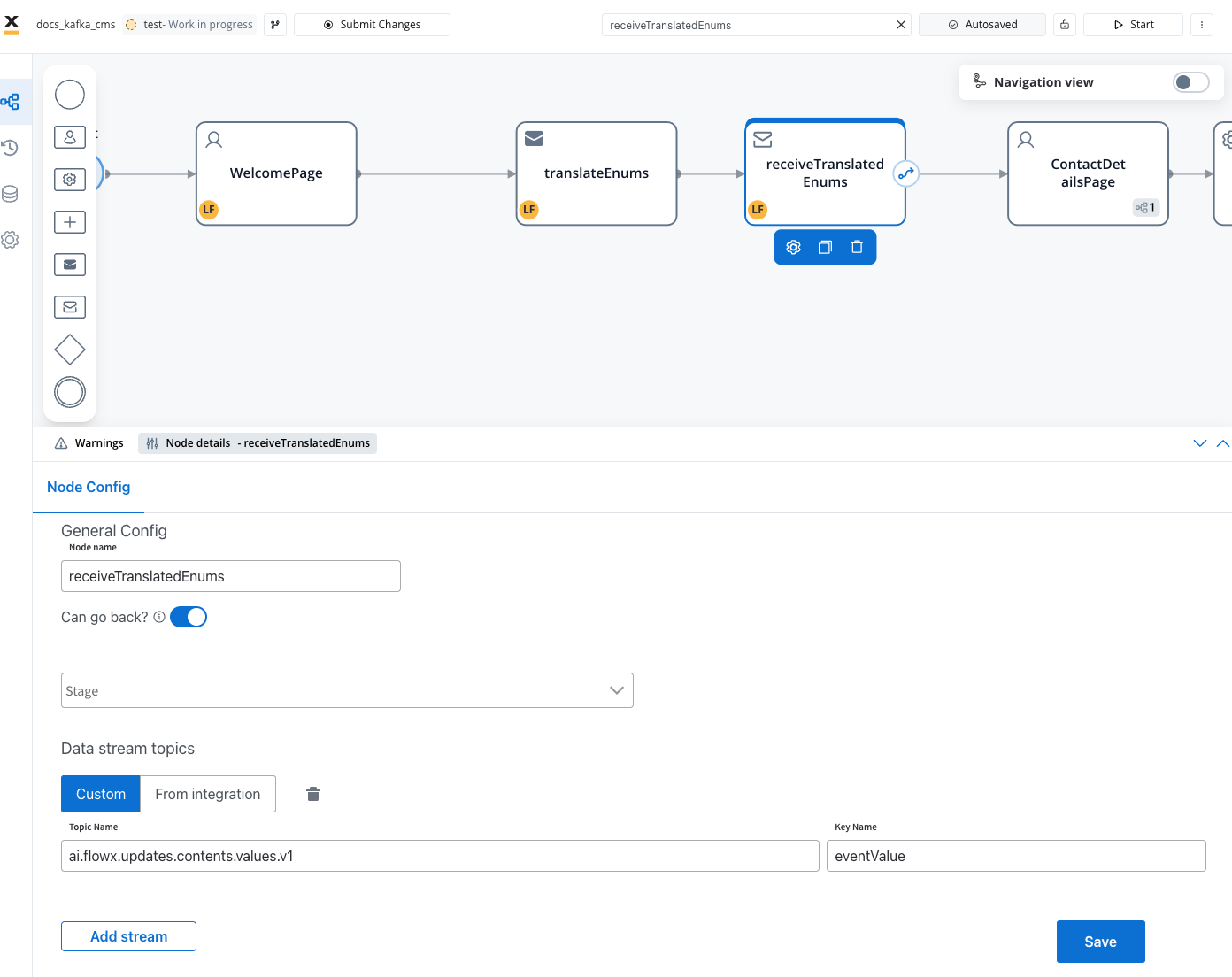
**Response Message Structure**:
```json theme={"system"}
{
"entries": [
{
"contentName": "country",
"code": "ROMANIA",
"label": "Romania",
"translatedCode": "ROMANIA-FlowX"
},
{
"contentName": "country",
"code": "BAHAMAS",
"label": "Bahamas",
"translatedCode": "BAHAMAS-FlowX"
}
],
"error": null
}
```
Next, we will change the system language and modify our process to display translations dinamycally on a another key on a separate screen.
## Related topics
- [FlowX CMS setup](/4.7.x/setup-guides/cms-setup.md)
- [FlowX.AI 5.1.0 Release Notes](/release-notes/v5.x/v5.1.x-lts/v5.1.0-october-2025/v5.1.0-october-2025.md)
- [FlowX.AI 5.2.0 Release Notes](/release-notes/v5.x/v5.2.0-november-2025/v5.2.0-november-2025.md)
- [FlowX.AI 4.7.1 Release Notes](/release-notes/v4.x/v4.7.x-lts/v4.7.1-march-2025/v4.7.1-march-2025.md)
- [FlowX.AI 4.7.9 Release Notes](/release-notes/v4.x/v4.7.x-lts/v4.7.9-october-2025/v4.7.9-october-2025.md)