> ## Documentation Index
> Fetch the complete documentation index at: https://docs.flowx.ai/llms.txt
> Use this file to discover all available pages before exploring further.
# Validators
> Validators are an essential part of building robust and reliable applications. They ensure that the data entered by the user is accurate, complete, and consistent. In Angular applications, validators provide a set of pre-defined validation rules that can be used to validate various form inputs such as text fields, number fields, email fields, date fields, and more.
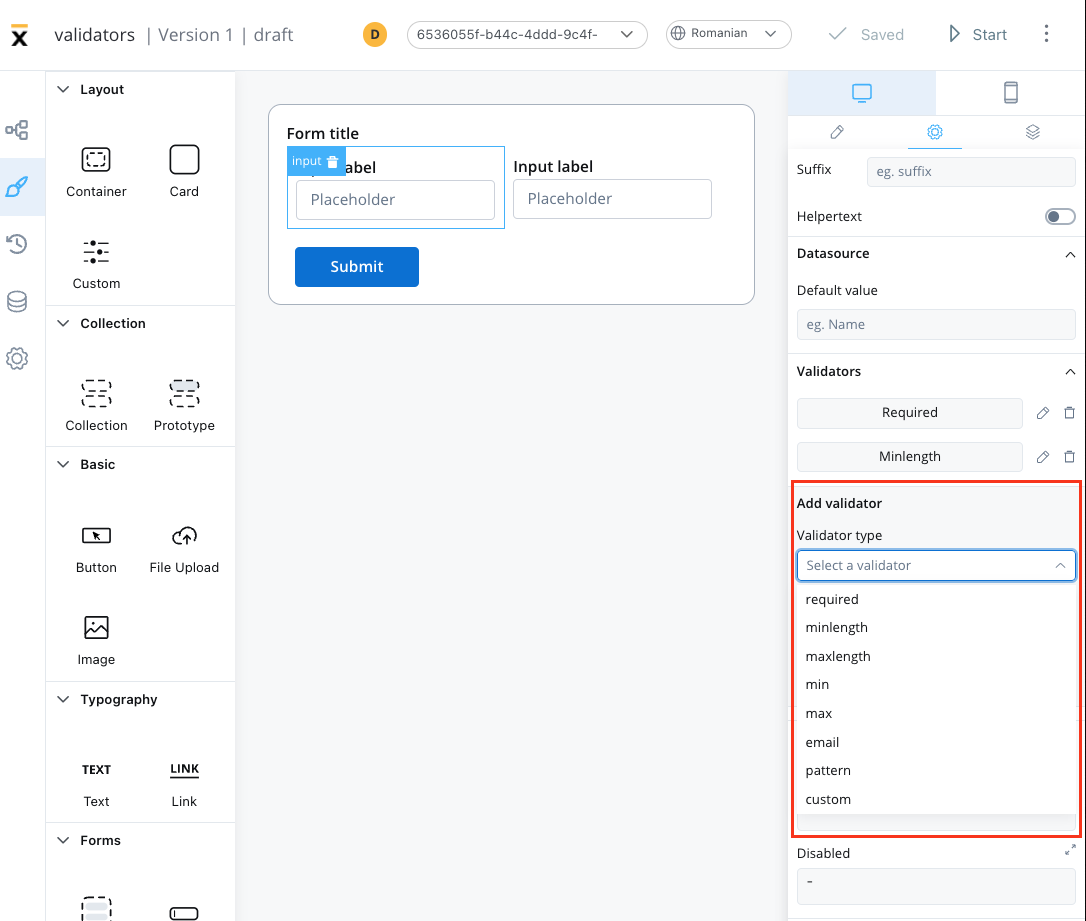
Angular provides default validators such as:
## Predefined validators
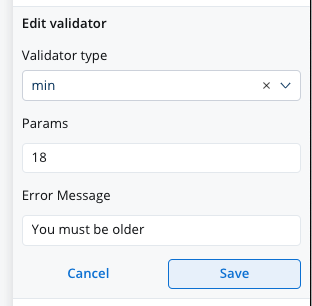
This validator checks whether a numeric value is smaller than the specified value. If there are no characters at all, this validator will not trigger. It is advisable to use this validator with a required validator.
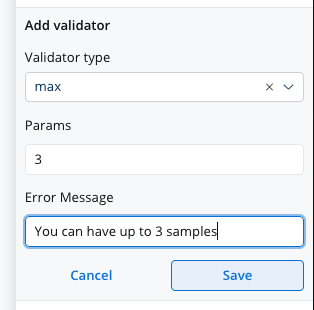
This validator checks whether a numeric value is larger than the specified value. If there are no characters at all, this validator will not trigger. It is advisable to use this validator with a [required](#required-validator) validator.
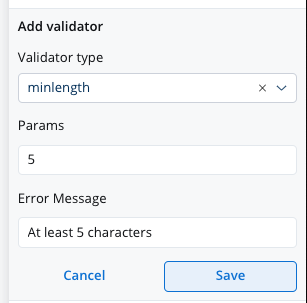
This validator checks whether the input value has a minimum number of characters. If there are no characters at all, this validator will not trigger. It is advisable to use this validator with a required validator.
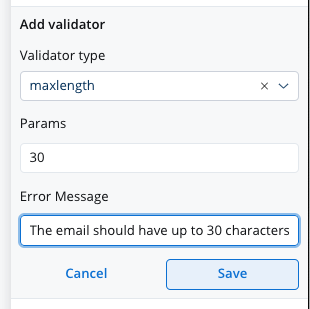
This validator checks whether the input value has a maximum number of characters. If there are no characters at all, this validator will not trigger. It is advisable to use this validator with a [required](#required-validator) validator.
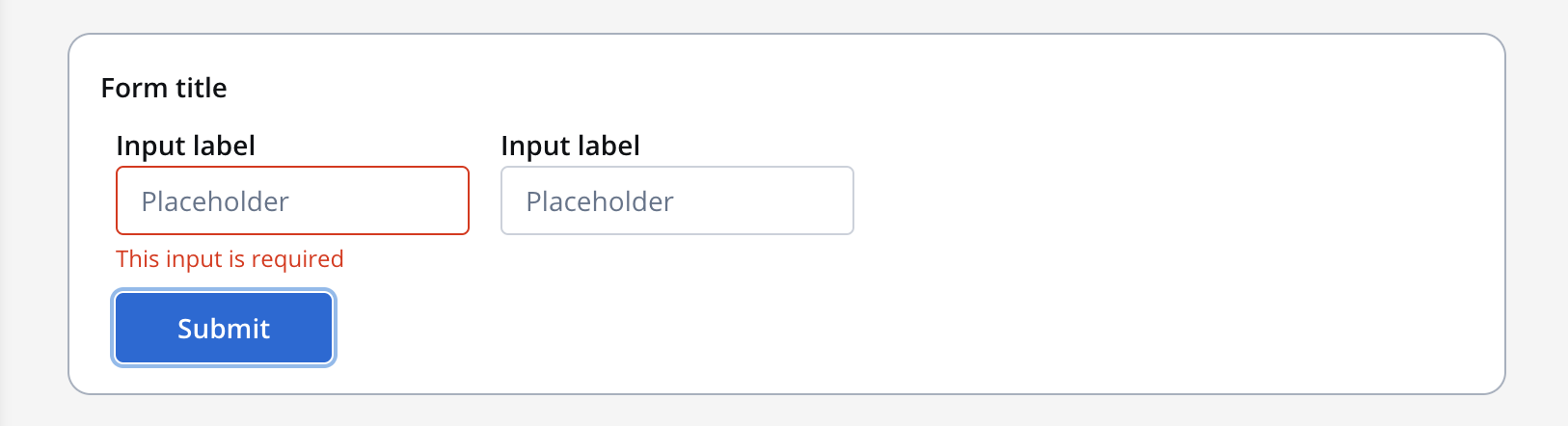
This validator checks whether a value exists in the input field.
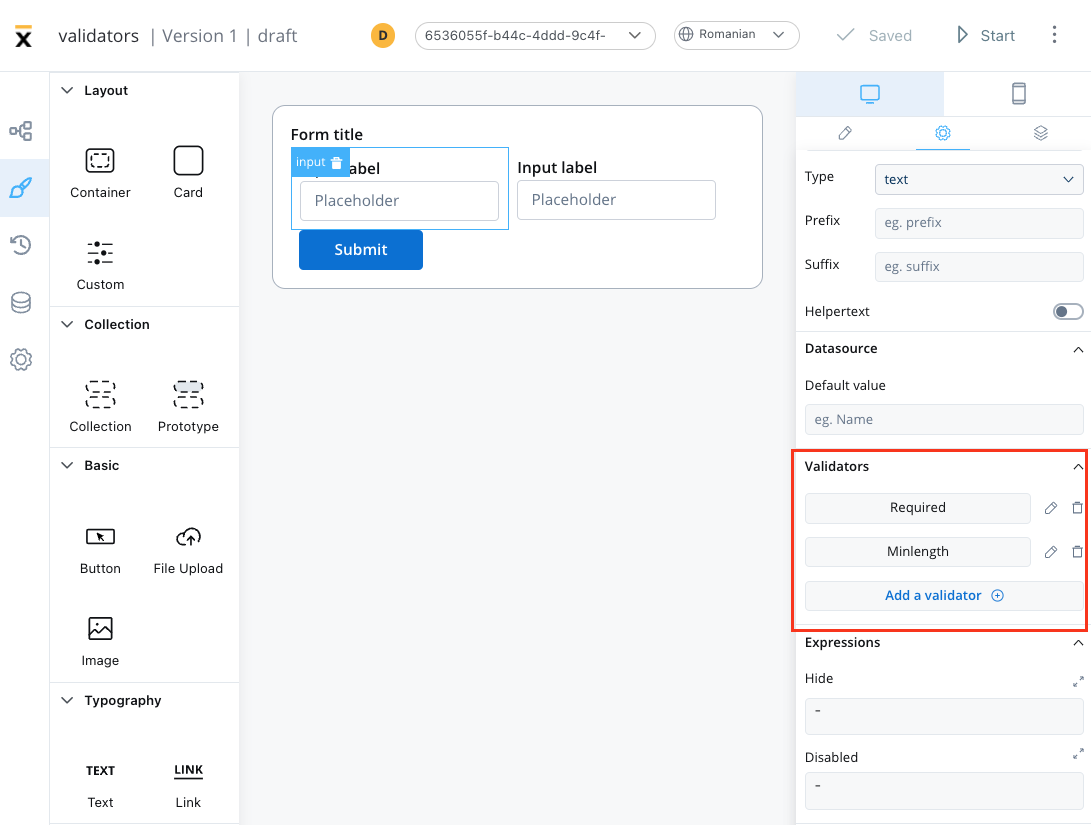
It is recommended to use this validator with other validators like [minlength](#minlength-validator) to check if there is no value at all.
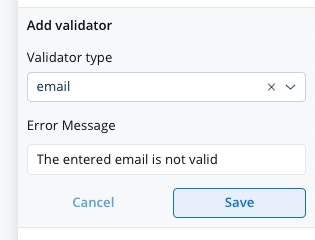
This validator checks whether the input value is a valid email. If there are no characters at all, this validator will not trigger. It is advisable to use this validator with a [required](#required-validator) validator.
This validator checks whether the input value matches the specified pattern (for example, a [regex expression](https://www.regexbuddy.com/regex.html)).
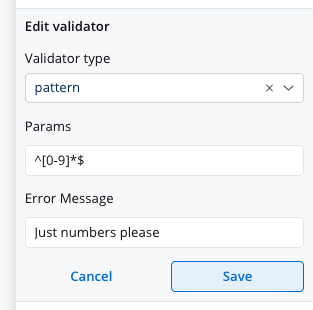
Other predefined validators are also available:
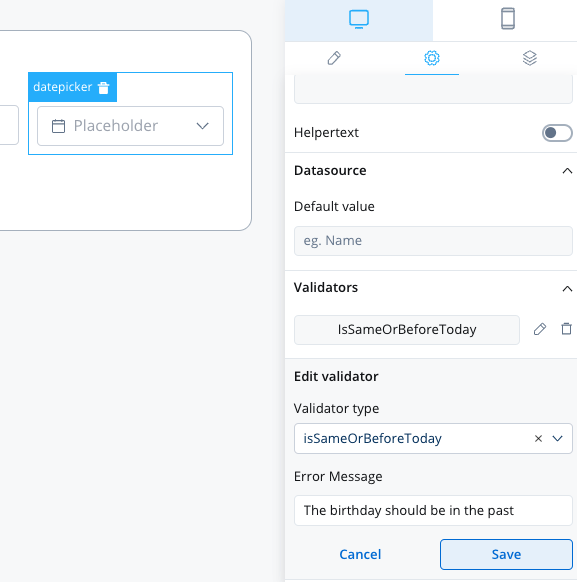
This validator can be used to validate [datepicker](./ui-component-types/form-elements/datepicker-form-field) inputs. It checks whether the selected date is today or in the past. If there are no characters at all, this validator will not trigger. It is advisable to use this validator with a [required](#required-validator) validator.
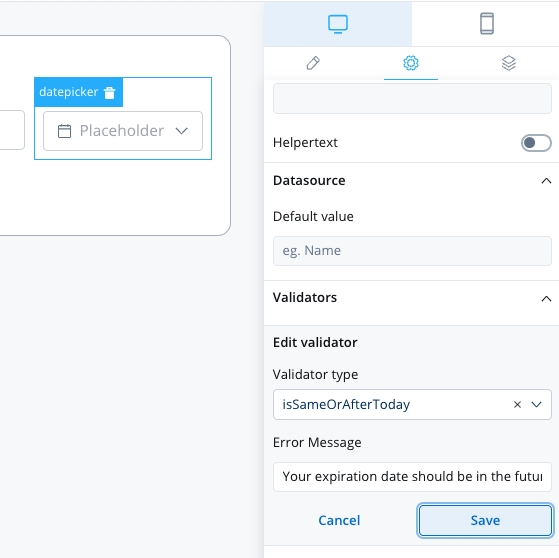
This validator can be used to validate datepicker inputs. It checks whether the selected date is today or in the future. If there are no characters at all, this validator will not trigger. It is advisable to use this validator with a [required](#required-validator) validator.
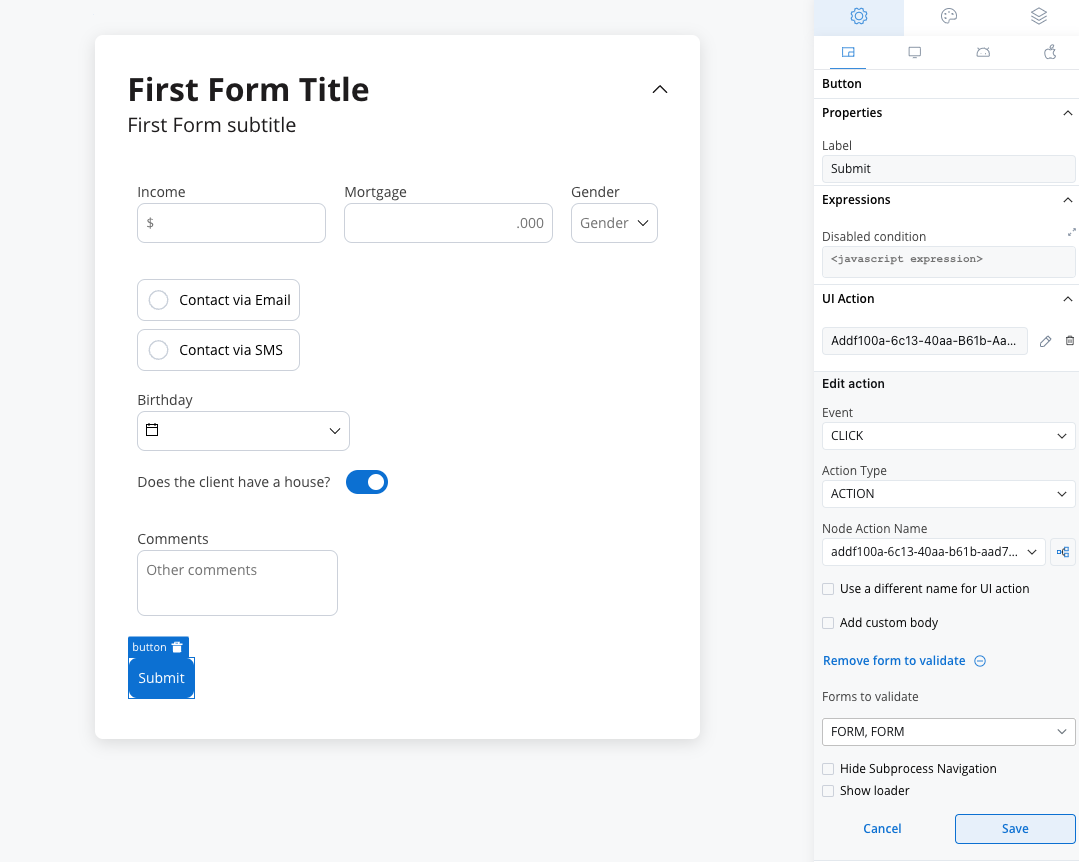
To ensure the validation of all form elements within a card upon executing a Save Data action such as “Submit” or “Continue,” follow these steps:
* When adding a UI action to a button inside a card, locate the dropdown menu labeled **Add form to validate**.
* From the dropdown menu, select the specific form or individual form elements that you wish to validate.
* By choosing the appropriate form or elements from this dropdown, you can ensure comprehensive validation of your form.
## Custom validators
Additionally, custom validators can be created within the web application and referenced by name. These custom validators can have various configurations such as execution type, name, parameters, and error message.
1. **Execution type** - sync/async validator (for more details check [this](https://angular.io/api/forms/AsyncValidator))
2. **Name** - name provided by the developer to uniquely identify the validator
3. **Params** - if the validator needs inputs to decide if the field is valid or not, you can pass them using this list
4. **Error Message** - the message that will be displayed if the field is not valid
The error that the validator returns **MUST** match the validator name.
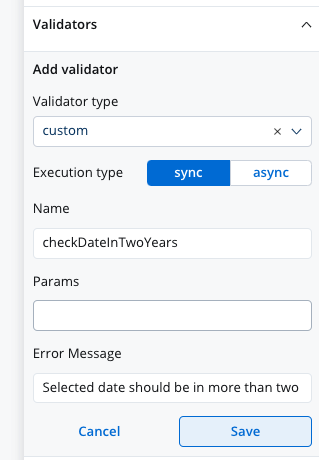
#### Custom validator example
Below you can find an example of a custom validator (`currentOrLastYear`) that restricts data selection to the current or the previous year:
##### currentOrLastYear
```typescript theme={"system"}
currentOrLastYear: function currentOrLastYear(AC: AbstractControl): { [key: string]: any } {
if (!AC) {
return null;
}
const yearDate = moment(AC.value, YEAR_FORMAT, true);
const currentDateYear = moment(new Date()).startOf('year');
const lastYear = moment(new Date()).subtract(1, 'year').startOf('year');
if (!yearDate.isSame(currentDateYear) && !yearDate.isSame(lastYear)) {
return { currentOrLastYear: true };
}
return null;
```
##### smallerOrEqualsToNumber
Below is another custom validator example that returns `AsyncValidatorFn` param, which is a function that can be used to validate form input asynchronously. The validator is called `smallerOrEqualsToNumber` and takes an array of `params` as an input.
For this custom validator the execution type should be marked as `async` using the UI Designer.
```typescript theme={"system"}
export function smallerOrEqualsToNumber (params$: Observable[]): AsyncValidatorFn {
return (AC): Promise | Observable => {
return new Observable((observer) => {
combineLatest(params$).subscribe(([maximumLoanAmount]) => {
const validationError =
maximumLoanAmount === undefined || !AC.value || Number(AC.value) <= maximumLoanAmount ? null : {smallerOrEqualsToNumber: true};
observer.next(validationError);
observer.complete();
});
});
};
}
```
If the input value is undefined or the input value is smaller or equal to the maximum loan amount value, the function returns `null`, indicating that the input is valid. If the input value is greater than the maximum loan amount value, the function returns a `ValidationErrors` object with a key `smallerOrEqualsToNumber` and a value of true, indicating that the input is invalid.
For more details about custom validators please check this [link](../../../sdks/angular-renderer).
Using validators in your application can help ensure that the data entered by users is valid, accurate, and consistent, improving the overall quality of your application.
It can also help prevent errors and bugs that may arise due to invalid data, saving time and effort in debugging and fixing issues.
## Related topics
- [Input](/4.7.x/docs/building-blocks/ui-designer/ui-component-types/form-elements/input-form-field.md)
- [Select](/4.7.x/docs/building-blocks/ui-designer/ui-component-types/form-elements/select-form-field.md)
- [Text area](/4.7.x/docs/building-blocks/ui-designer/ui-component-types/form-elements/text-area.md)
- [Checkbox](/4.7.x/docs/building-blocks/ui-designer/ui-component-types/form-elements/checkbox-form-field.md)
- [Radio](/4.7.x/docs/building-blocks/ui-designer/ui-component-types/form-elements/radio-form-field.md)