> ## Documentation Index
> Fetch the complete documentation index at: https://docs.flowx.ai/llms.txt
> Use this file to discover all available pages before exploring further.
# Buttons
> There are two types of buttons available, each with a different purpose.
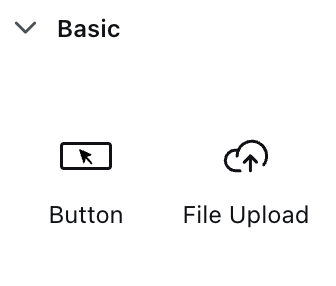
## Basic button
Basic buttons are used to perform an action such as unblocking a token to move forward in the process, sending an OTP, and opening a new tab.
### Configuring a basic button
When configuring a basic button, you can customize the button's settings by using the following options:
* [**Properties**](#properties)
* [**UI action**](#ui-action)
* [**Button styling**](#button-styling)
Sections that can be configured regarding general settings:
#### Properties
* **Label** - it allows you to set the label that appears on the button
#### UI action
Here, you can define the UI action that the button will trigger.
* **Event** - possible value: `CLICK`
* **Action Type** - select the action type
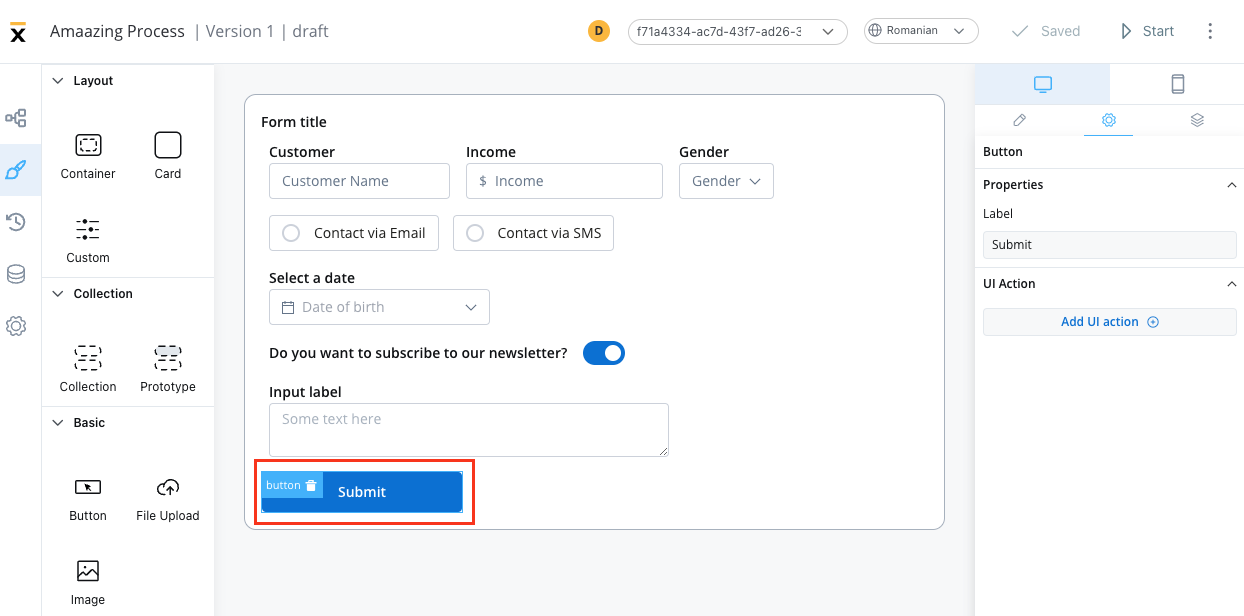
More details on how to configure UI actions can be found [here](../ui-actions).
### Button styling
#### Properties
This section enables you to select the type of button using the styling tab in the UI Designer. There are four types available:
* Primary
* Secondary
* Ghost
* Text
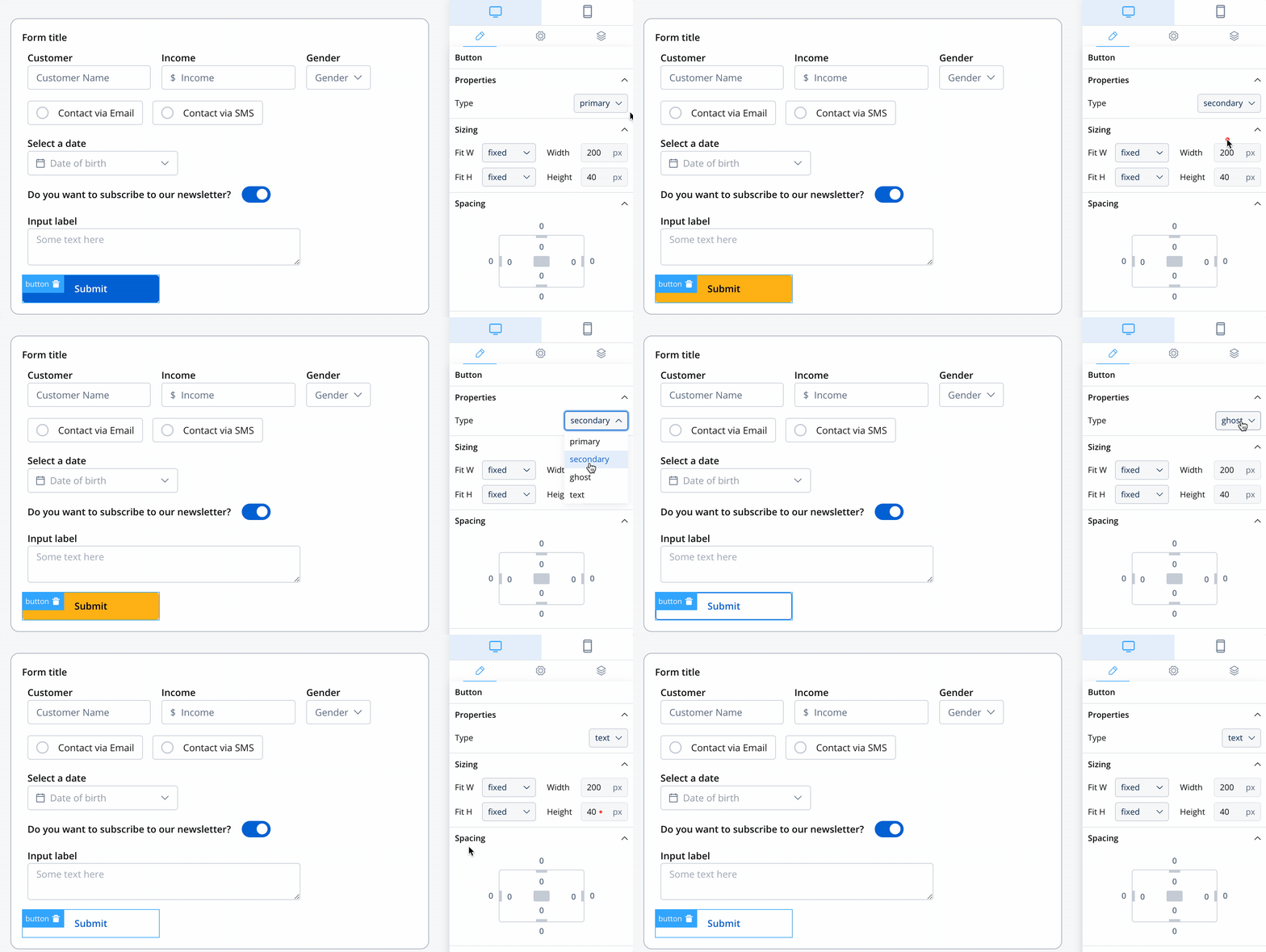
For more information on valid CSS properties, click [here](../ui-designer#styling).
#### Icons
To further enhance the Button UI element with icons, you can include the following properties:
* **Icon Key** - the key associated in the Media library, select the icon from the **Media Library**
* **Icon Color** - select the color of the icon using the color picker
When setting the color, the entire icon is filled with that color, the SVG's fill. Avoid changing colors for multicolor icons.
* **Icon Position** - define the position of the icon within the button:c
* Left
* Right
* Center
When selecting the center position for an icon, the button will display the icon only.
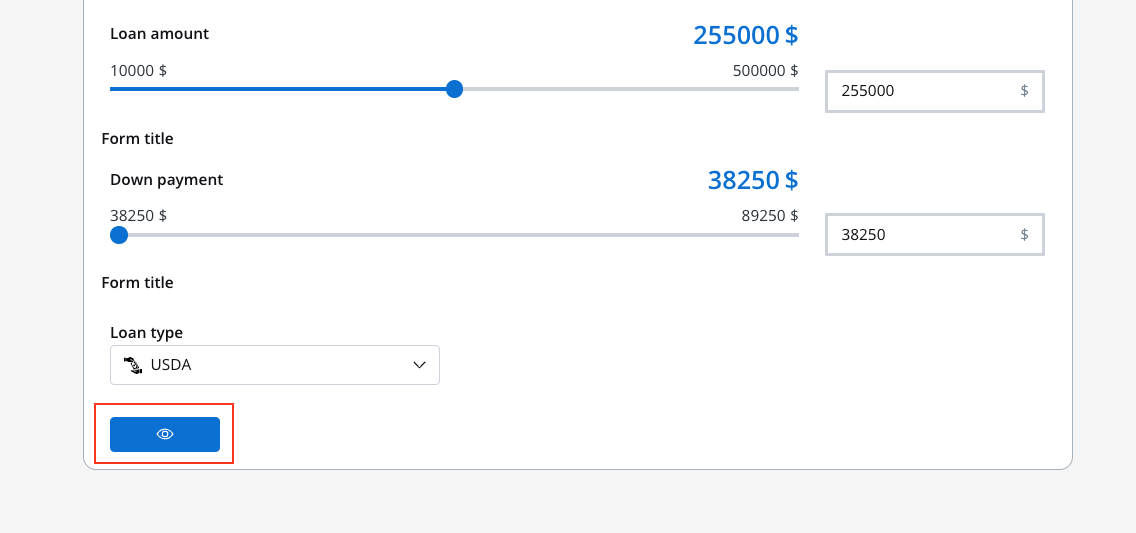
By utilizing these properties, you can create visually appealing Button UI elements with customizable icons, colors, and positions to effectively communicate their purpose and enhance the user experience.
## File upload
This button will be used to select a file and do custom validation on it. Only the Flowx props will be different.
### Configuring a file upload button
When configuring a file upload button, you can customize the button's settings by using the following options:
* [**Properties**](#properties)
* [**UI action**](#ui-action)
* [**Button styling**](#button-styling)
Sections that can be configured regarding general settings:
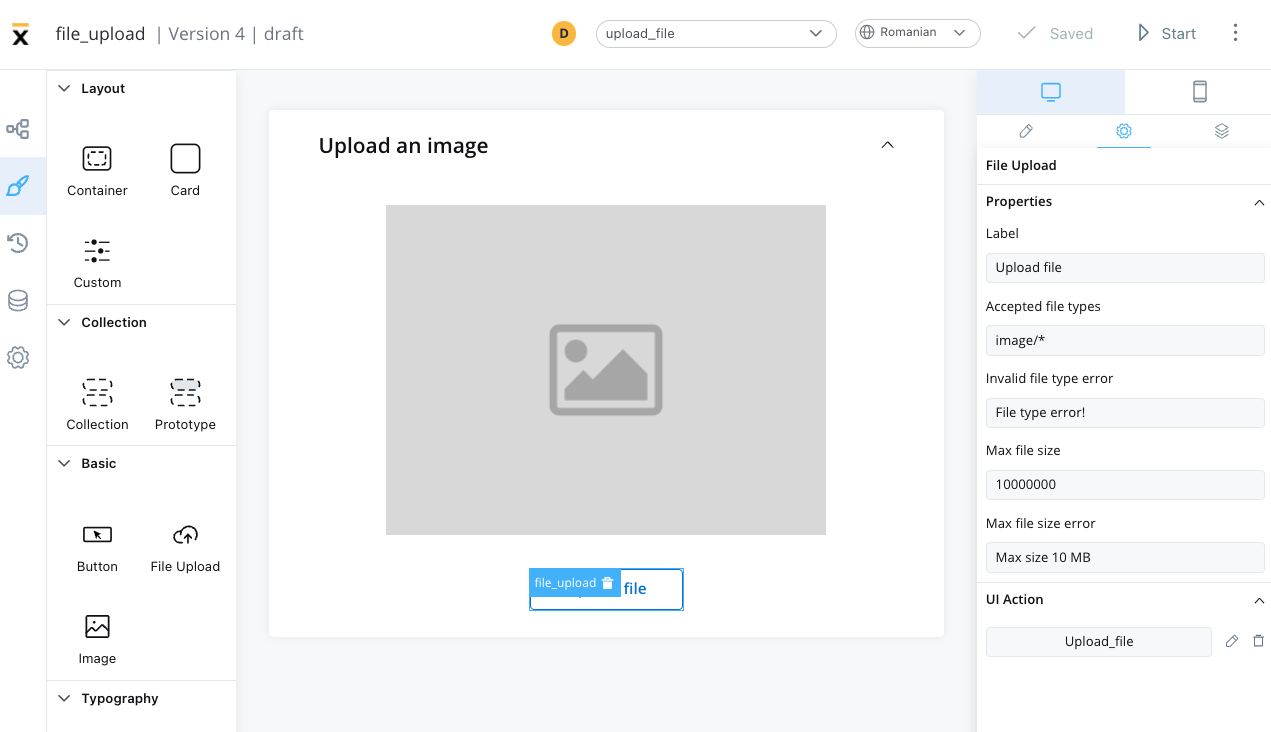
#### Properties
* **Label** - it allows you to set the label that appears on the button
* **Accepted file types** - the accept attribute takes as its value a string containing one or more of these unique file type specifiers, [separated by commas](https://html.spec.whatwg.org/multipage/common-microsyntaxes.html#set-of-comma-separated-tokens), may take the following forms:
| Value | Defintion |
| ------------------------------------------------------------------------------------------------------------------------- | ------------------------------------------------------------------- |
| audio/\* | Indicates that sound files are accepted |
| image/\* | Indicates that image files are accepted |
| video/\* | Indicates that video files are accepted |
| [MIME type](https://html.spec.whatwg.org/multipage/infrastructure.html#valid-mime-type-with-no-parameters) with no params | Indicates that files of the specified type are accepted |
| string starting with U+002E FULL STOP character (.) (for example, .doc, .docx, .xml) | Indicates that files with the specified file extension are accepted |
* **Invalid file type error**
* **Max file size**
* **Max file size error**
Example of an upload file button that accepts image files:
#### UI action
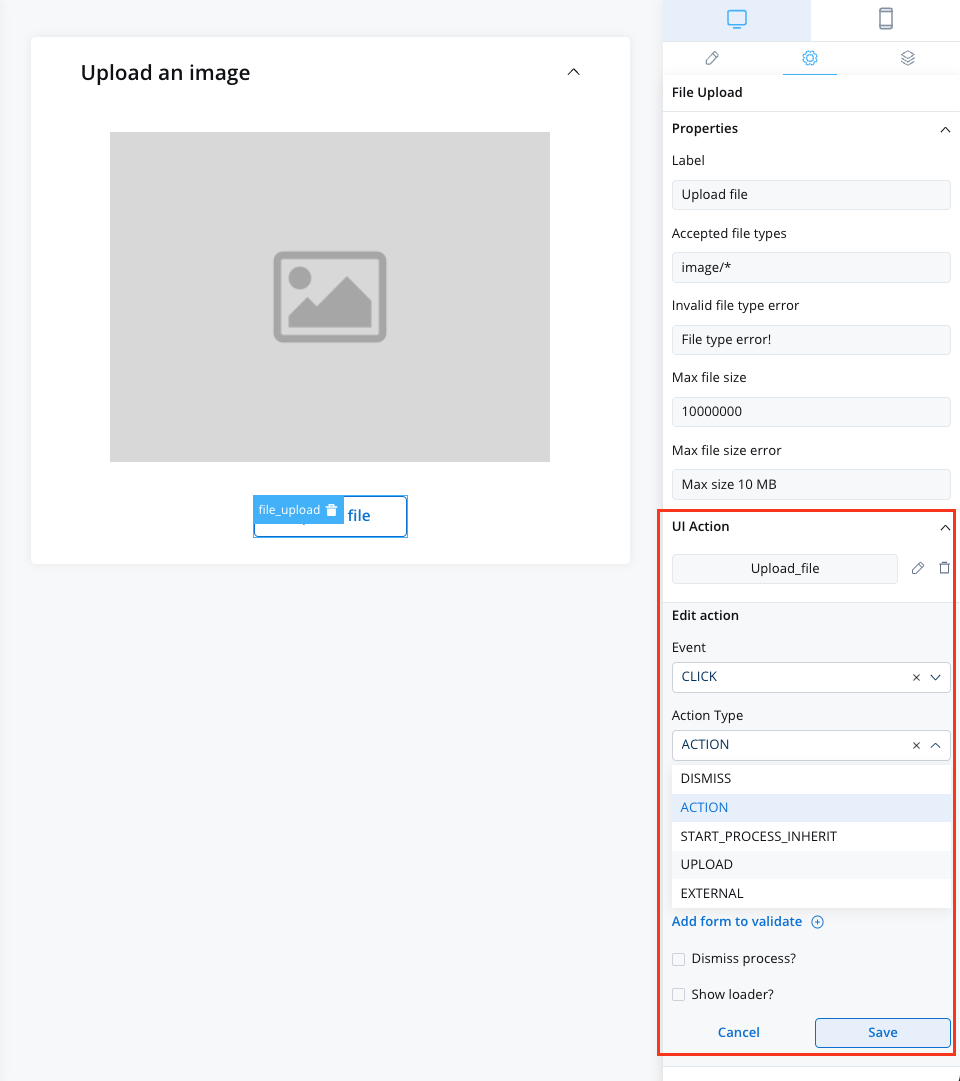
Here, you can define the UI action that the button will trigger.
* **Event** - possible value: `CLICK`
* **Action Type** - select the action type
More details on how to configure UI actions can be found [here](../ui-actions).
### Button styling
The file upload button can be styled using valid CSS properties (more details [here](../ui-designer#styling)).