> ## Documentation Index
> Fetch the complete documentation index at: https://docs.flowx.ai/llms.txt
> Use this file to discover all available pages before exploring further.
# Upload file action
> An Upload File action is an action type that allows you to upload a file to a service available on Kafka.
**Why is it useful?** The action will receive a file from the frontend and send it to Kafka, and will also attach some metadata.
## Configuring an Upload file action
Multiple options are available for this type of action and can be configured via the **FlowX Designer**. To configure an Upload File action, use the **Actions** tab at the [task node level](../../flowx-designer/managing-a-project-flow/adding-an-action-to-a-node), which has the following configuration options:
* [Action Edit](#action-edit)
* [Back in steps (for Manual actions)](#back-in-steps)
* [Parameters](#parameters)
* [Data to send (for Manual actions)](#data-to-send)
* [UI Configuration](#ui-configuration)
### Action edit
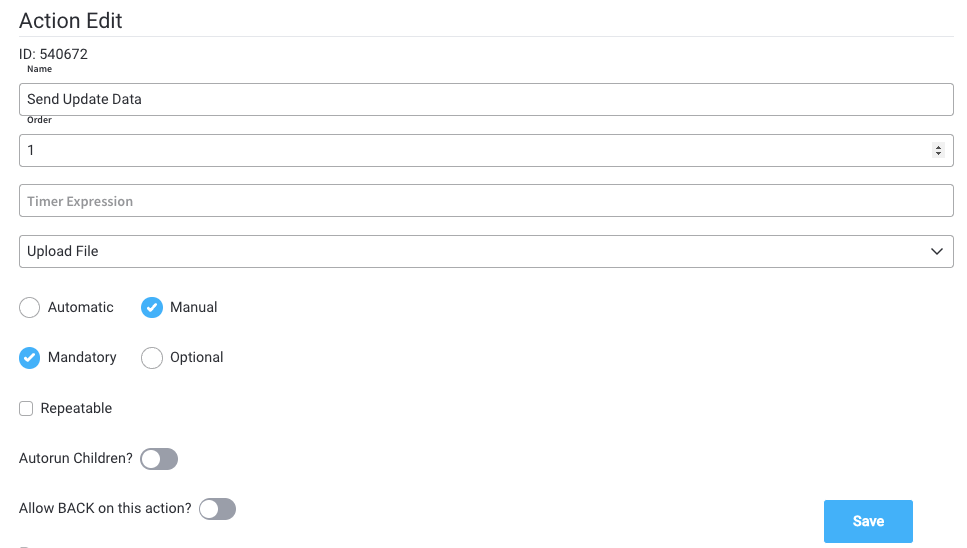
* **Name** - used internally to make a distinction between different actions on nodes in the process. We recommend defining an action naming standard to be able to quickly find the process actions
* **Order** - if multiple actions are defined on the same node, the running order should be set using this option
* **Timer expression** - it can be used if a delay is required on that action. The format used for this is [ISO 8601 duration format ](https://www.w3.org/TR/NOTE-datetime)(for example, a delay of 30 seconds will be set up as `PT30S`)
* **Action type** - should be set to **Upload File**
* **Trigger type** (options are Automatic/Manual) - choose if this action should be triggered automatically (when the process flow reaches this step) or manually (triggered by the user); in most use cases, this will be set to automatic
* **Required type** (options are Mandatory/Optional) - automatic actions can only be defined as mandatory. Manual actions can be defined as mandatory or optional.
* **Repeatable** - should be checked if the action can be triggered multiple times
* **Autorun Children** - when this is switched on, the child actions (the ones defined as mandatory and automatic) will run immediately after the execution of the parent action is finalized
### Back in steps
* **Allow BACK on this action** - back in process is a functionality that allows you to go back in a business process and redo a series of previous actions in the process. For more details, check [Moving a token backwards in a process](../../flowx-designer/managing-a-project-flow/moving-a-token-backwards-in-a-process) section.
### Parameters
* **Address** - the Kafka topic where the file will be posted
* **Document Type** - other metadata that can be set (useful for the [document plugin](../../platform-deep-dive/plugins/custom-plugins/documents-plugin/documents-plugin-overview))
* **Folder** - allows you to configure a value by which the file will be identified in the future
* **Advanced configuration (Show headers)** - this represents a JSON value that will be sent on the headers of the Kafka message
### Data to send
* **Keys** - are used when data is sent from the frontend via an action to validate the data (you can find more information in the [User Task configuration](../node/user-task-node) section)
**Data to send** option is configurable only when the action **trigger type** is **Manual**.
## UI Configuration
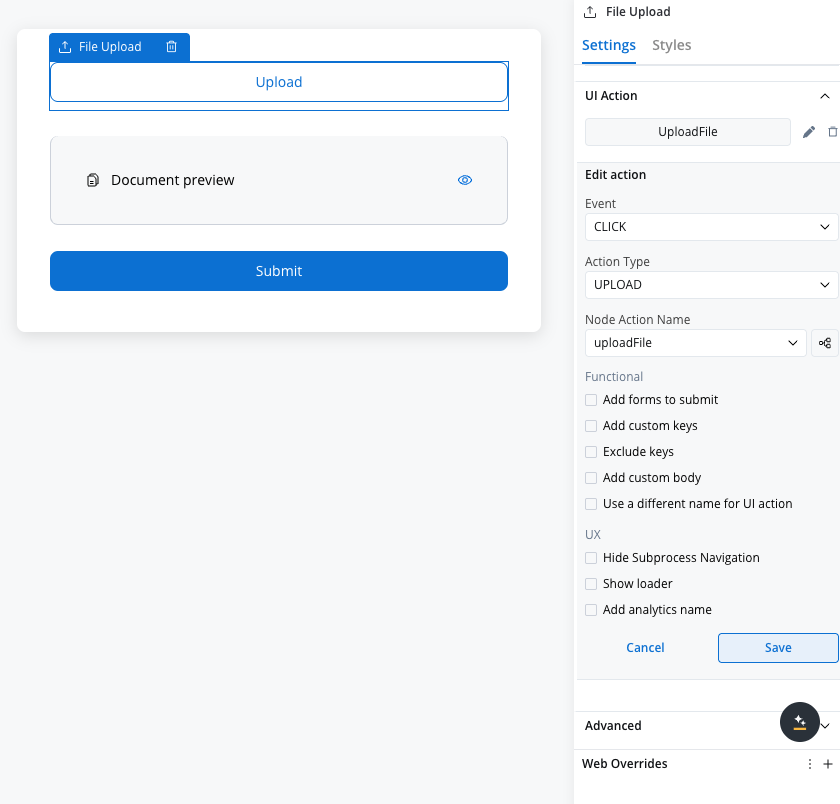
When configuring the UI action that corresponds to the Upload File node action, you must set the **UI action type** to **upload**. This ensures proper integration between the frontend interface and the backend upload functionality.
## Example
An example of **Upload File Action** is to send a file to the [document plugin](../../platform-deep-dive/plugins/custom-plugins/documents-plugin/documents-plugin-overview). In this case, the configuration will look like this:
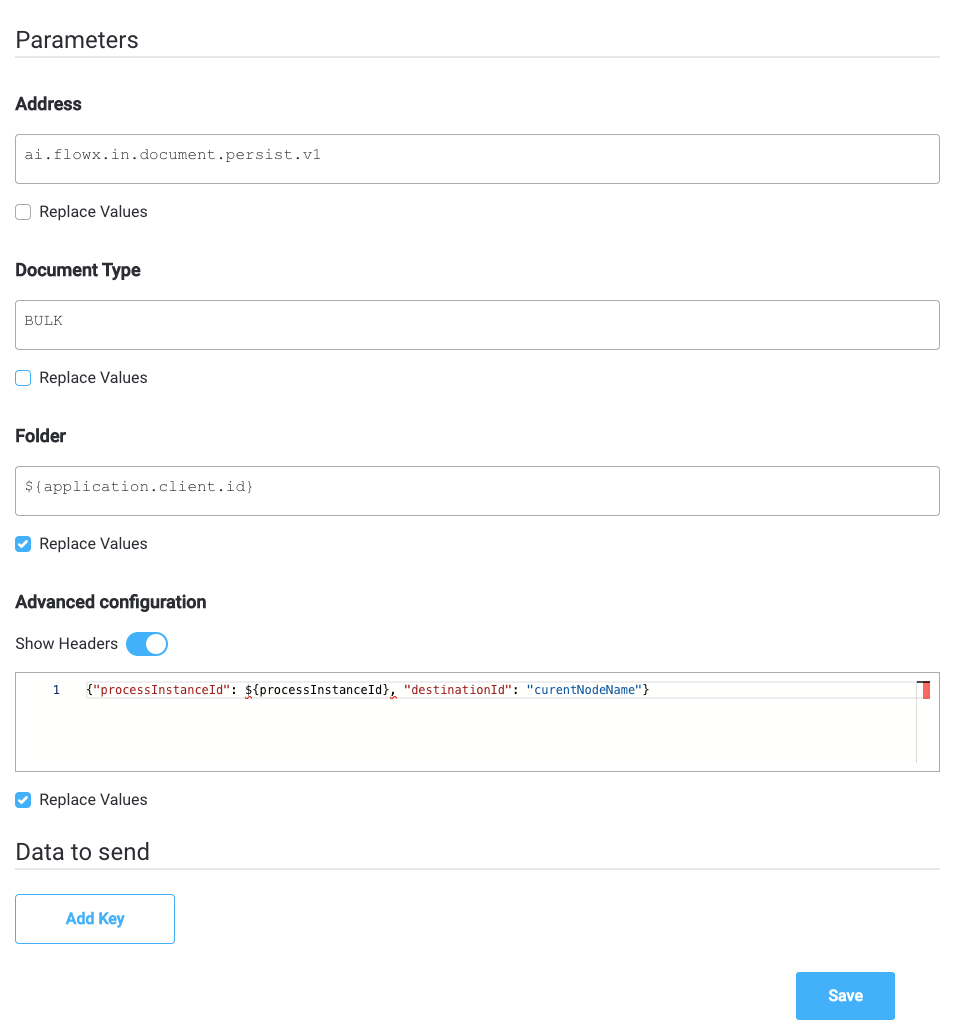
**Parameters configuration**
* **Address (topicName)** - will be set to (the id of the document plugin service) `ai.flowx.in.document.persist.v1`
* **Document Type** - metadata used by the document plugin, here we will set it to`BULK`
* **Folder** - the value by which we want to identify this file in the future (here we use the **client.id** value available on the process instance data: `${application.client.id}`
**Advanced configuration**
* **Headers** - headers will send extra metadata to this topic -`{"processInstanceId": ${processInstanceId}, "destinationId": "currentNodeName"}`)
## Related topics
- [Task node](/4.7.x/docs/building-blocks/node/task-node.md)
- [Node actions](/4.7.x/docs/building-blocks/actions/actions.md)
- [Getting URLs](/4.7.x/docs/platform-deep-dive/plugins/custom-plugins/documents-plugin/getting-urls-to-documents.md)
- [OCR plugin](/4.7.x/docs/platform-deep-dive/plugins/custom-plugins/ocr-plugin.md)
- [Creating and uploading a new document](/4.7.x/docs/platform-deep-dive/plugins/custom-plugins/documents-plugin/uploading-a-new-document.md)