> ## Documentation Index
> Fetch the complete documentation index at: https://docs.flowx.ai/llms.txt
> Use this file to discover all available pages before exploring further.
# Fonts
> Fonts management allows you to upload and manage multiple font files, which can be later utilized when configuring UI templates using the UI Designer.
## Managing fonts
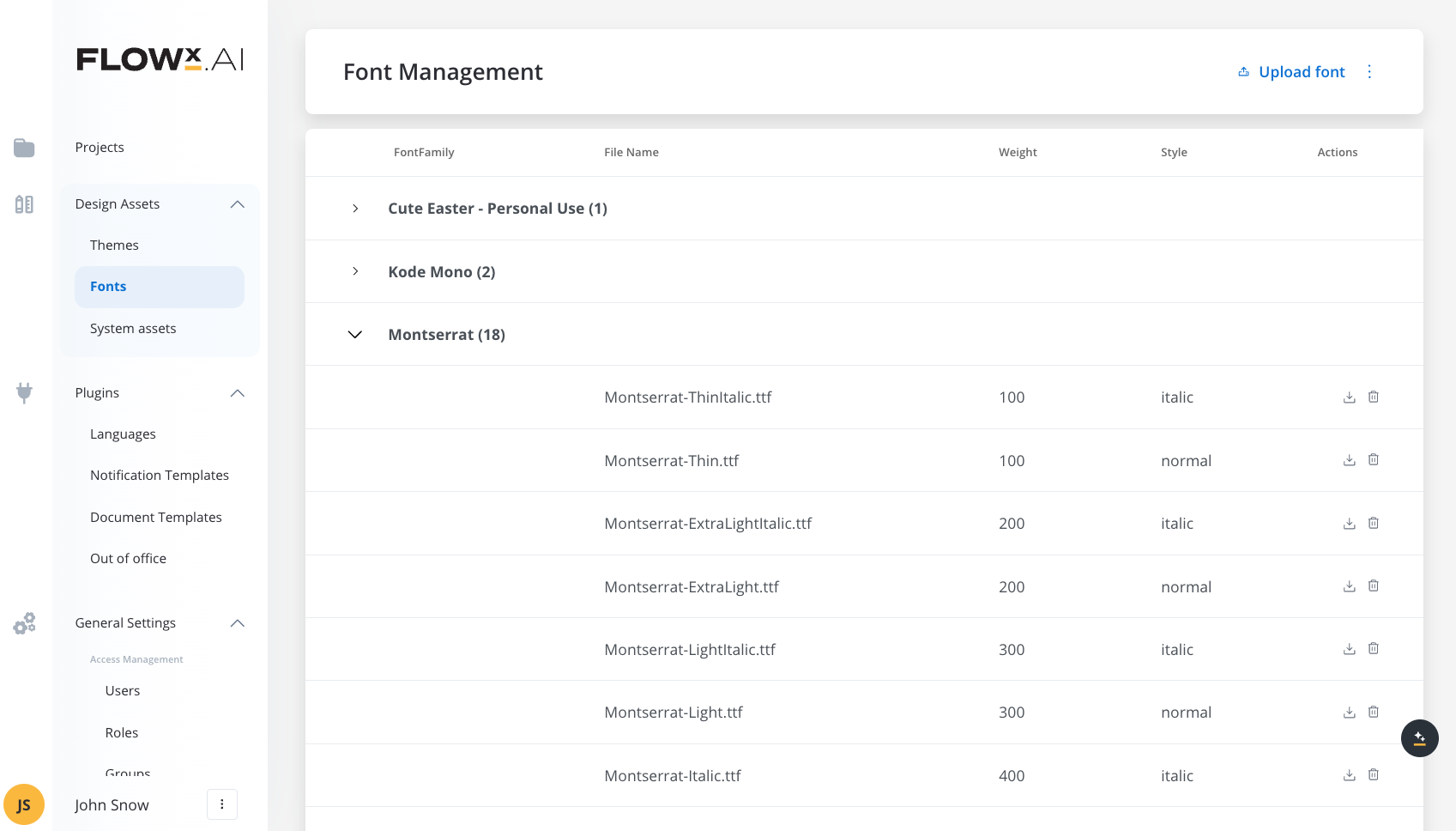
The "Font Management" screen displays a table with uploaded fonts. The following details are available:
* **FontFamily**: The names of the uploaded font families.
* **File Name**: The name of the font file.
* **Weight**: The weight of the font, represented by a numeric value.
* **Style**: The style of the font, such as "italic" or "normal".
* **Actions**: This tab contains options for managing the uploaded fonts, such as deleting or downloading them.
## Uploading fonts
### Uploading theme font files
To upload new theme font files, follow these steps:
1. Open **FLOWX Designer**.
2. Navigate to the **Content Management** tab and select **Font files**.
3. Click **Upload font** and choose a valid font file.
The ccepted font format is TTF (TrueType Font file).
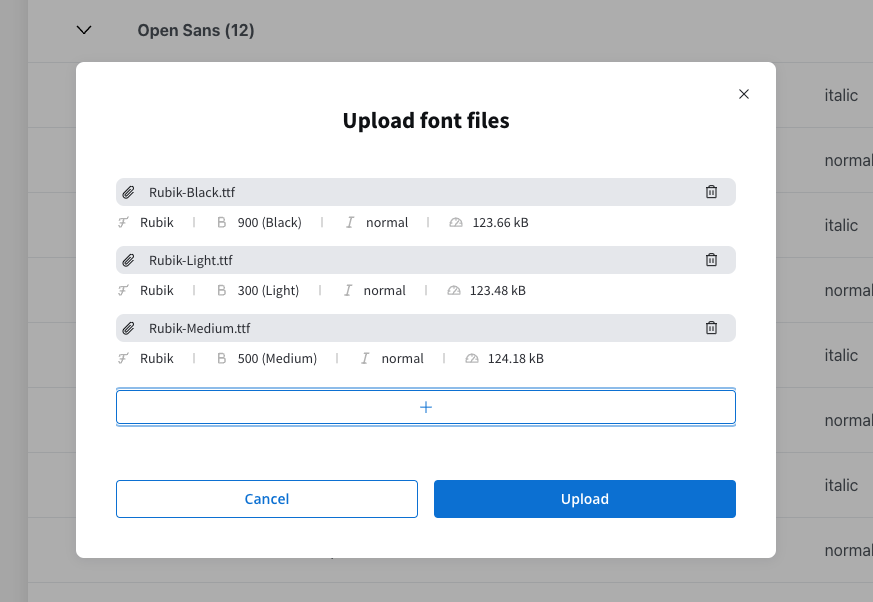
4. Click **Upload**. You can upload multiple TTF font files.
5. For each uploaded font file, the system will automatically identify information such as font family, weight, and style.
## Exporting fonts
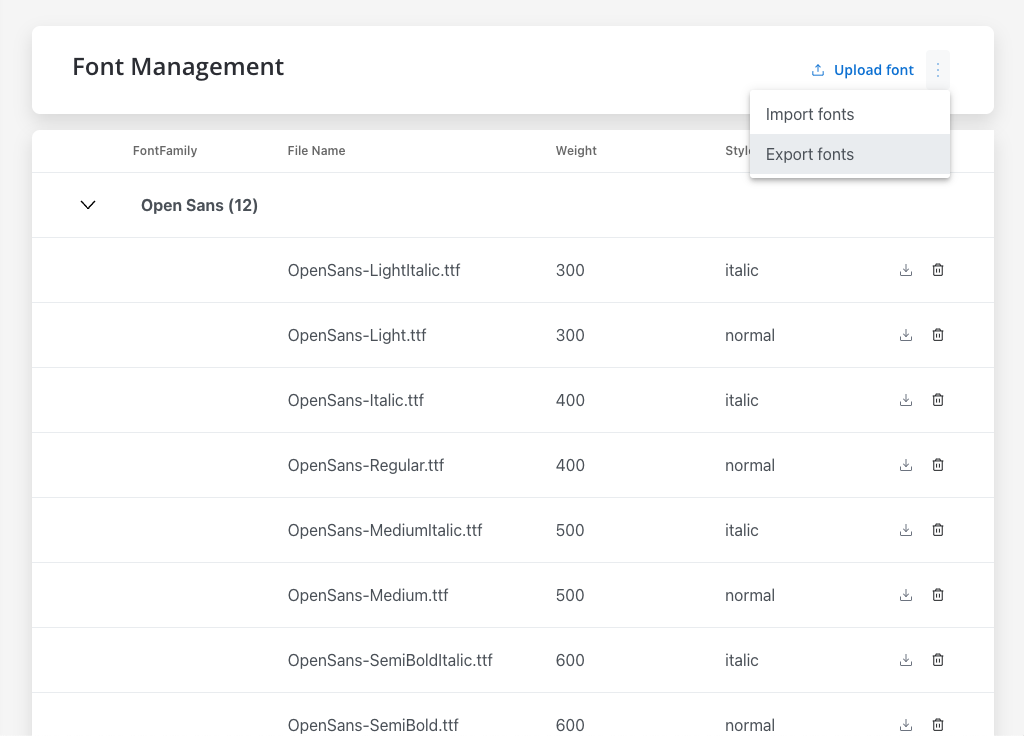
You can use the export feature to export a JSON file containing all the font files.
The exported JSON will look like this:
```json theme={"system"}
{
"fonts": [
{
"fontFamily": "Open Sans",
"filename": "OpenSans-ExtraBoldItalic.ttf",
"weight": 800,
"style": "italic",
"size": 135688,
"storagePath": "https://d22tnnndi9lo60.cloudfront.net/devmain/flowx/fonts-folder/1690383294848_OpenSans-ExtraBoldItalic.ttf",
"contentType": "font/ttf",
"application": "flowx",
"flowxUuid": "ce0f75e2-72e4-40e3-afe5-3705d42cf0b2"
},
{
"fontFamily": "Open Sans",
"filename": "OpenSans-BoldItalic.ttf",
"weight": 700,
"style": "italic",
"size": 135108,
"storagePath": "https://d22tnnndi9lo60.cloudfront.net/devmain/flowx/fonts-folder/1690383295987_OpenSans-BoldItalic.ttf",
"contentType": "font/ttf",
"application": "flowx",
"flowxUuid": "d3e5e2a0-958a-4183-8625-967432c63005"
}
//...
],
"exportVersion": 1
}
```
## Importing fonts
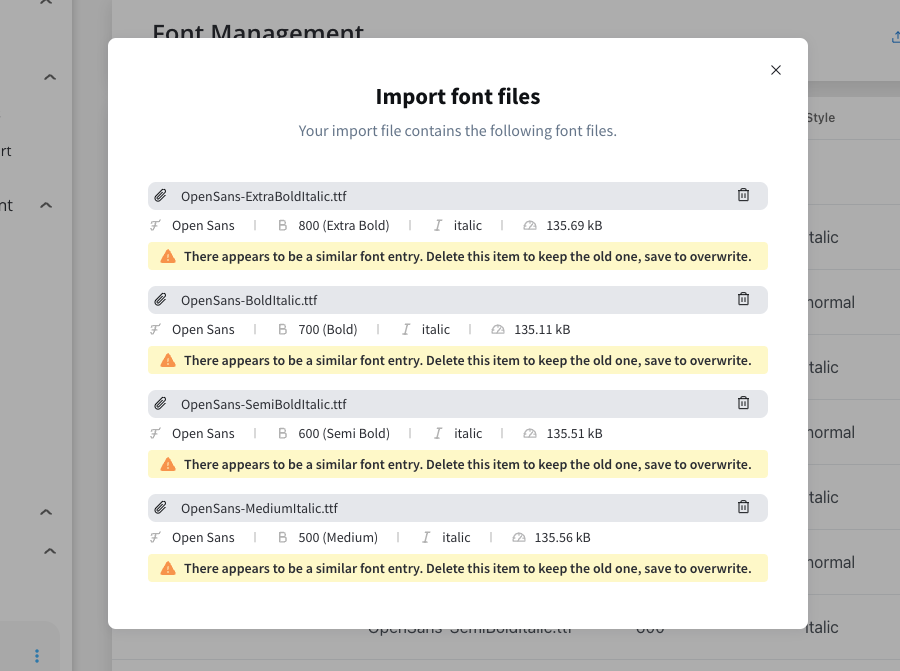
You can use the import feature to import a JSON file containing the font files. If a font file already exists, you will be notified.
## Using fonts in UI Designer
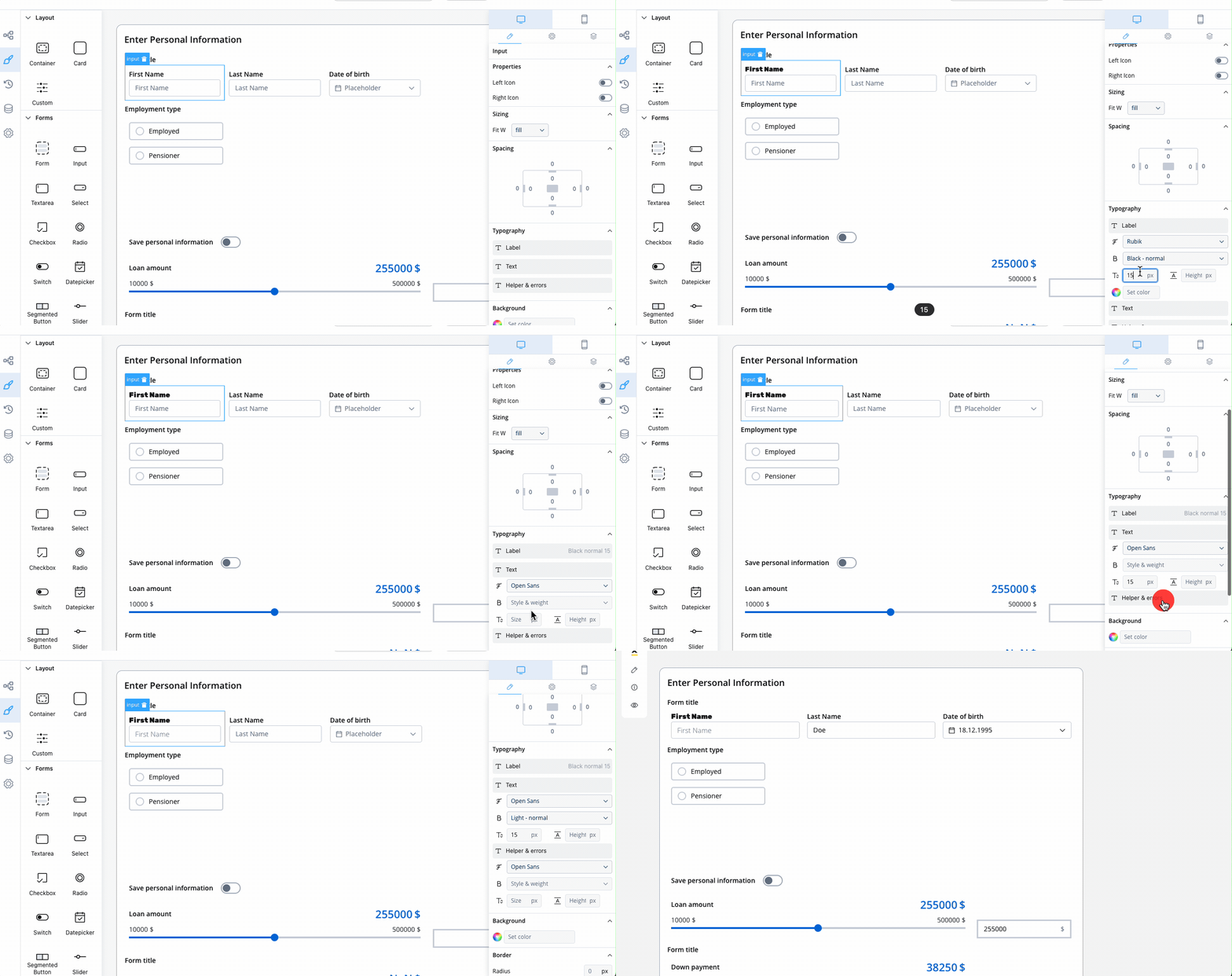
For example, let's take an input UI element; you can customize the typography for this UI element by changing the following properties:
* Label:
* Font family
* Style and weight
* Font line size (px)
* Font line height (px)
* Text:
* Font family
* Style and weight
* Font line size (px)
* Font line height (px)
* Helper & errors:
* Font family
* Style and weight
* Font line size (px)
* Font line height (px)