> ## Documentation Index
> Fetch the complete documentation index at: https://docs.flowx.ai/llms.txt
> Use this file to discover all available pages before exploring further.
# Collection prototype
> A Collection prototype is an additional container type that allows you to define multiple prototypes for a single Collection. This feature enables you to display elements from the same collection differently.
Imagine you are designing a user interface where users can browse a list of products, with one product deserving special emphasis as the recommended choice. In this scenario, you can employ a collection containing different collection prototypes, each tailored for regular and recommended products
## Configurable properties
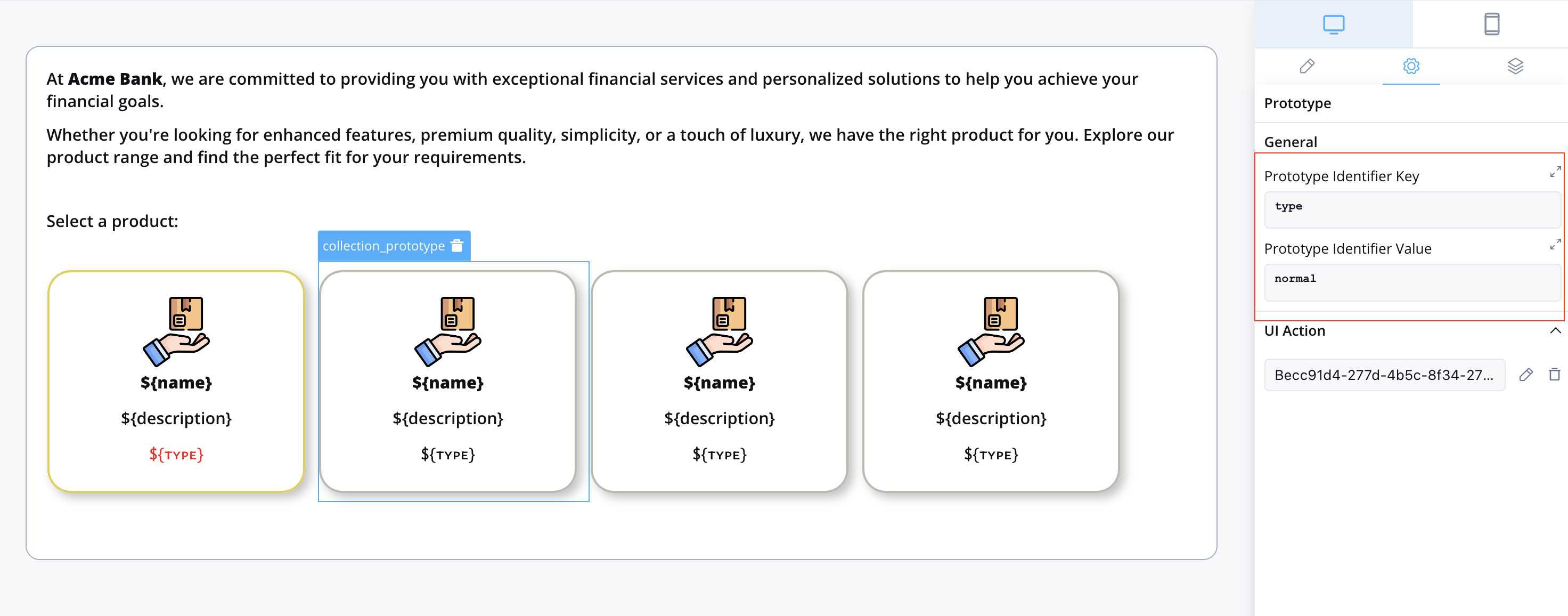
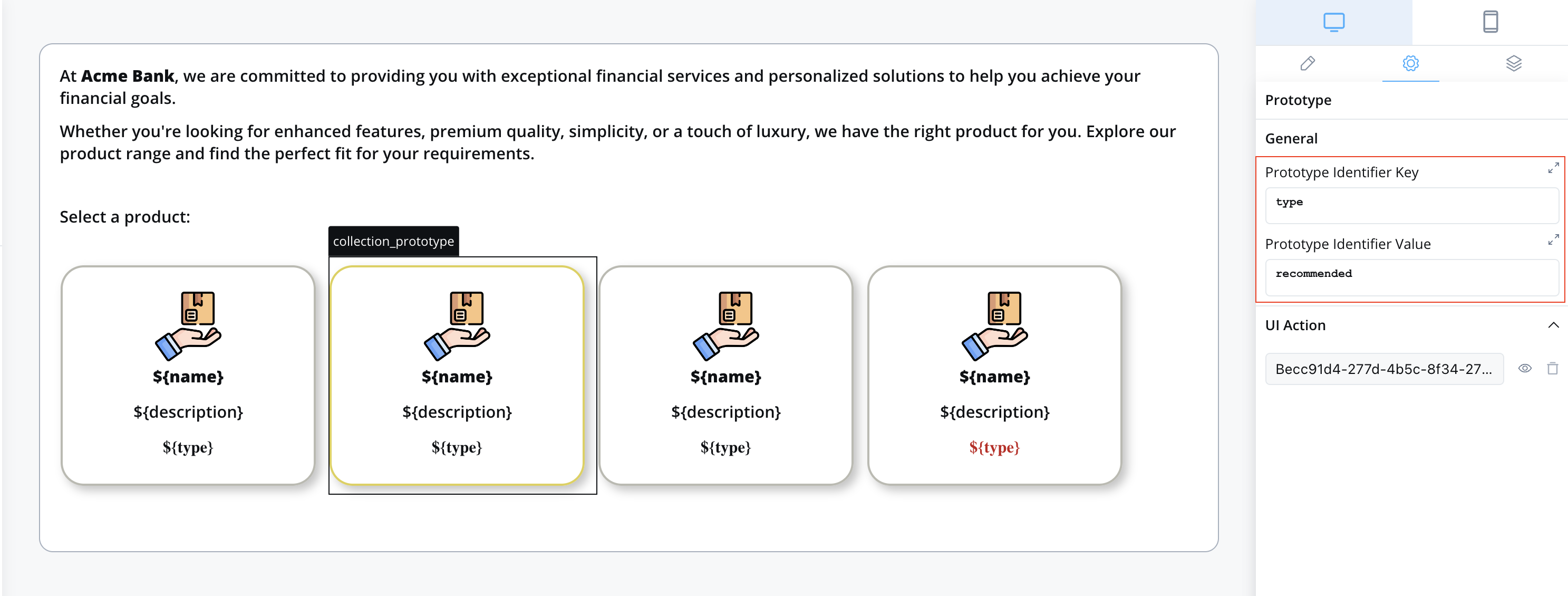
1. **Prototype Identifier Key** - This key instructs the system on where to look within the iterated object to identify the prototype to display. In the example below, the key is "type."
2. **Prototype Identifier Value** - This value should be present at the Prototype Identifier Key when this `COLLECTION_PROTOTYPE` should be displayed. In the example below, the value can be "normal" or "recommended."
## Example
Let's revisit the example we used in the Collection section:
Sample source collection data for products:
```java theme={"system"}
output.put("processData",
{
"products": [
{
"name": "Product One Plus",
"description": "The plus option",
"type": "normal"
},
{
"name": "Product Two Premium",
"description": "This is premium product",
"type": "recommended" // source for type - recommended
},
{
"name": "Product Basic",
"description": "The most basic option",
"type": "normal" //source for type - normal
},
{
"name": "Gold Product",
"description": "The gold option",
"type": "normal"
}
]
}
);
```
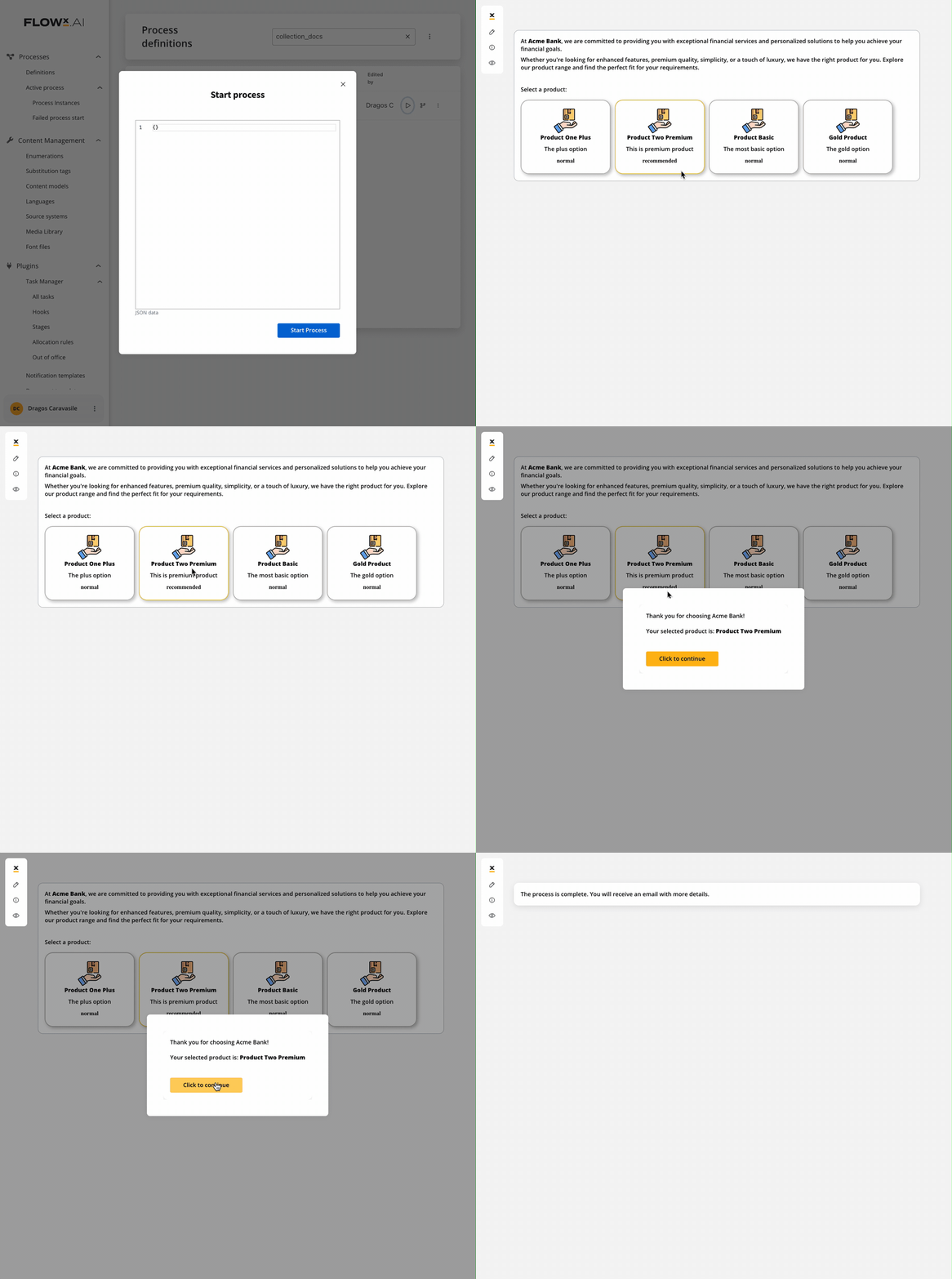
The above configuration will render:
## Adding elements with UI Actions
When configuring elements that incorporate UI Actions there are a few considerations to keep in mind. These adjustments are necessary to enable users to select products for further processing in subsequent steps of the workflow.
To facilitate the selection of a product from the list, you must first add an [Action](../../../actions/actions) to the [User task node](../../../node/user-task-node) associated with this UI element:

This **save-item** action is categorized as **manual** since it is user-triggered and **mandatory** because product selection is a prerequisite for proceeding to the next [Node](../../../node/) in the process. Additionally, it is marked as **Repeatable** to allow users to change their selected product.
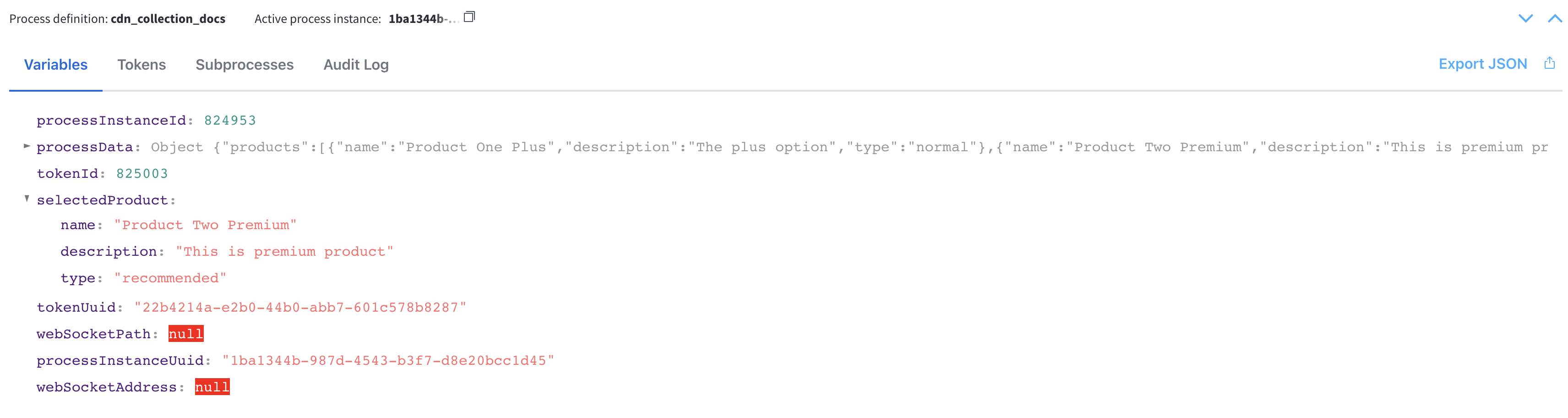
Pay attention to the **Data to send** section, which specifies where in the **process data** the selected product (the one the user clicked on) should be saved. In this example, it is saved under the `selectedProduct` key.
Now that you have a [node action](../../../actions/actions) defined, you can proceed to add a UI action to the collection prototype. This UI action can be added directly to the collection prototype UI element or other UI elements within it that support UI actions. For more information on UI actions, click [**here**](../../ui-actions).

**Collection Item Save Key** field has an important role in the UI Action configuration of element with the UI action. This field represents how we pass the value of the **Product** that the user has selected to the [node action](../../../actions/actions) that we created in **Step 1**, named *save-item*.
In our example, we set **Collection Item Save Key** to be `selectedProduct`.
**IMPORTANT**: The `selectedProduct` key is how we expose the data from the **Collection** to the [node action](../../../actions/actions) It is **imperative** that the name in the **Collection Item Save Key** is the same as the one used in the **Data to send** input in the node action.
### Result
Before clicking the collection prototype UI element with the attached UI action, this is how the process data appears:
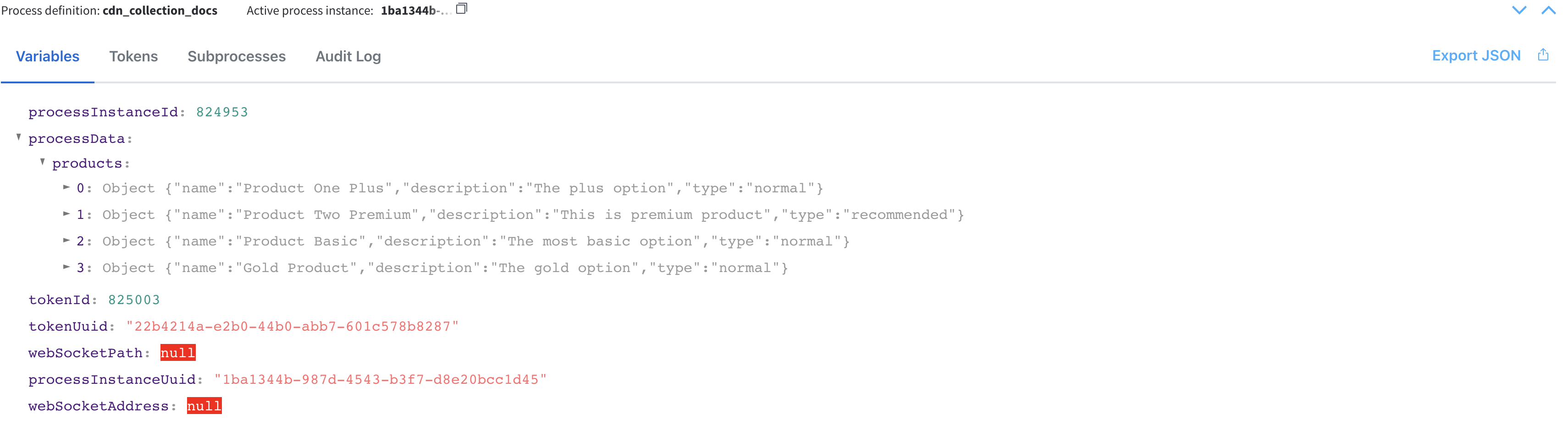
After selecting a product from the list (notice the new field `selectedProduct`):
Please note that JavaScript expressions for hiding or disabling UI components cannot be applied within elements inside a Collection prototype. Ensure your UI logic accounts for this limitation.
## Related topics
- [Collection component](/4.6.0/docs/building-blocks/ui-designer/ui-component-types/collection/collection.md)
- [Layout configuration](/4.6.0/docs/building-blocks/ui-designer/layout-configuration.md)
- [FlowX.AI 5.1.4 Release Notes (LTS)](/release-notes/v5.x/v5.1.x-lts/v5.1.4-february-2026.md)
- [FlowX.AI 5.4.0 Release Notes](/release-notes/v5.x/v5.4.0-january-2026/v5.4.0-january-2026.md)
- [UI Designer](/4.6.0/docs/building-blocks/ui-designer/ui-designer.md)