> ## Documentation Index
> Fetch the complete documentation index at: https://docs.flowx.ai/llms.txt
> Use this file to discover all available pages before exploring further.
# Task node
> A task node refers to a task that utilizes various services, such as Web services, automated applications, or other similar services, to accomplish a particular task.
This type of node finds application in multiple scenarios, including:
* Executing a [**business rule**](../actions/business-rule-action/) on the process instance data
* Initiating a [**subprocess**](../actions/start-subprocess-action)
* Transferring data from a subprocess to the parent process
* Transmitting data to frontend applications
## Configuring task nodes
One or more actions can be configured on a task node. The actions are executed in the configured order.
Node configuration is done by accessing the **Node Config** tab. You have the following configuration options for a task node:
#### General Config
* **Node name** - the name of the node
* **Can go back** - switching this option to true will allow users to return to this step after completing it
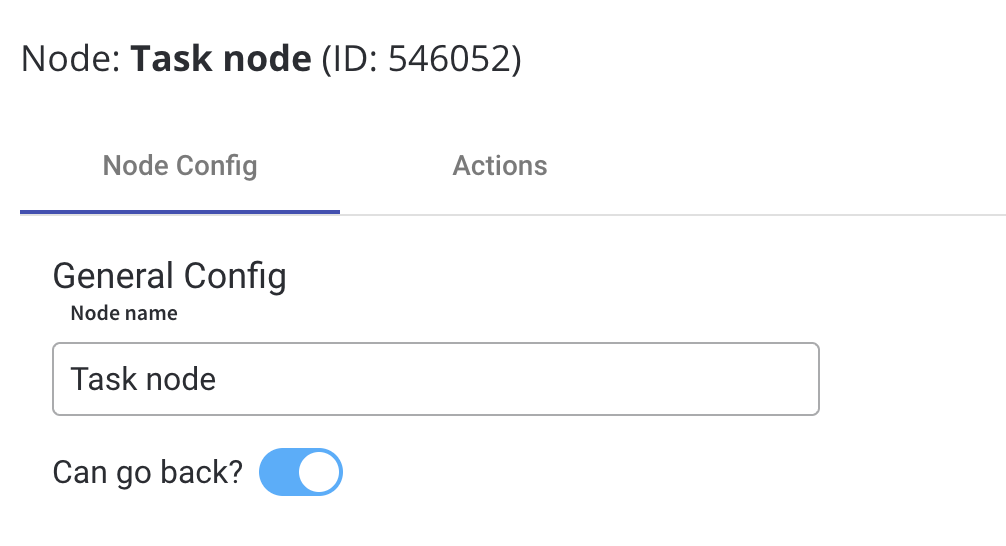
When encountering a step with `canGoBack` switched to false, all steps found behind it will become unavailable.
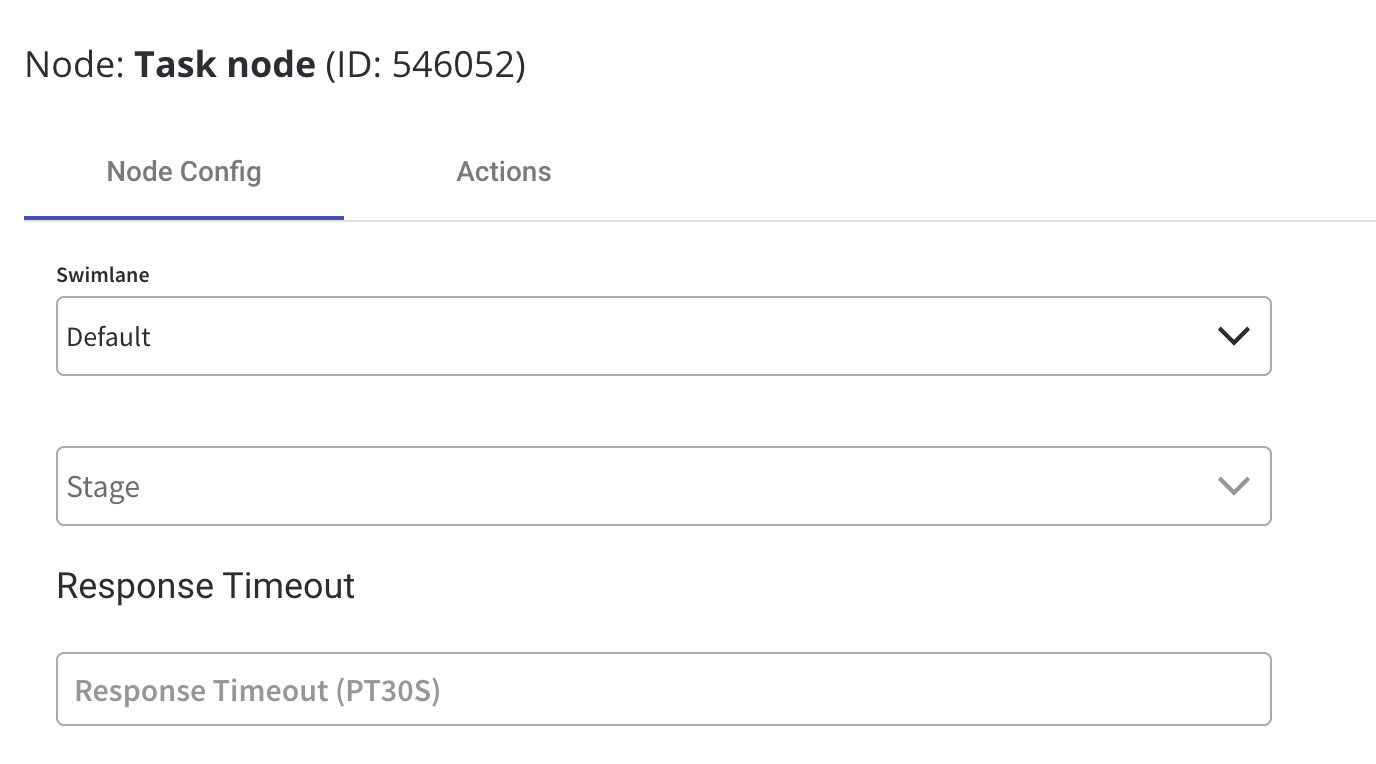
* [**Swimlane**](../../platform-deep-dive/user-roles-management/swimlanes) - choose a swimlane (if there are multiple swimlanes on the process) to make sure only certain user roles have access to certain process nodes- if there are no multiple swimlanes, the value is **Default**
* [**Stage** ](../../platform-deep-dive/core-extensions/task-management/using-stages)- assign a stage to the node
#### Response Timeout
* **Response timeout** - can be triggered if, for example, a topic that you define and add in the [Data stream topics](#data-stream-topics) tab does not respect the pattern, the format used for this is [ISO 8601 duration format](https://www.w3.org/TR/NOTE-datetime)(for example, a delay of 30s will be set up like `PT30S`)
#### Data stream topics
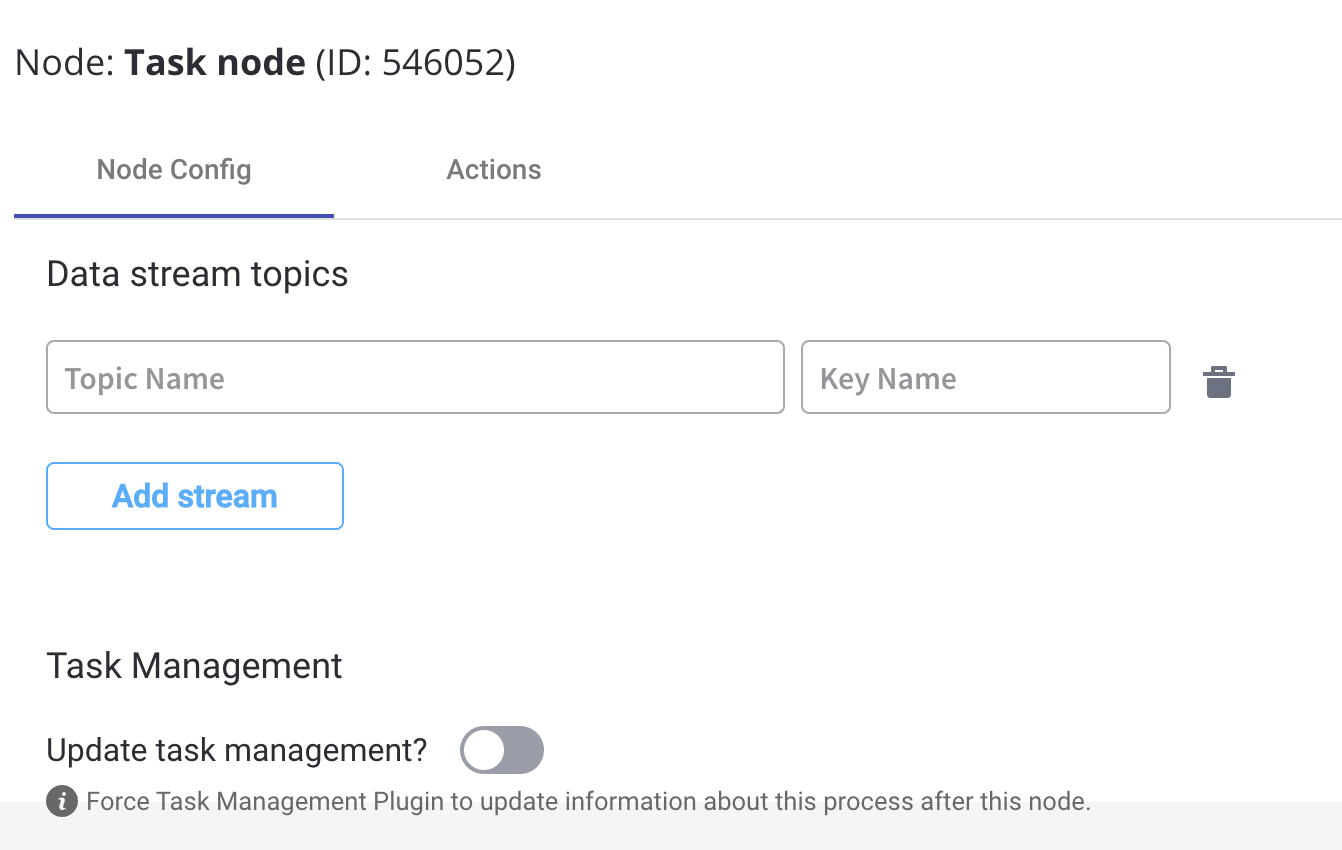
* **Topic Name** - the topic name where the [process engine](../../platform-deep-dive/core-components/flowx-engine) listens for the response (this should be added to the platform and match the topic naming rule for the engine to listen to it) - available for UPDATES topics (Kafka receive events)
A naming pattern must be defined on the [process engine configuration](../../../setup-guides/flowx-engine-setup-guide/engine-setup#configuring-kafka) to use the defined topics. It is important to know that all the events that start with a configured pattern will be consumed by the Engine. For example, `KAFKA_TOPIC_PATTERN` is the topic name pattern where the Engine listens for incoming Kafka events.
* **Key Name** - will hold the result received from the external system, if the key already exists in the process values, it will be overwritten
#### Task Management
* **Update task management** - force [Task Management Plugin](../../platform-deep-dive/core-extensions/task-management/task-management-overview) to update information about this process after this node
## Configuring task nodes actions
Multiple options are available when configuring an action on a task node. To configure and add an action to a node, use the **Actions** tab at the node level, which has the following configuration options:
* [Action Edit](#action-edit)
* [Parameters](#parameters)
#### Action Edit
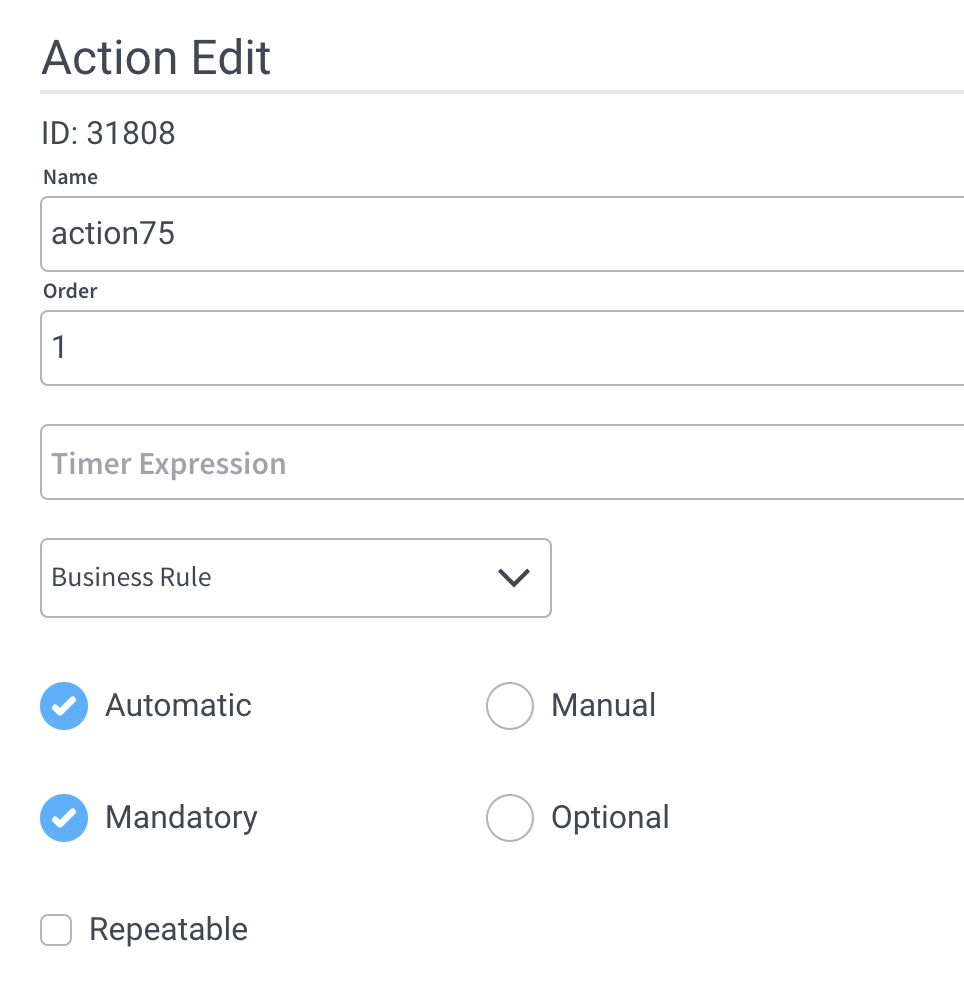
Depending on the type of the [**action**](../actions/actions), different properties are available, let's take a [**business rule**](../actions/business-rule-action/business-rule-action) as an example.
1. **Name** - used internally to differentiate between different actions on nodes in the process. We recommend defining an action naming standard to be able to quickly find the process actions.
2. **Order** - if multiple actions are defined on the same node, their running order should be set using this option
3. **Timer Expression** - can be used if a delay is required on that action. The format used for this is [ISO 8601 duration format ](https://www.w3.org/TR/NOTE-datetime)(for example, a delay of 30s will be set up like `PT30S`)
4. **Action type** - defines the appropriate action type
5. **Trigger type** - (options are Automatic/Manual) - choose if this action should be triggered automatically (when the process flow reaches this step) or manually (triggered by the user); In most use cases, this will be set to automatic.
6. **Required type** - (options are Mandatory/Optional) - automatic actions can only be defined as mandatory. Manual actions can be defined as mandatory or optional.
7. **Repeatable** - should be checked if the action can be triggered multiple times
#### Parameters
Depending on the type of the [**action**](../actions/actions), different properties are available. We refer to a **Business rule** as an example
1. **Business Rules** - business rules can be attached to a node by using actions with action rules on them, these can be specified using [DMN rules](../actions/business-rule-action/dmn-business-rule-action), [MVEL](../../platform-overview/frameworks-and-standards/business-process-industry-standards/intro-to-mvel) expressions, or scripts written in Javascript, Python, or Groovy.
### Business Rule action
A [business rule](../actions/business-rule-action/business-rule-action) is a Task action that allows a script to run. For now, the following script languages are supported:
* [**MVEL**](../../platform-overview/frameworks-and-standards/business-process-industry-standards/intro-to-mvel)
* **JavaScript (Nashorn)**
* **Python (Jython)**
* **Groovy**
* [**DMN**](../../platform-overview/frameworks-and-standards/business-process-industry-standards/intro-to-dmn) - more details about a DMN business rule configuration can be found [here](../actions/business-rule-action/dmn-business-rule-action)
For more details on how to configure a Business Rule action, check the following section:
Being an event-driven platform FLOWX uses web socket communication in order to push events from the frontend application.
For more details on how to configure a Send data to user interface action, check the following section:
Upload file action will be used to upload a file from the frontend application and send it via a Kafka topic to the document management system.
For more details on how to configure an Upload File action, check the following section:
In order to create reusability between business processes, as well as split complex processes into smaller, easier-to-maintain flows, the start subprocess business rule can be used to trigger the same sequence multiple times.
For more details on how to configure a Business Rule action, check the following section:
Used for copying data in the subprocess from its parent process.
For more details about the configuration, check the following section:
## Related topics
- [User task node](/4.6.0/docs/building-blocks/node/user-task-node.md)
- [Creating and uploading a new document](/4.6.0/docs/platform-deep-dive/plugins/custom-plugins/documents-plugin/uploading-a-new-document.md)
- [Splitting documents](/4.6.0/docs/platform-deep-dive/plugins/custom-plugins/documents-plugin/splitting-a-document.md)
- [Start subprocess action](/4.6.0/docs/building-blocks/actions/start-subprocess-action.md)
- [Configuring a DMN business rule action](/4.6.0/docs/building-blocks/actions/business-rule-action/dmn-business-rule-action.md)