> ## Documentation Index
> Fetch the complete documentation index at: https://docs.flowx.ai/llms.txt
> Use this file to discover all available pages before exploring further.
# Node actions
> The activity that a node has to handle is defined using an action. These can have various types, they can be used to specify the communication details for plugins or integrations.
Node actions allow you to incorporate **business rules** into a **process**, and send various data to be displayed in front-end applications.
The Flowx.AI platform supports the following **types of node actions**:
You can only define and add actions on the following types of **nodes**: [**send message task**](../node/message-send-received-task-node#message-send-task), [**task**](../node/task-node) and [**user task**](../node/user-task-node).
Actions fall into two categories:
* Business rules
* User interactions
### Business rules
Actions can use action rules such as DMN rules, MVEL expressions, or scripts in JavaScript, Python, or Groovy to attach business rules to a node.
For more information about supported scripting languages, click on this card.
Each button on the user interface corresponds to a manual user action.
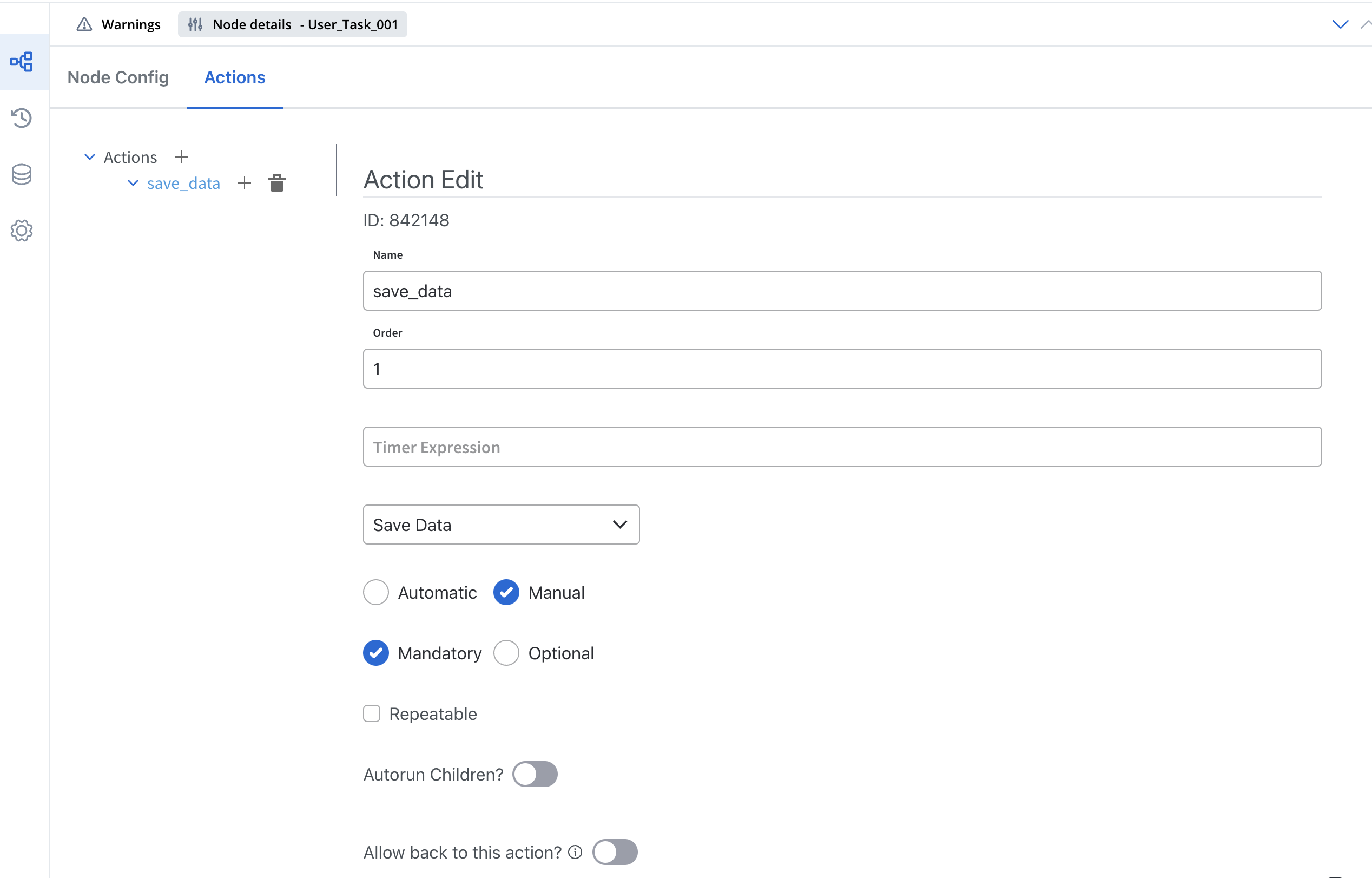
### Action edit
Actions can be:
* Manual or automatic
* Optional or mandatory
If all the mandatory actions are not executed on a node, the flow (token) will not advance.
* Actions can also be marked as one-time or repeatable
### Action parameters
Action params store extra values as key/value pairs, like topics for outgoing messages or message formats for the front-end.
A decision on an **exclusive gateway** is defined using a **node rule**. Similar to action rules, these can be set using [DMN](../../platform-overview/frameworks-and-standards/business-process-industry-standards/intro-to-dmn) or [MVEL](../../platform-overview/frameworks-and-standards/business-process-industry-standards/intro-to-mvel).
## Configuring actions
Actions have a few characteristics that need to be set:
* an **action** can be set as **manual** or **automatic**. Manual actions can be executed only through the REST API, this usually means they are triggered by the application user from the interface. Automatic actions are executed without any need for external triggers.
* manual actions can be either mandatory or optional. Automatic actions are all considered mandatory.
* all actions have an **order.** When there are more actions on a single node, the order needs to be set.
* **repeatable** - the actions that could be triggered more than once are marked accordingly
* the actions can have a parent/child hierarchy
* **allow back to this action** - the user can navigate back to this action from a subsequent node
For more information, check the following section:
## Linking actions together
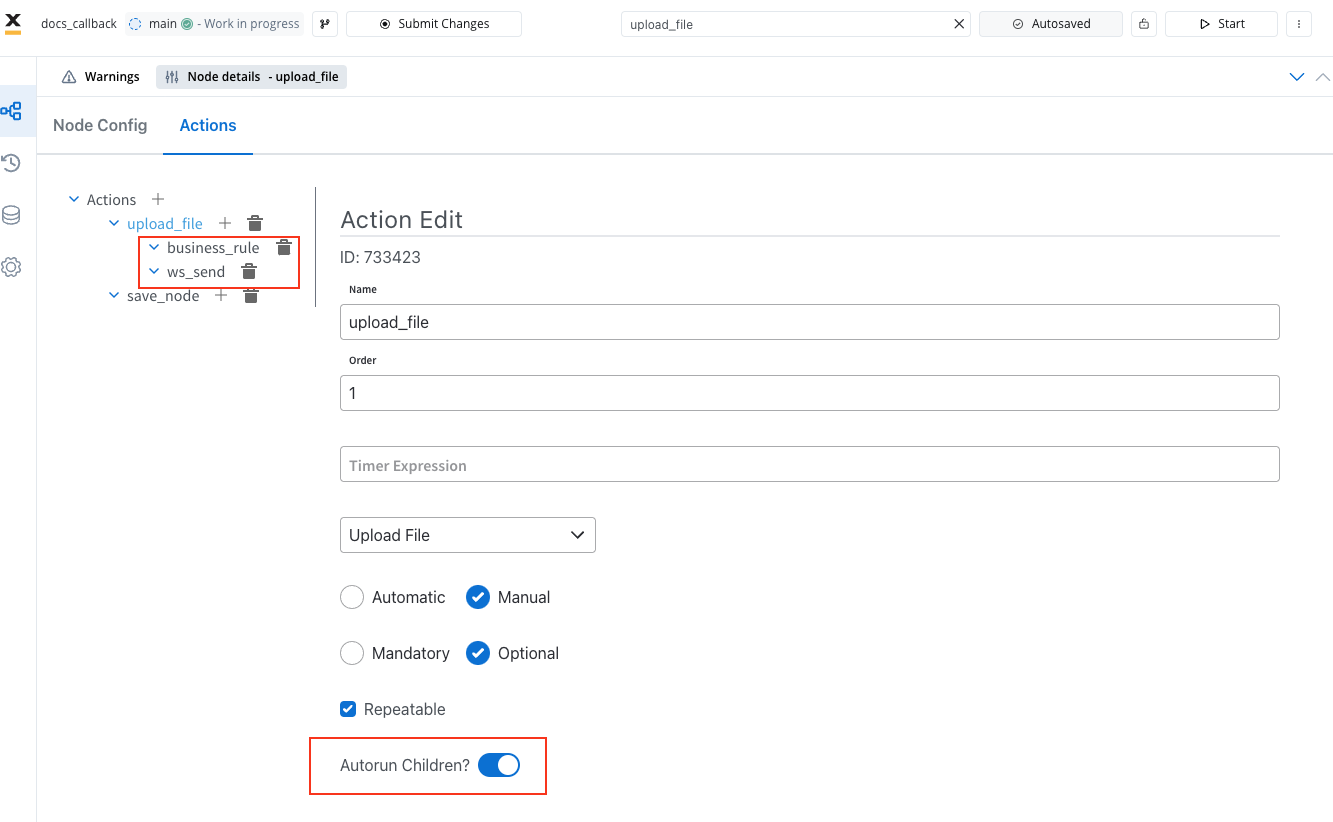
There are two ways actions could be linked together, so certain actions can be set to run immediately after others.
Certain actions can run immediately after another action by setting the `parentName` field on the action for callbacks. Callback actions are performed when a specific message is received by the Engine, indicated by the `callbacksForAction` header in the message. To run actions immediately after the parent action, set the `autoRunChildren` flag to true for the parent action.
### Child actions
A parent action has a flag `autoRunChildren`, set to `false` by default. When this flag is set to `true`, the child actions (the ones defined as mandatory and automatic) will be run immediately after the execution of the parent action is finalized.
### Callback actions
Child actions can be marked as callbacks to be run after a reply from an external system is received. They will need to be set when defining the interaction with the external system (the [Kafka send action](../node/message-send-received-task-node#configuring-a-message-send-task-node)).
For example, a callback function might be used to handle a user's interaction with a web page, such as upload a file. When the user performs the action, the callback function is executed, allowing the web application to respond appropriately.
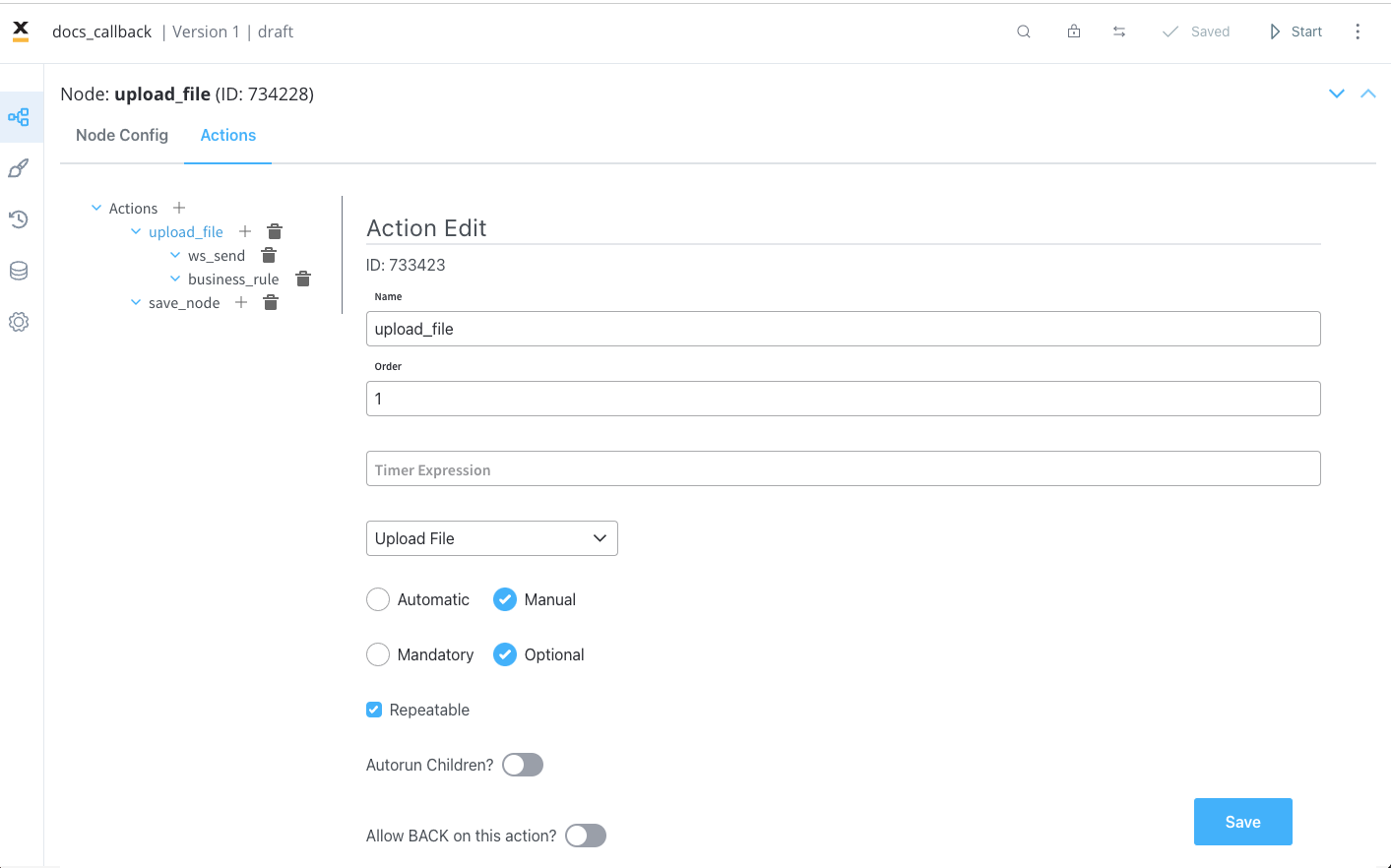
Child actions can be marked as callbacks to be run after a reply from an external system is received. They will need to be set when defining the interaction with the external system (the Kafka send action).
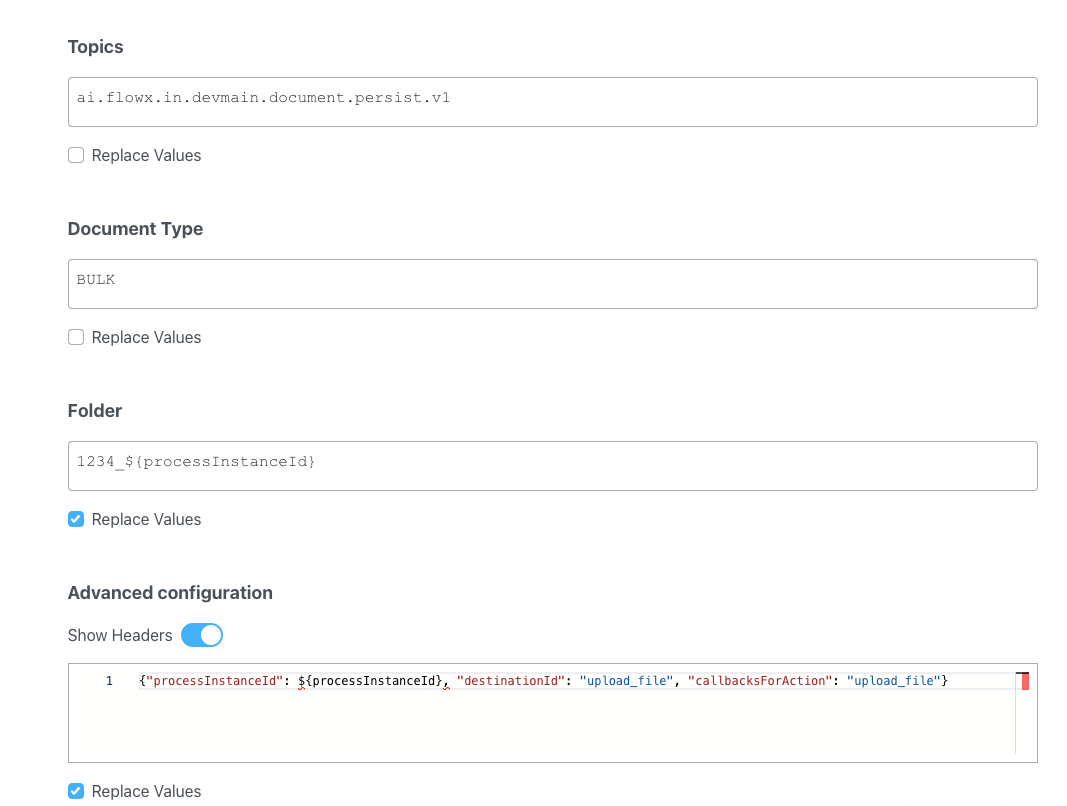
#### Example
Callback actions are added in the **Advanced configuration** tab, in the **header** param - `callbacksForAction`.
```js theme={"system"}
{"processInstanceId": ${processInstanceId}, "destinationId": "upload_file", "callbacksForAction": "upload_file"}
```
* `callbacksForAction` - the value of this key is a string that specifies a callback action associated with the "upload\_file" destination ID. This is part of an event-driven system (Kafka send action) where this callback will be called once the "upload\_file" action is completed.
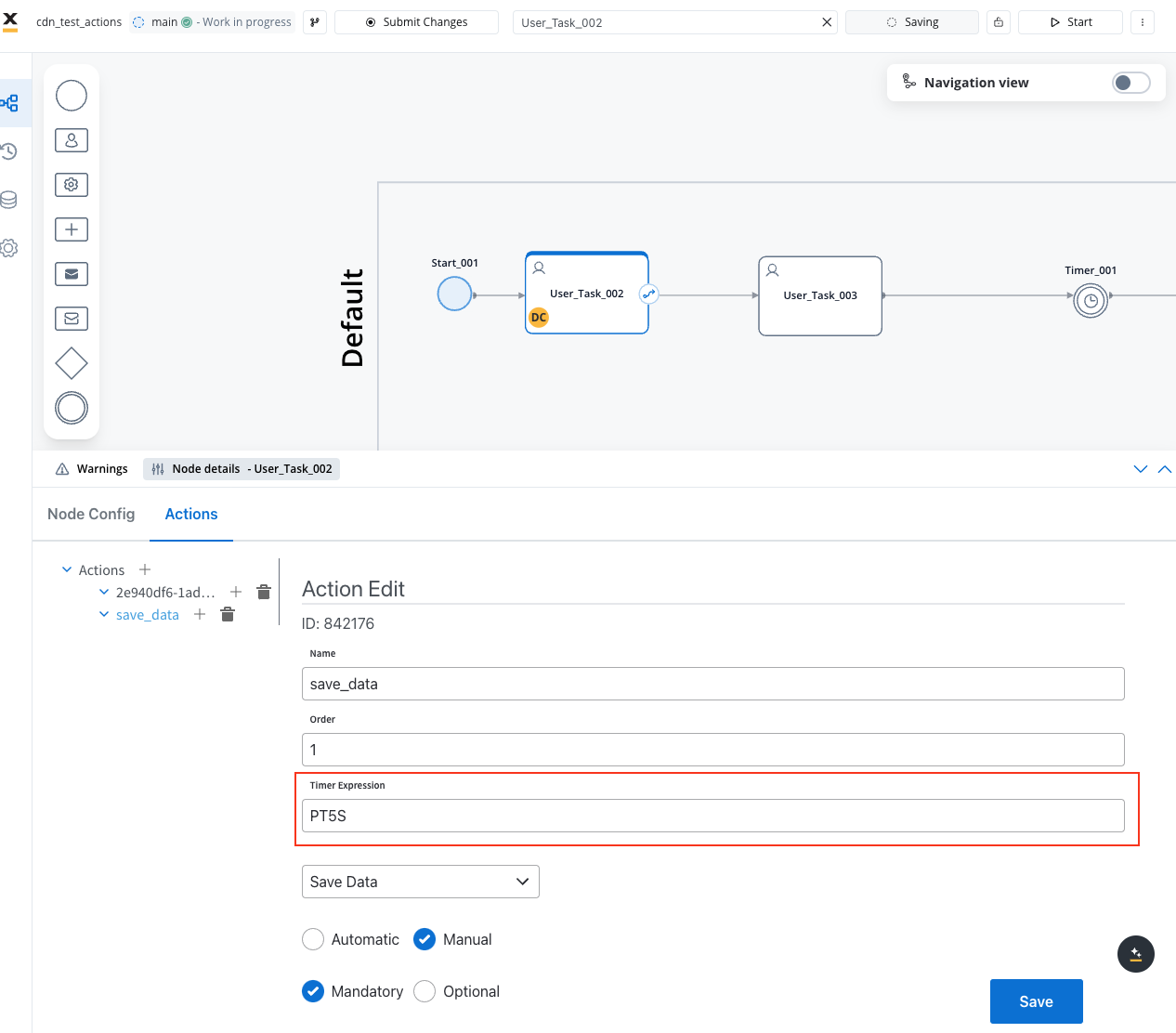
## Scheduling actions
A useful feature for actions is having the ability to set them to run at a future time. Actions can be configured to be run after a period of time, starting from the moment the token triggered them to be executed.
## Related topics
- [Adding an action to a node](/4.6.0/docs/flowx-designer/managing-a-process-flow/adding-an-action-to-a-node.md)
- [UI actions](/4.6.0/docs/building-blocks/ui-designer/ui-actions.md)
- [Collection prototype](/4.6.0/docs/building-blocks/ui-designer/ui-component-types/collection/collection_prototype.md)
- [Token](/4.6.0/docs/building-blocks/token.md)
- [Table](/4.6.0/docs/building-blocks/ui-designer/ui-component-types/table.md)