> ## Documentation Index
> Fetch the complete documentation index at: https://docs.flowx.ai/llms.txt
> Use this file to discover all available pages before exploring further.
# Getting URLs
> In certain scenarios, obtaining URLs pointing to uploaded documents for use in integrations is essential. This process involves adding a custom action to your workflow that requests URLs from the Documents plugin.
## Prerequisites
Before retrieving document URLs, ensure:
1. **Access Permissions**: Ensure that the user account has the necessary access rights.
2. **Kafka Configuration**:
* **Verify Kafka Setup**: Ensure proper configuration and accessibility of the Kafka messaging system.
* **Kafka Topics**: Understand the Kafka topics used for these operations.
3. **Document Types**: Prepare information for updating or deleting files:
* `types`: A list of document types.
## Configuring the getting URLs process

To obtain document URLs, follow these steps:
1. Create a process with the following nodes:
* [**Send Message Task (Kafka)**](../../../../building-blocks/node/message-send-received-task-node) - to send the get URLs request
* [**Receive Message Task (Kafka)**](../../../../building-blocks/node/message-send-received-task-node) - to receive the get URLs reply
* [**User Task**](../../../../building-blocks/node/user-task-node) node - where to perform the file upload action
* [**Start / End Milestone**](../../../../building-blocks/node/milestone-node) nodes - to [create a page](../../../../building-blocks/node/milestone-node#page)
2. Configure the **User Task** node:
#### Node Config
* **Data stream topics**: Add the topic where the response will be sent; in this example `ai.flowx.updates.document.html.persist.v1` and its key: `uploadedDocument`.

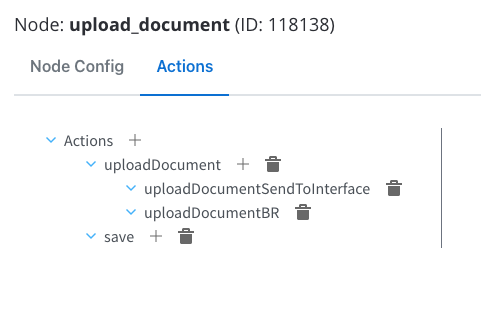
#### Actions
* Upload File action with two child actions:
* Business Rule
* Send Data to User Interface
* Save Data action
3. Configure the parameters for the **Upload Action**:
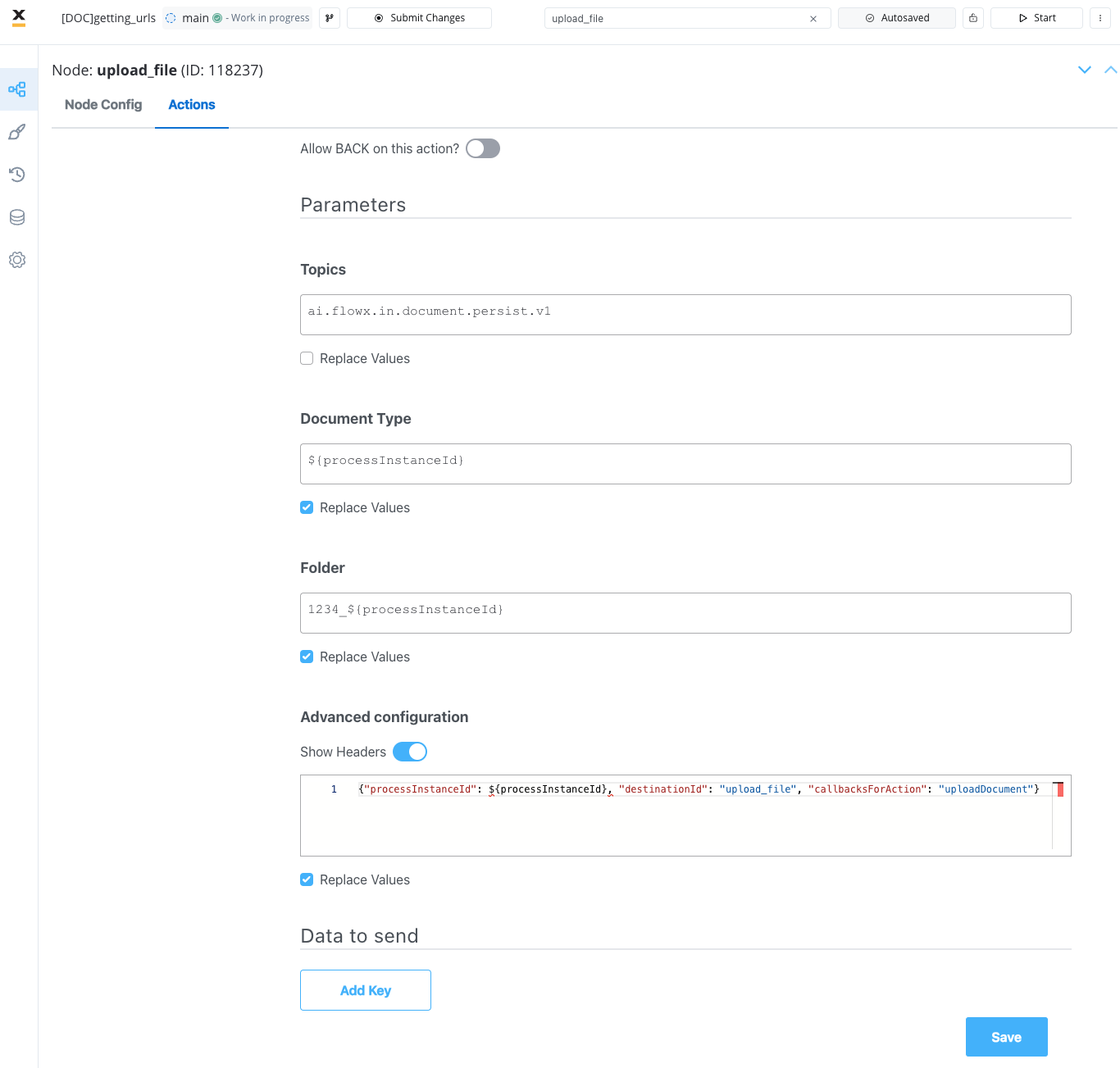
For more details on uploading a document and configuring the file upload child actions, refer to the following sections:
* [**Upload document**](./uploading-a-new-document)
* [**Upload action**](../../../../building-blocks/actions/upload-file-action)
4. Next, configure the **Message Event Send** node by adding a **Kafka Send Action** and specifying the `..in` [**Kafka topic**](../../../../../setup-guides/plugins-setup-guide/documents-plugin-setup#kafka-configuration) to send the request.
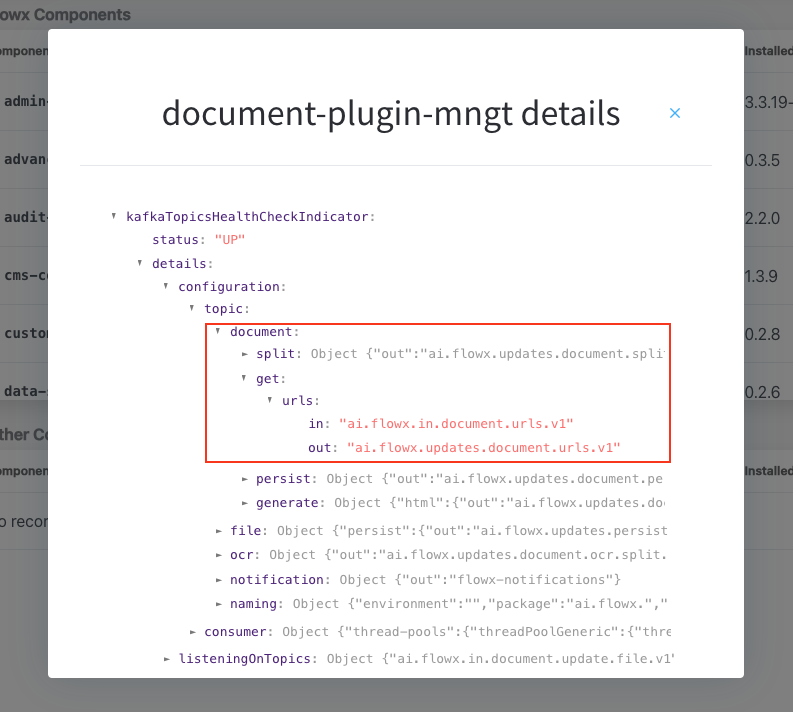
Identify defined topics in your environment:
* Navigate to **Platform Status > FlowX Components > document-plugin-mngt** and press the eye icon on the right side.
* In the details screen, expand the `KafkaTopicsHealthCheckIndicator` line and then **details → configuration → topic → document → get**. Here will find the in and out topics for getting URLs for documents.
5. Fill in the body of the request message for the action:

* `types`: A list of document types.
#### Message request example
Example of a message following the custom integration data model:
```json theme={"dark"}
{
"types": [
"119435",
"119435"
]
}
```
6. Configure the [**Receive Message Task (Kafka)**](../../../../building-blocks/node/message-send-received-task-node#configuring-a-message-receive-task-node) by adding the `..out` kafka topic on which the response will be sent.

## Receiving the reply

The response body should include the following values:
* **success**: A boolean indicating whether the document exists and the URL was generated successfully.
* **fullName**: The full name of the document file, including the directory path.
* **fileName**: The name of the document file without the extension.
* **fileExtension**: The extension of the document file.
* **url**: The full download URL for the document.
#### Message response example
```json theme={"dark"}
[
{
"success": true,
"fullName": "1234_119435/476_119435.pdf",
"fileName": "1234_119435/476_119435",
"fileExtension": "pdf",
"url": "http://minio:9000/flowx-dev-process-id-119435/1234_119435/476_119435.pdf?X-Amz-Algorithm=AWS4-HMAC-SHA256&X-Amz-Credential=Ha0wvtOE9gQ2NSzghEcs%2F20240205%2Fus-east-1%2Fs3%2Faws4_request&X-Amz-Date=20240205T114232Z&X-Amz-Expires=604800&X-Amz-SignedHeaders=host&X-Amz-Signature=da7db0c2a9b0fa5e43af458d5ade76dbe83ac1052ec4ccd738564ddb5ac9c6cd"
}
]
```
## Related topics
- [FlowX.AI 5.6.0 Release Notes](/release-notes/v5.x/v5.6.0-march-2026/v5.6.0-march-2026.md)
- [FlowX.AI 5.9.0 Release Notes](/release-notes/v5.x/v5.9.0-june-2026/v5.9.0-june-2026.md)
- [FlowX.AI 4.7.9 Release Notes](/release-notes/v4.x/v4.7.x-lts/v4.7.9-october-2025/v4.7.9-october-2025.md)
- [FlowX.AI 5.8.0 Release Notes](/release-notes/v5.x/v5.8.0-may-2026/v5.8.0-may-2026.md)
- [FlowX.AI 5.7.0 Release Notes](/release-notes/v5.x/v5.7.0-april-2026/v5.7.0-april-2026.md)