> ## Documentation Index
> Fetch the complete documentation index at: https://docs.flowx.ai/llms.txt
> Use this file to discover all available pages before exploring further.
# Creating a user interface
You can configure interfaces for the processes for both generated and custom screens.
## Creating a stepper structure
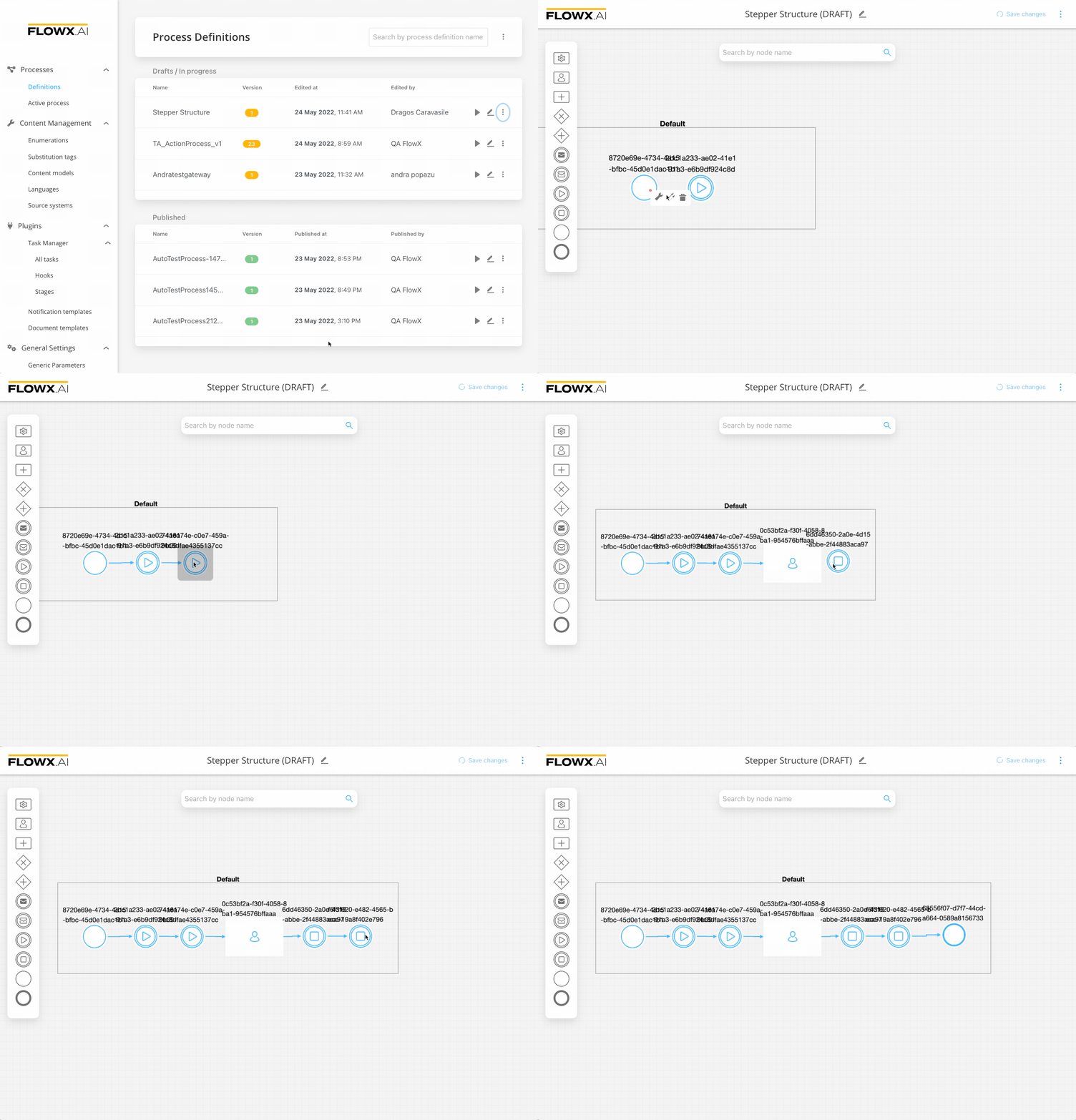
To create a stepper structure:
Go to **FlowX Designer** and go to the **Definitions** tab.
Click on the **New process** button, using the **breadcrumbs** from the top-right corner.
Add a **start node**.
Add a new **milestone** to describe all the user tasks.
Add a **user task** that will represent the first card of our step.
Add an **end milestone** for both the step and the stepper.
End your process with an **end node**.
## Configuring the UI
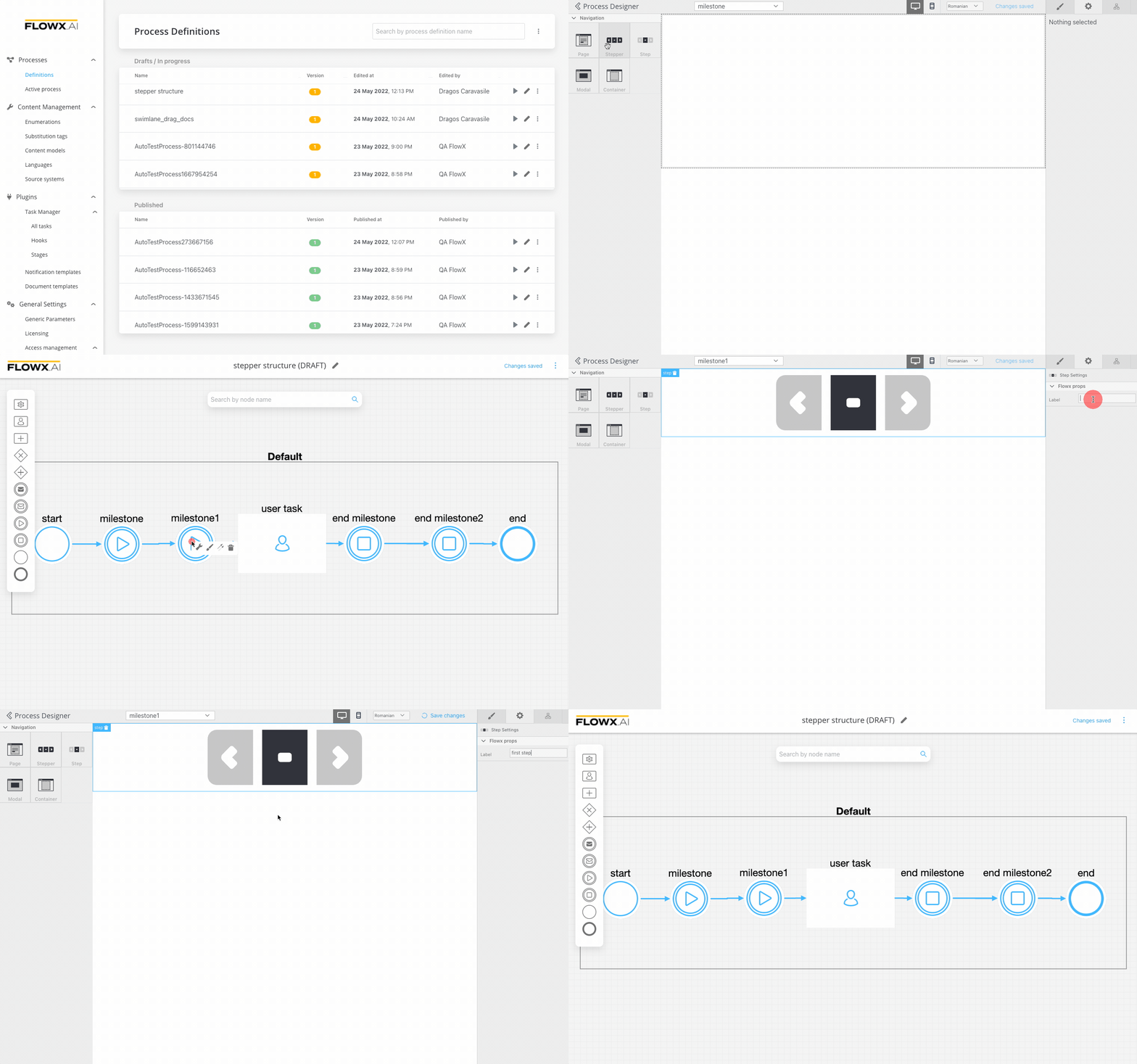
* All the UI elements are configured via the **UI designer**
* Starting from our basic process, we need to set the start of the stepper template config
* It is enough to open the drag and drop menu and add a Stepper template config for now
* For the first step, it will be useful to add also a label
* Clear the cache to test what we have until now
### Testing the flow that we have
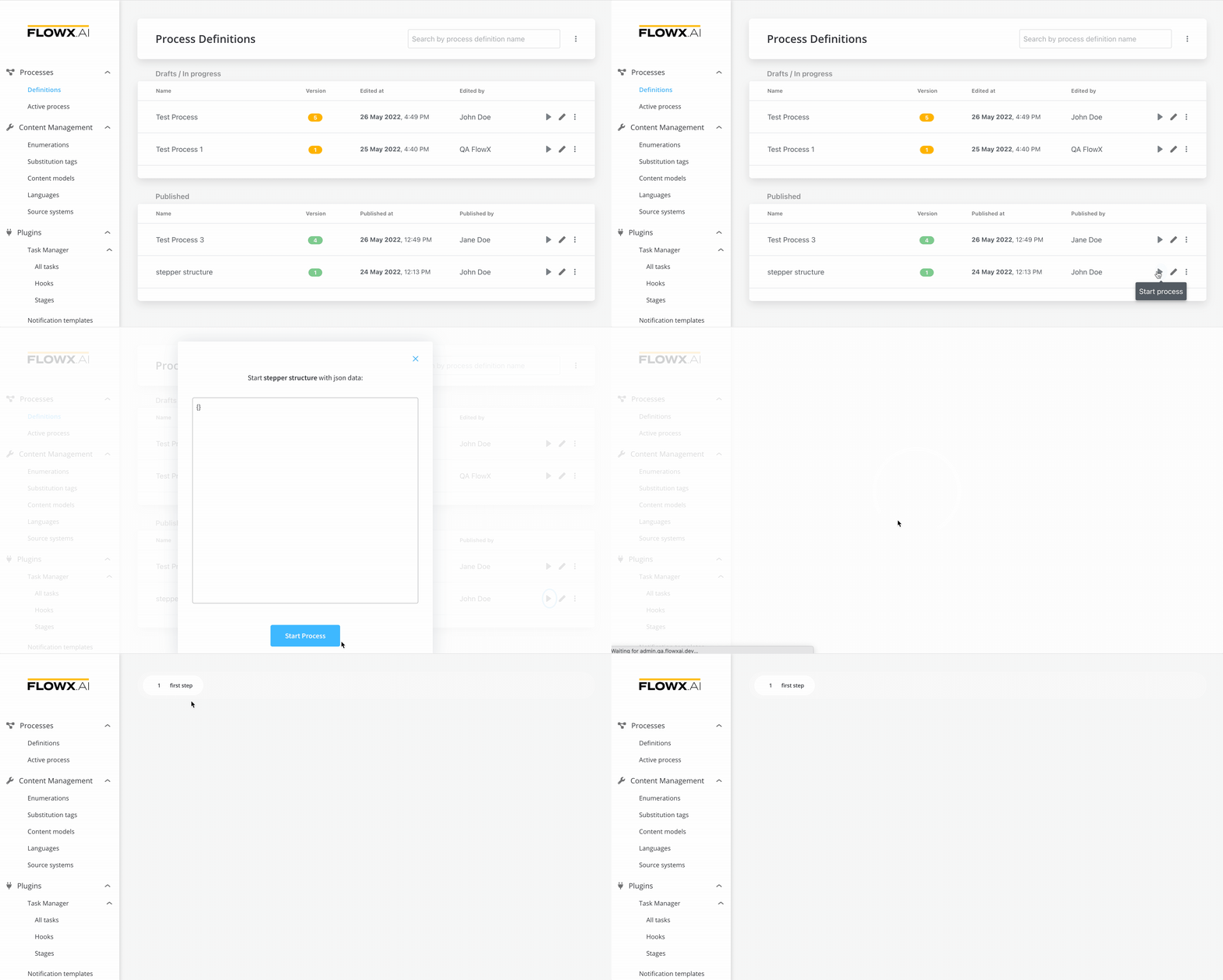
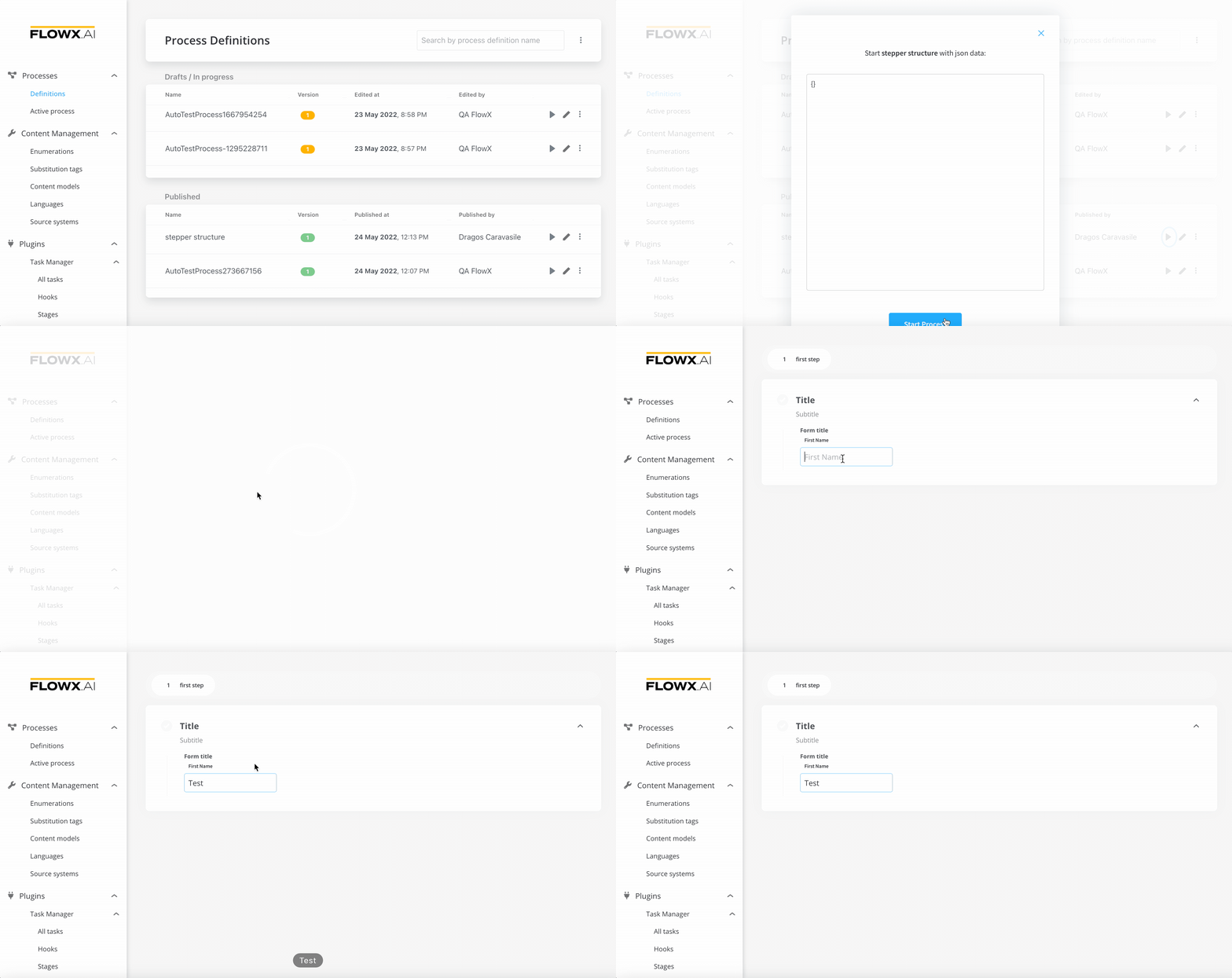
From the **process definition**, click the **Start process** button.
We will not pass any data to this process so an empty object `{}`.
Click **Start Process** and you will see the first step.
## Adding a card with one input
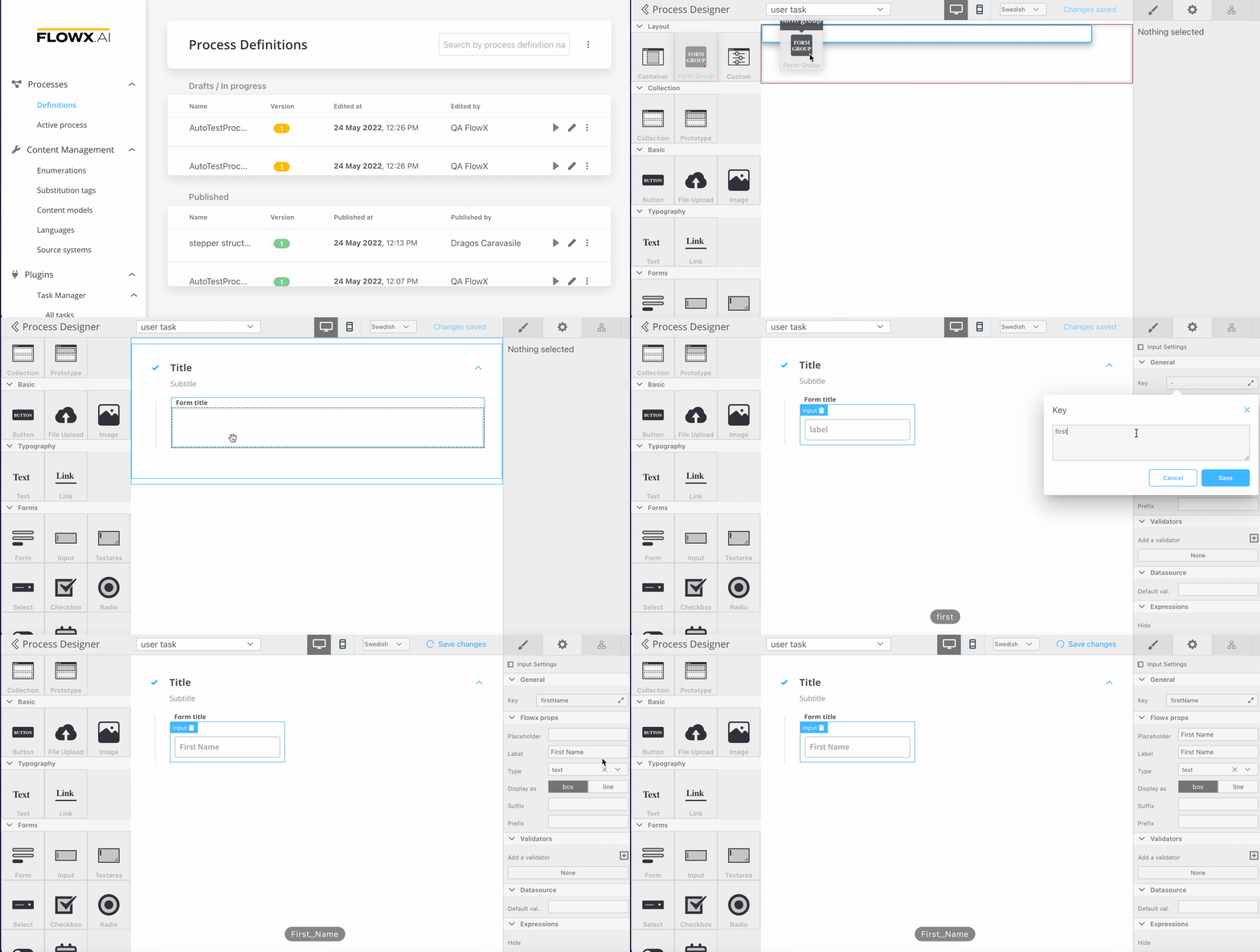
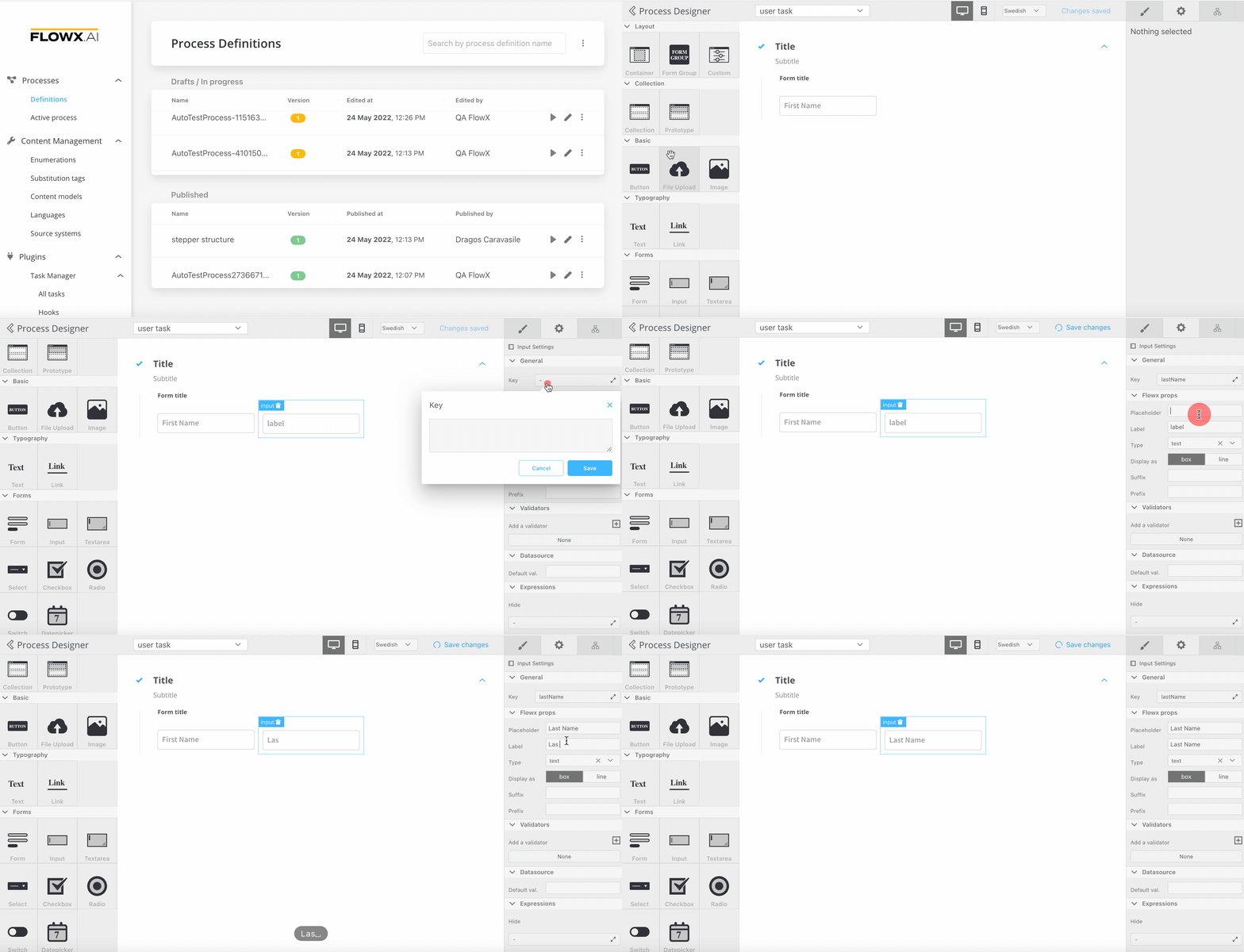
Go to your **user task** (this will represent the **first card** of your step).
Add a **`CARD`** (this is the UI card element).
Add a **Form** to it (Form elements group inputs together).
Add an **input** into the form:
* Configure the **key** - you can use the key to retrieve the data form saved on that element
* Configure a **label**
### Testing our first input
**Start** one more time **the process** that you just configured.
The **input** is displayed.
Test the **input**.
## Adding second input and a submit action
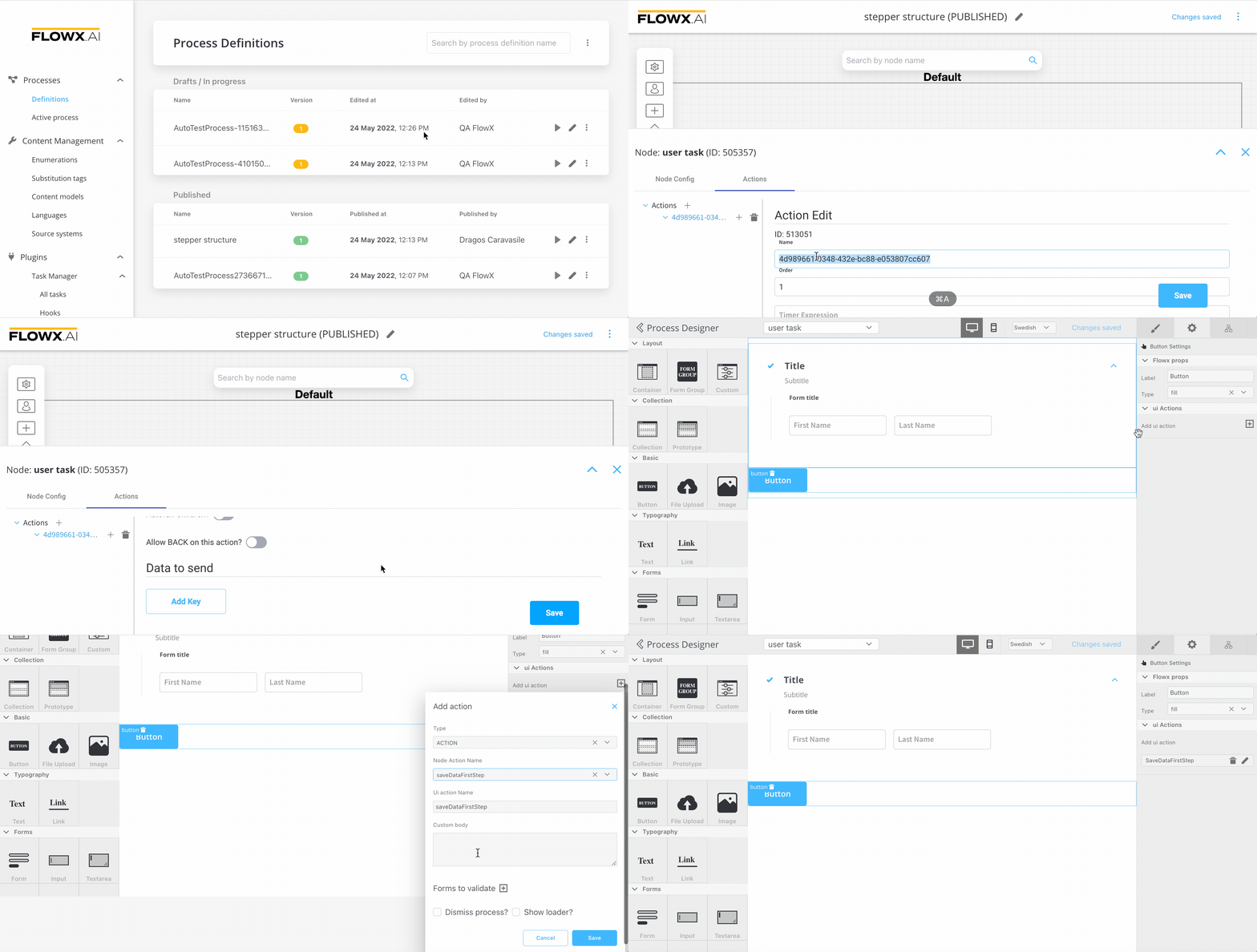
Go to your **user task** node and add a new input via **Node UI designer**.
Now go back to the process and add a new [**action rule**](../../building-blocks/actions/actions):
* first we need to configure the action - the action is called when the button is pressed - the action should be **Manual** (not automatic because it is triggered by a user)
* we need to keep in mind the name of the action - `saveDataFirstStep`
Go back to the Node UI designer and add a button (we need to link the **button** to the **action** based on the name).
## Related topics
- [FlowX.AI 4.6.0 Release Notes](/release-notes/v4.x/v4.6.x/v4.6.0-january-2025/v4.6.0-january-2025.md)
- [FlowX.AI 4.6.1 Release Notes](/release-notes/v4.x/v4.6.x/v4.6.1-february-2025/v4.6.1-february-2025.md)
- [FlowX.AI 5.3.0 Release Notes](/release-notes/v5.x/v5.3.0-december-2025/v5.3.0-december-2025.md)
- [FlowX.AI 5.1.0 Release Notes](/release-notes/v5.x/v5.1.x-lts/v5.1.0-october-2025/v5.1.0-october-2025.md)
- [FlowX.AI 5.4.0 Release Notes](/release-notes/v5.x/v5.4.0-january-2026/v5.4.0-january-2026.md)