> ## Documentation Index
> Fetch the complete documentation index at: https://docs.flowx.ai/llms.txt
> Use this file to discover all available pages before exploring further.
# Process instance
> A process instance is a specific execution of a business process that is defined on the FlowX.AI platform. Once a process definition is added to the platform, it can be executed, monitored, and optimized by creating an instance of the definition.
## Overview
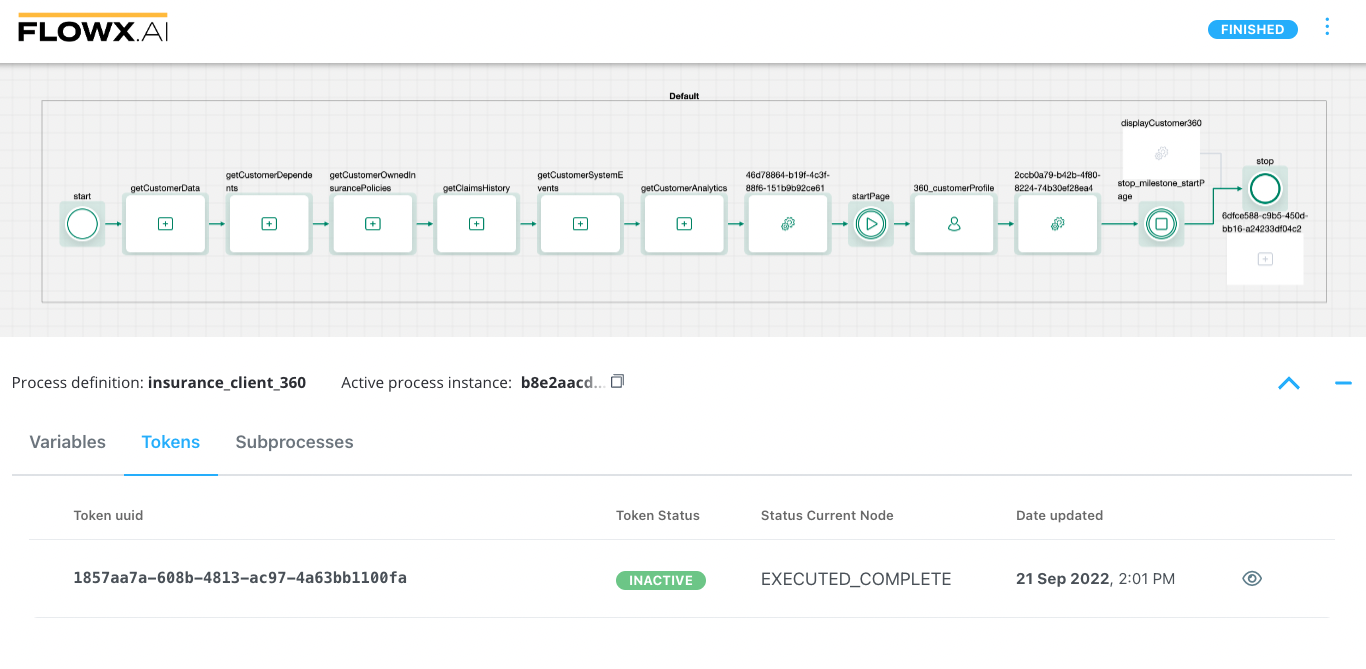
Once the desired processes are defined in the platform, they are ready to be used. Each time a process needs to be used, for example each time a customer wants to request, for example, a new credit card, a new instance of the specified process definition is started in the platform. Think of the process definition as a blueprint for a house, and of the process instance as each house of that type being built.
The **FlowX Engine** is responsible for executing the steps in the process definition and handling all the business logic. The token represents the current position in the process and moves from one node to the next based on the sequences and rules defined in the exclusive gateways. In the case of parallel gateways, child tokens are created and eventually merged back into the parent token.
Kafka events are used for communication between FLOWX.AI components such as the engine and integrations/plugins. Each event type is associated with a Kafka topic to track and orchestrate the messages sent on Kafka. The engine updates the UI by sending messages through sockets.
## Checking the Process Status
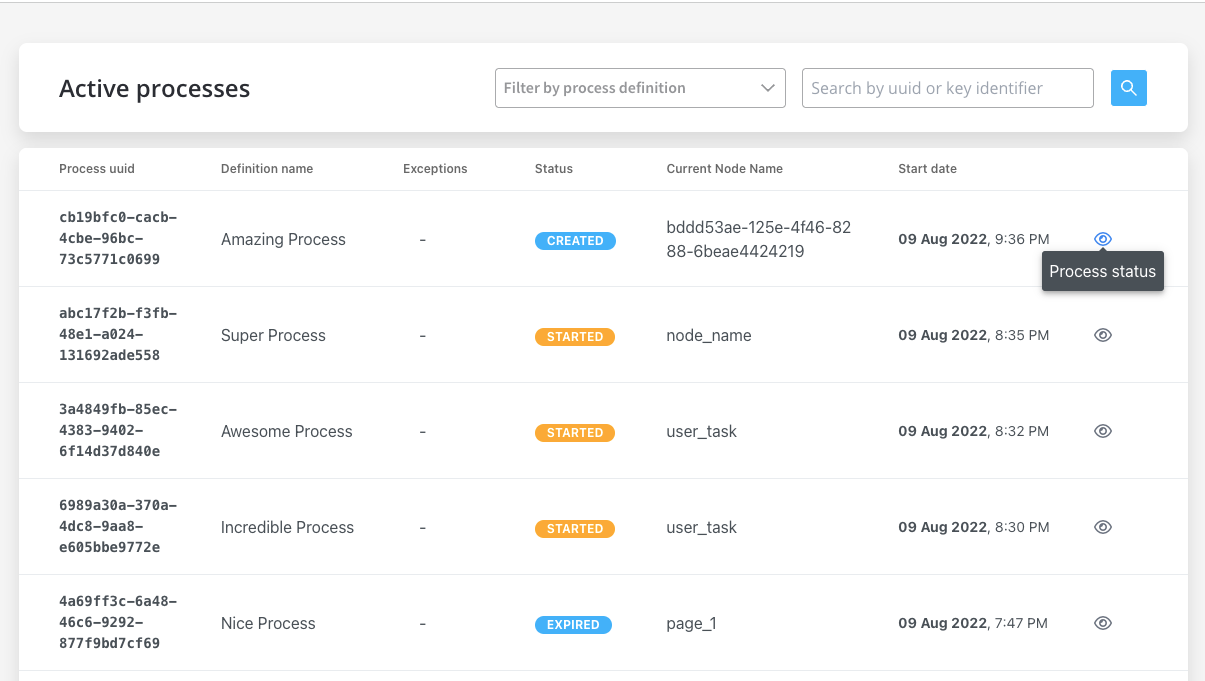
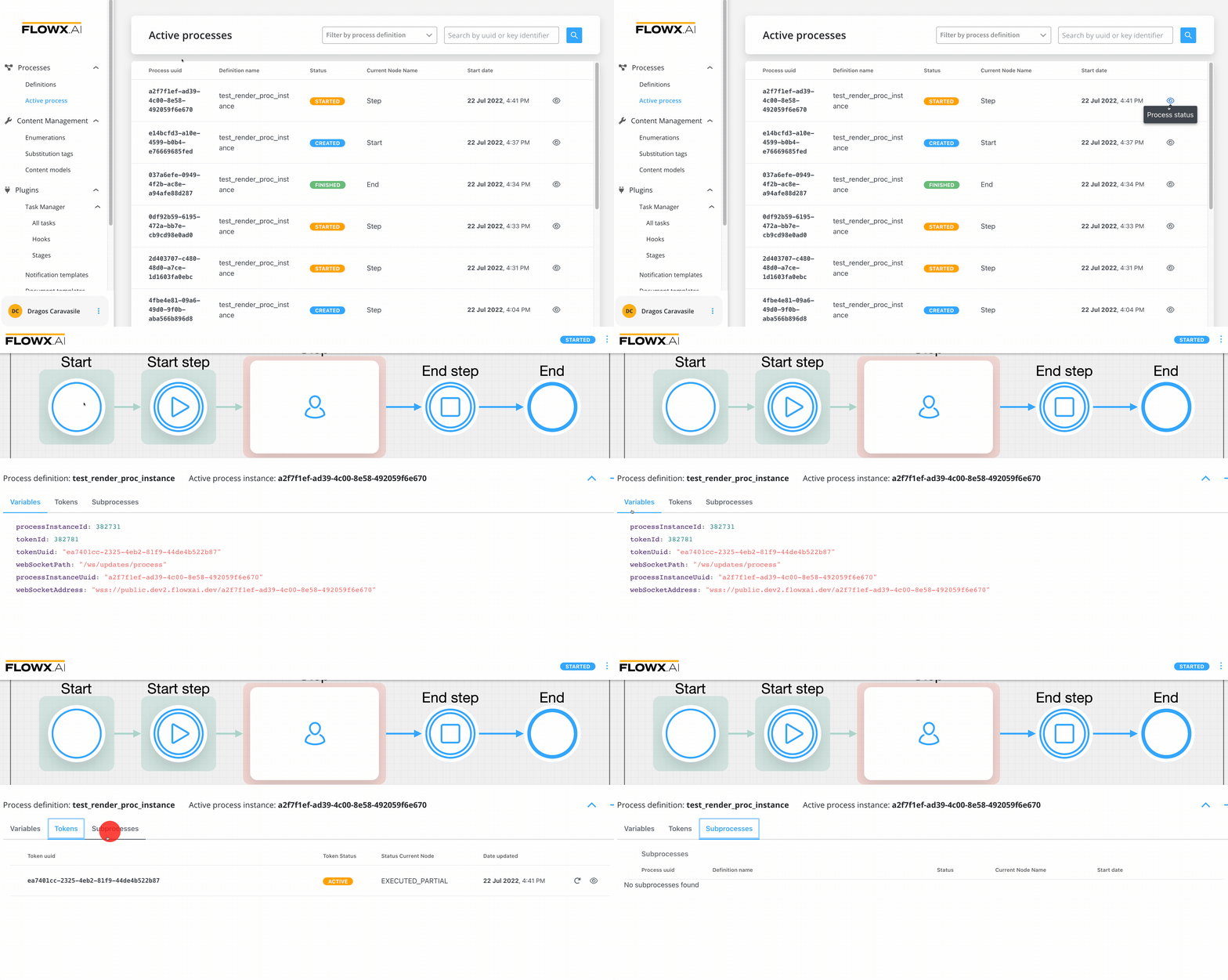
To check the status of a process or troubleshoot a failed process, follow these steps:
1. Open **FLOWX Designer**.
2. Go to **Processes → Active Process → Process instances**.
3. Click **Process status** button.
## Understanding the Process Status Data
Understanding the various elements within process status data is crucial. Here's what each component entails:
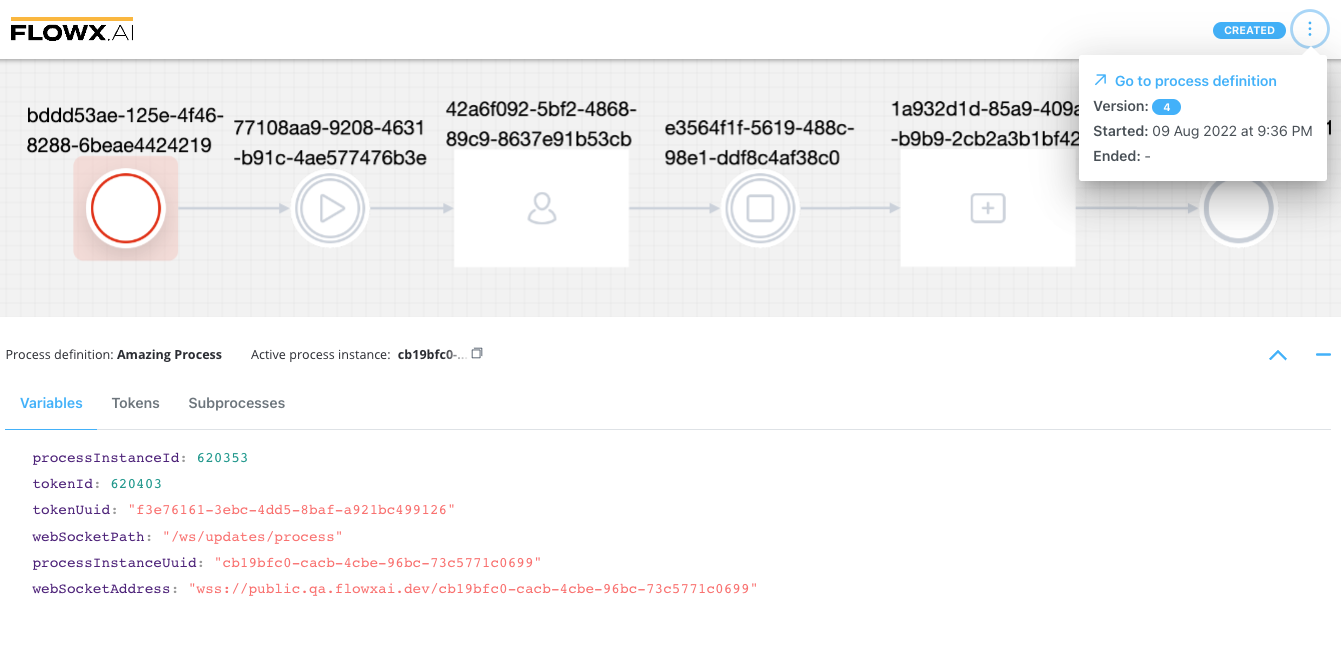
* The **Status** field indicates the state of the process instance, offering distinct values:
| Status | Indicates the state of the process instance. Offers distinct values: |
| -------------- | ------------------------------------------------------------------------------------------ |
| **CREATED** | Visible if there's an error during process creation. Displays as "Started" without errors. |
| **STARTED** | Indicates the current running status of the process. |
| **DISMISSED** | Available for processes with subprocesses, seen when a user halts a subprocess. |
| **EXPIRED** | Shows up when a defined "expiryTime" in the process definition passes. |
| **FINISHED** | Signifies successful completion of the process execution. |
| **TERMINATED** | Implies a termination request has been sent to the instance. |
| **ON HOLD** | Marks a state where the process is no longer editable. |
| **FAILED** | Occurs if a CronJob triggers at a specific hour, and the instance isn't finished by then. |
* **Active process instance** - the UUID of the process instance, with a copy action available
* **Variables** - displayed as an expanded JSON
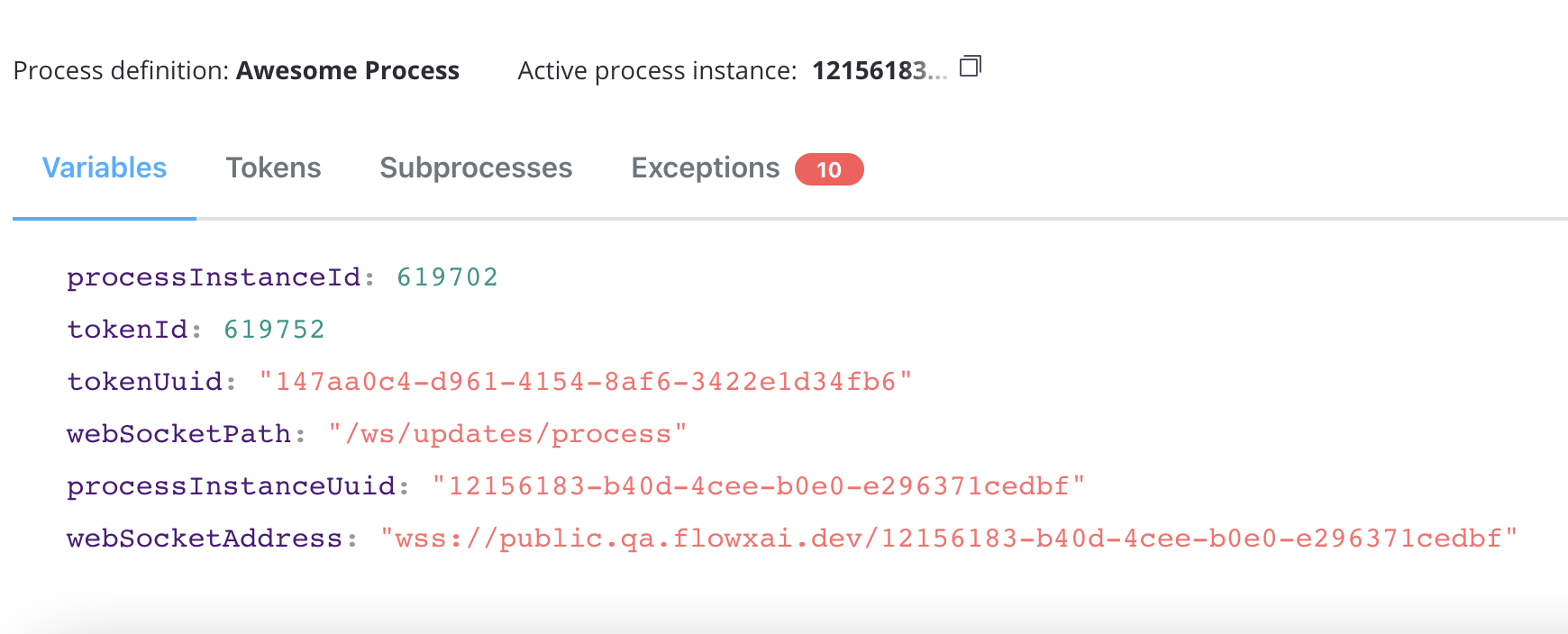
* **Tokens** - a token represents the state within the process instance and describe the current position in the process flow
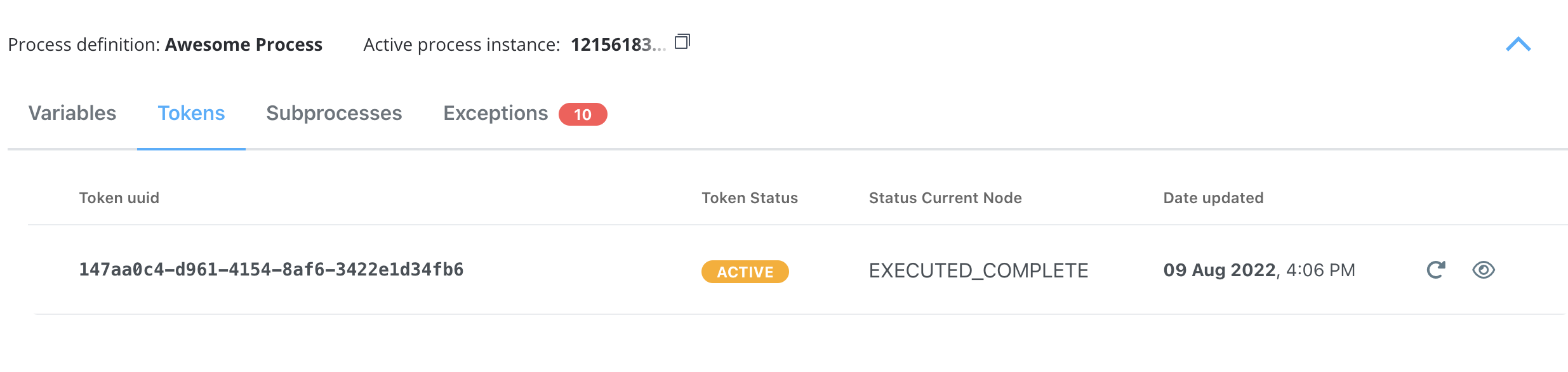
For more information about token status details, [here](../token).
* **Subprocesses** - displayed only if the current process instance generated a [subprocess](./subprocess) instance
* **Exceptions** - errors that let you know where the process is blocked, with a direct link to the node where the process is breaking for easy editing
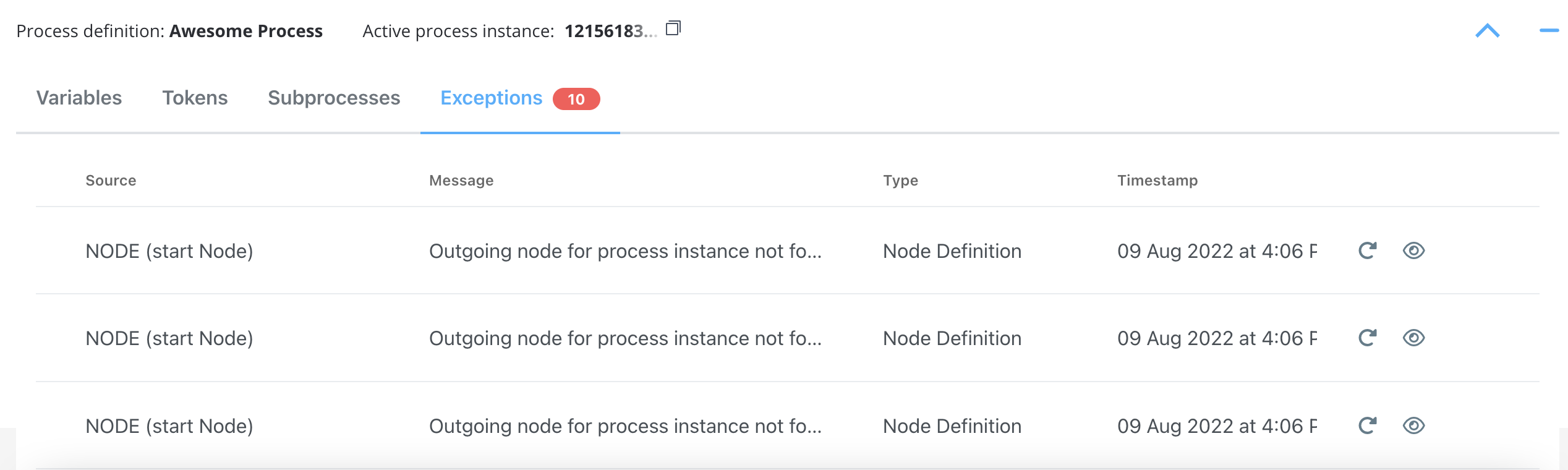
For more information on token status details and exceptions, check the following section:
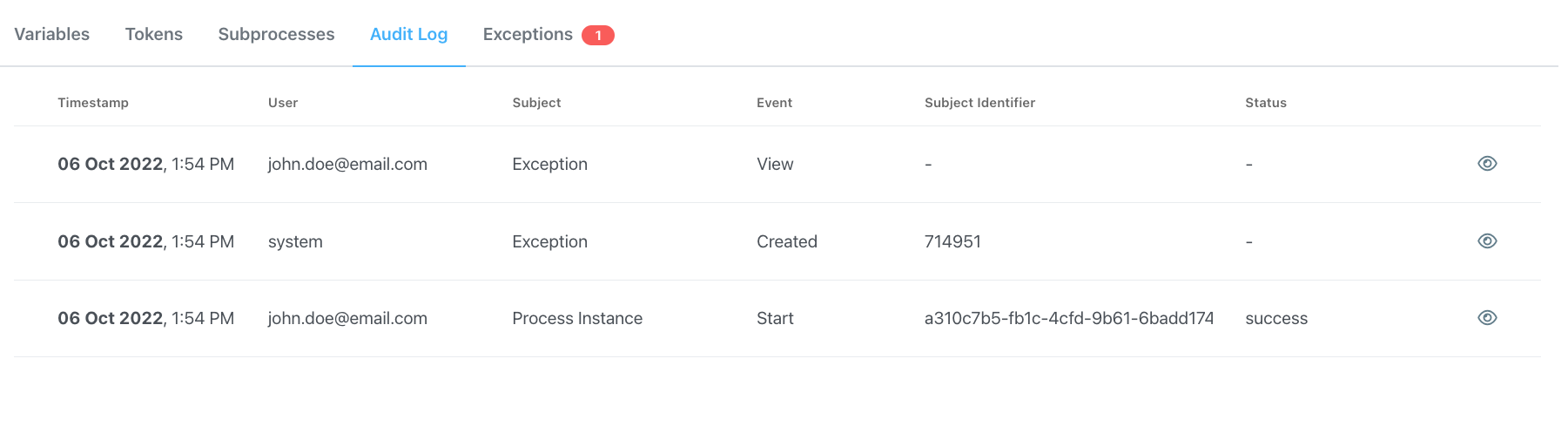
* **Audit Log** - the audit log displays events registered for process instances, tokens, tasks, and exceptions in reverse chronological order by timestamp
### Process menu
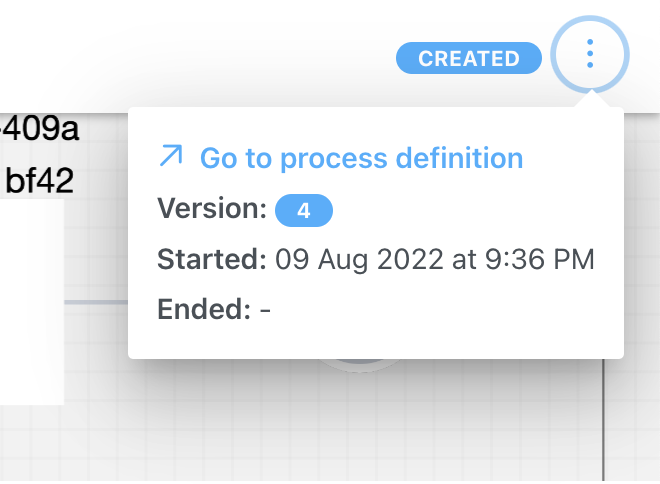
In the breadcrumb menu (top-right corner), you can access the following:
* **Go to process definition** - opens the process for editing
* **Version** - version of the process definition
* **Started** - timestamp for when the process instance started
* **Ended** - timestamp for when the process instance ended
### Color coding
In the **Process Status** view, some nodes are highlighted with different colors to easily identify any failures:
* **Green** - nodes highlighted with green mark the nodes passed by the [token](../token)
* **Red** - the node highlighted with red marks the node where the token is stuck (process failure)
## Starting a new process instance
To start a new process instance, a request must be made to the [FlowX Engine](../../platform-deep-dive/core-components/flowx-engine). This is handled by the web/mobile application. The current user must have the appropriate role/permission to start a new process instance.
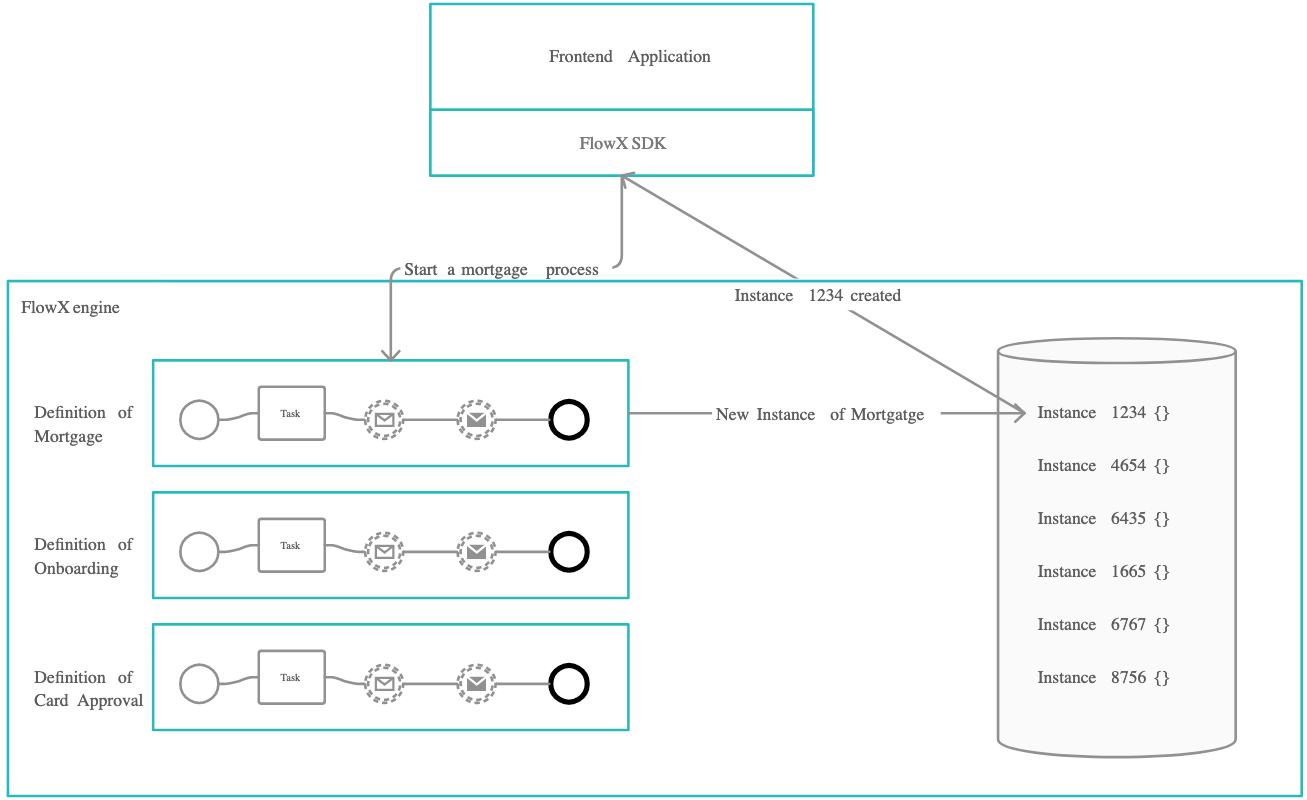
To be able to start a new process instance, the current user needs to have the appropriate role/permissions:
When starting a new process instance, we can also set it to [inherit some values from a previous process instance](../../platform-deep-dive/core-components/flowx-engine#orchestration).
## Troubleshooting possible errors
If everything is configured correctly, the new process instance should be visible in the UI and added to the database. However, if you encounter issues, here are some common error messages and their possible solutions:
Possible errors include:
| Error Message | Description |
| ------------------------------------------------------------------ | ------------------------------------------------------------------------------------------------ |
| *"Process definition not found."* | The process definition with the requested name was not set as published. |
| *"Start node for process definition not found."* | The start node was not properly configured. |
| *"Multiple start nodes found, but start condition not specified."* | Multiple start nodes were defined, but the start condition to choose the start node was not set. |
| *"Some mandatory params are missing."* | Some parameters set as mandatory were not included in the start request. |
| `HTTP code 403 - Forbidden` | The current user does not have the process access role for starting that process. |
| `HTTP code 401 - Unauthorized` | The current user is not logged in. |
## Exceptions
Exceptions are types of errors meant to help you debug a failure in the execution of a process.
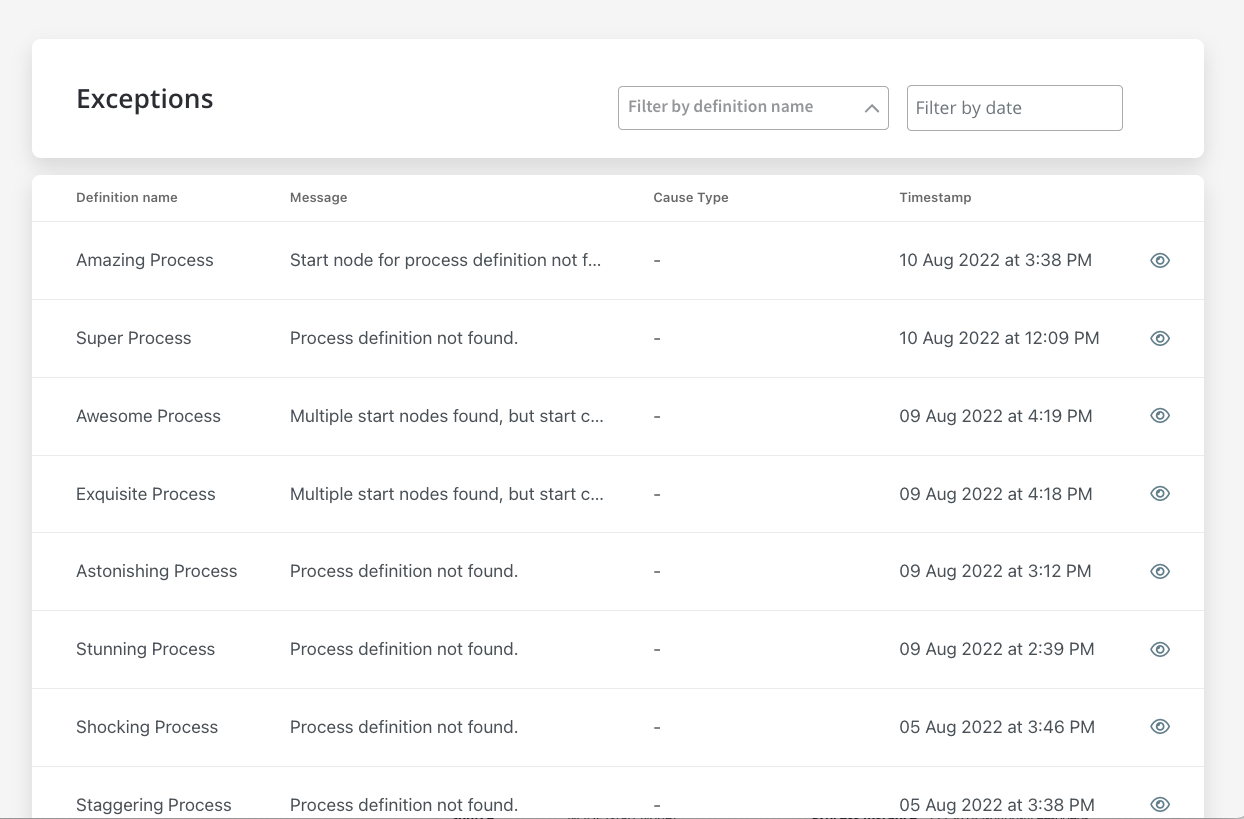
Exceptions can be accessed from multiple places:
* **Failed process start** tab from **Active process** menu in FLOWX Designer
* **Process Status** view, accessible from **Process instances** list in FLOWX Designer
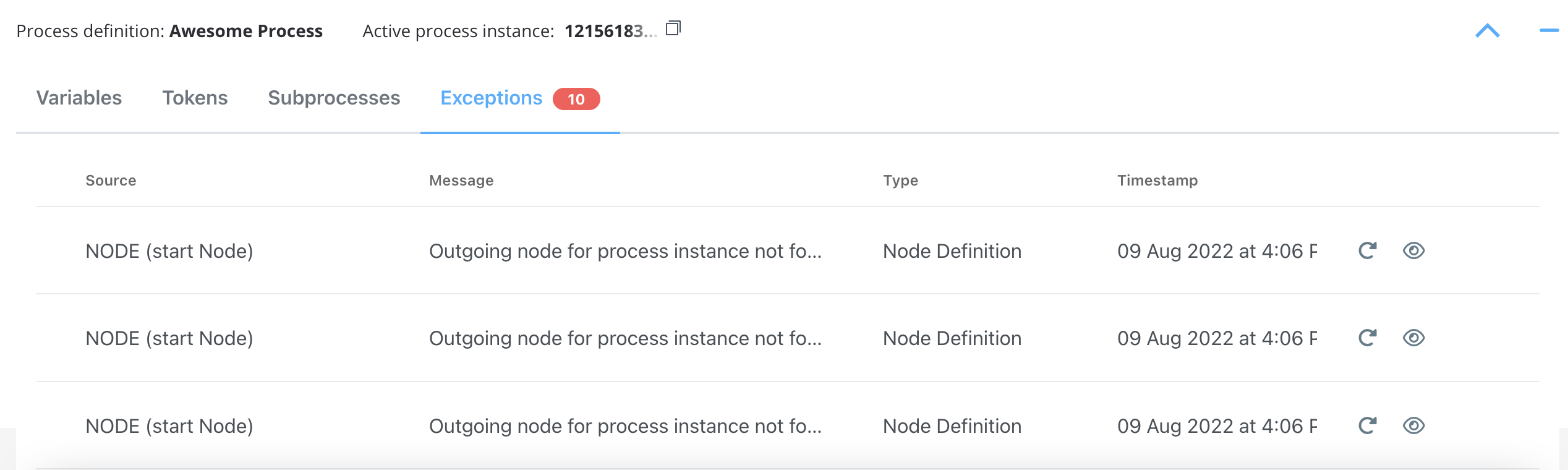
:::caution
If you open a process instance and it does not contain exceptions, the **Exceptions** tab will not be displayed.
:::
### Exceptions data
When you click **view** button, a detailed exception will be displayed.
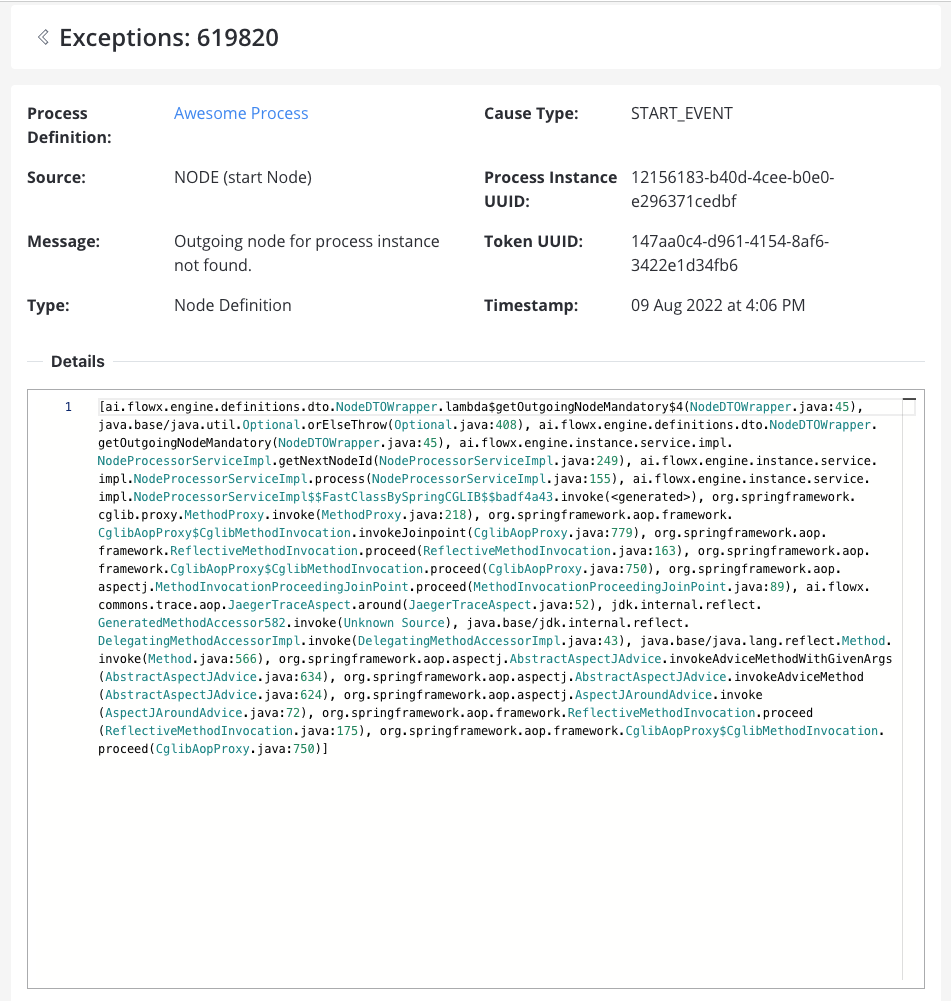
* **Process Definition** - the process where the exception was thrown
* **Source** - the source of the exception (see the possible type of [sources](#possible-sources) below)
* **Message** - a hint type of message to help you understand what's wrong with your process
* **Type** - exception type
* **Cause Type** - cause type (or the name of the node)
* **Process Instance UUID** - process instance unique identifier
* **Token UUID** - token unique identifier
* **Timestamp** - default format: `yyyy-MM-dd'T'HH:mm:ss.SSSZ`
* **Details** - stack trace (a **stack trace** is a list of the method calls that the process was in the middle of when an **Exception** was thrown)
#### Possible sources:
### Exceptions type
Based on the exception type, there are multiple causes that could make a process fail. Here are some examples:
| Type | Cause |
| ------------------------ | --------------------------------------------------------------------------------------------------------------------------------------------------------------------------------------------------------------- |
| Business Rule Evaluation | when executing action rules fails for any reason |
| Condition Evaluation | when executing action conditions |
| Engine | when the connection with the database fails
when the connection with [Redis](../../platform-overview/frameworks-and-standards/event-driven-architecture-frameworks/intro-to-redis) fails
|
| Definition | misconfigurations: process def name, subprocess parent process id value, start node condition missing |
| Node | when an outgoing node can’t be found (missing sequence etc) |
| Gateway Evaluation | when the token can’t pass a gateway for any reason, possible causes:
- missing sequence/node
- failed node rule
|
| Subprocess | exceptions will be saved for them just like for any other process, parent process ID will also be saved (we can use this to link them when displaying exceptions) |
## Related topics
- [FlowX.AI 5.9.0 Release Notes](/release-notes/v5.x/v5.9.0-june-2026/v5.9.0-june-2026.md)
- [Prerequisites](/release-notes/v5.x/v5.1.x-lts/v5.1.0-october-2025/migrating-from-v4.7.x-to-5.1/prerequisites.md)
- [Post-deployment configuration](/release-notes/v5.x/v5.1.x-lts/v5.1.0-october-2025/migrating-from-v4.7.x-to-5.1/configuration-and-migration.md)
- [FlowX.AI 5.3.0 Release Notes](/release-notes/v5.x/v5.3.0-december-2025/v5.3.0-december-2025.md)
- [Deployment guidelines v5.9.2](/release-notes/v5.x/v5.9.2-july-2026/deployment-guidelines-v5.9.2.md)